Flags & Text Highlights
See and signal exactly what still needs attention. Flag the items that need review, highlight the words that need editing, and never lose track of a hand-off — at the document, wizard, and item level.
Flags
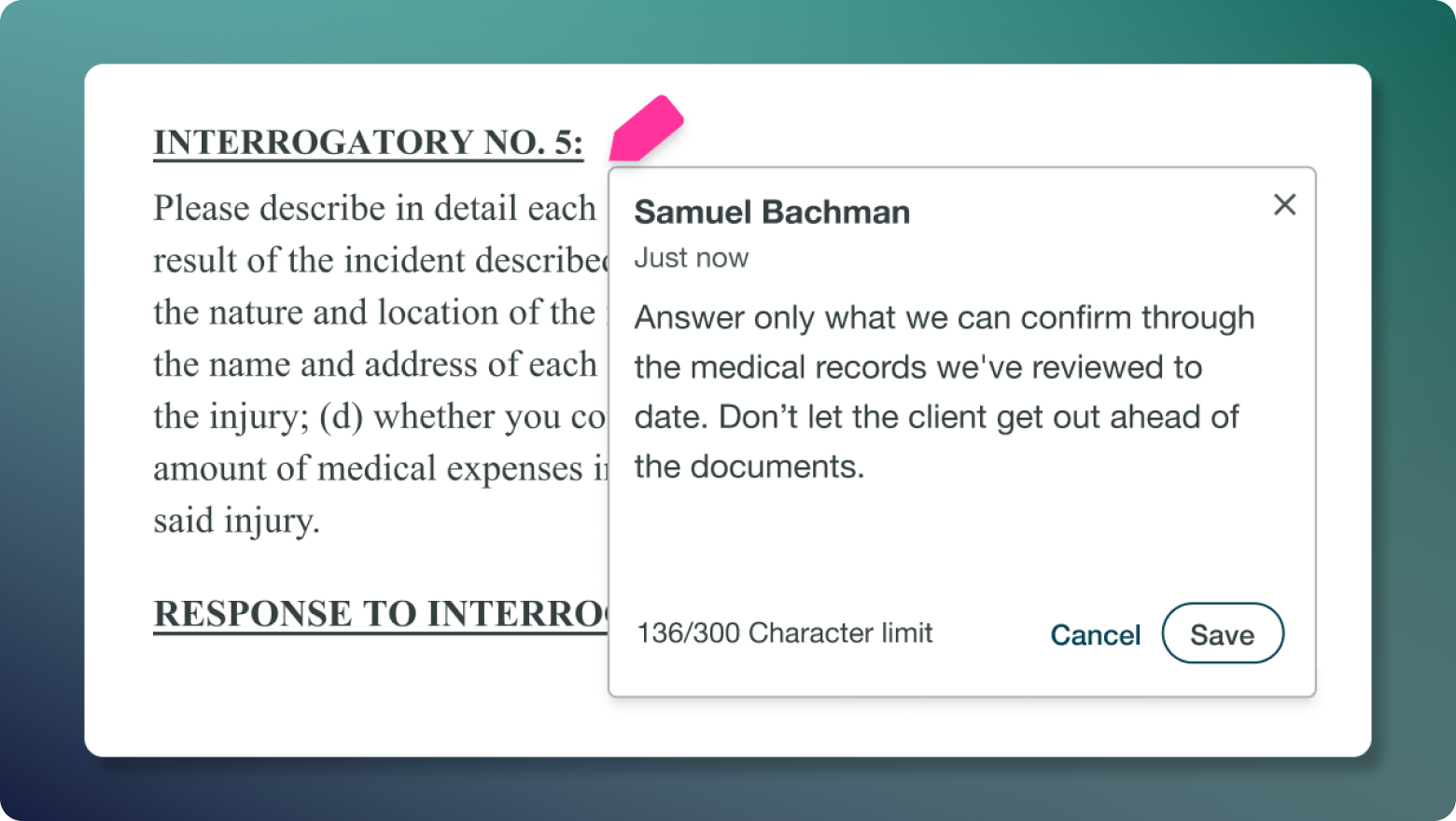
Mark any individual request or interrogatory that needs a second look, leave an optional note, and resolve it when it's done. Flags surface in the response wizard, in the wizard's bubble nav, and on the document list — so nothing slips between the cracks during review or hand-off.
- Flag any item across RFPs, RFAs, ROGs, SROGs, and FROGs — visible on the item itself and in the wizard's bubble nav.
- The document list shows a tiered icon for documents with one, two, or three-or-more open flags, so you can spot work that still needs attention at a glance.
- Add an optional note, resolve, reactivate, or delete — every action is captured with who and when.
Text Highlights
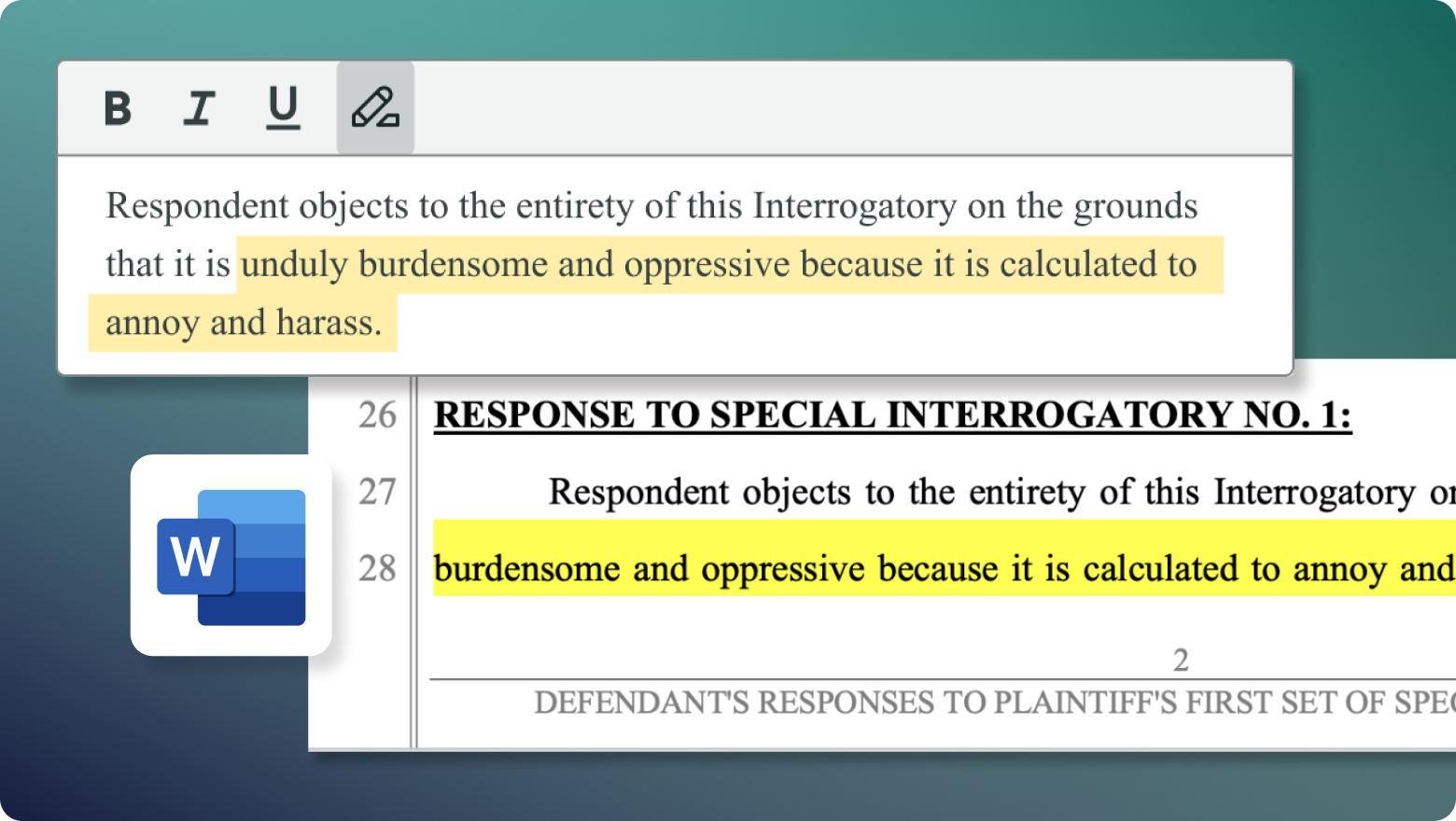
Highlight selected text inside the text editor with one click. Highlighting is available in the Library and across both the objection and response editors while responding — and it carries through to the output Word document, so reviewers know exactly what still needs attention.
- Highlight from the toolbar in the Library editor and in the objection and response editors within the Response Workflow — wherever you draft, you can highlight.
- Highlights persist into the generated Word Documen, giving downstream reviewers visible signposts without manual reformatting.
- Yellow highlighting supported now, with the capability to expand color and styling options over time.