Legal Document Formatting Guidelines Every Team Should Know
1. Page Layout
Before document creation, a solid page layout gives your document a clean starting point and helps it line up with the legal standards most courts expect.
Standard Page Size
Most filings use 8.5 x 11 inches, which remains the default paper size across U.S. courts. Some courts allow A4, though most still expect the standard size. So, unless the rules say otherwise, stick with that for legal document templates and everyday filings.
A few older forms still reference legal size (8.5 x 14 inches), but modern templates and electronic filing systems typically expect the standard 8.5 x 11 layout. Sticking with this size keeps your documents consistent with what courts review every day.
Recommended Margins
One-inch margins on all sides are widely accepted. A few courts ask for a slightly larger left margin to allow space for binding, so a quick check of local rules is always worthwhile.
Line Spacing Rules
Courts often expect double line spacing in the main text to improve readability. Single spacing may be used for block quotes, footnotes, and tables, depending on the requirements.
Header and Footer Placement
Page numbers usually sit in the bottom center or bottom right. Some courts also want the case details in the header on every page, so it’s worth double-checking their court standards and formatting rules before you file.
Example
A compliant layout might include:
- 8.5″ x 11″ page
- 1″ margins
- Double line spacing
- Case caption in the header
- Page number in the bottom-right corner
Layouts following these basics usually meet filing expectations, but a quick look at your jurisdiction’s rules helps make sure that everything lines up.
2. Font and Text Standards
Clear text guidelines help your filings look consistent and easy to read, no matter the court or agency. The way you handle font choice, font size, and basic formatting styles plays a big role in keeping the document polished.
Approved Fonts for Legal Documents
- Traditional serif options like the Century Schoolbook and Times New Roman font remain widely accepted
- Many courts now permit sans-serif fonts such as Arial or Calibri for other legal documents
- Pick one font family and use it throughout the document
Font Size Rules for Body Text and Headings
- Body text usually appears in a 12-point font size
- Headings often use 12–14 points, depending on hierarchy
- Keep the same sizing structure across sections for consistency
Bold, Italic, and Underline Usage
- Use bold to emphasize key points sparingly
- Italics work well for case names, citations, and defined terms
- Underlining appears less often but remains acceptable if required by local rules
Rules for Capitalization
- Capitalize defined terms consistently
- Follow standard legal writing conventions for titles, sections, and parties
- Avoid over-capitalizing everyday words that don’t carry legal significance
These standards keep your formatting clean, predictable, and aligned with what courts expect.
3. Headings and Subheadings
Strong headings keep longer documents organized and easier to read. When the structure is clear, readers can follow the flow of information without effort. This is something that matters a lot in professional documents.
Use a clear document title at the top, then break the content into logical sections with consistent formatting. Headings should signal major topics, while subheadings divide those topics into smaller, focused points that improve readability.
A simple structure looks like this:
- Main heading (H1) – Defines the broad topic
- Section heading (H2) – Introduces major sections
- Subheading (H3) – Breaks down details within each section
Keep styles consistent throughout: the same font, size, spacing, and alignment. This gives your document a clean and predictable layout that helps readers move through the content without confusion.
4. Paragraph Formatting
Clear paragraph rules go a long way toward keeping documents clean and easy to review. That’s why many teams build these settings into their Microsoft Word templates to maintain consistency and avoid formatting errors.
Indentation Rules
- Standard practice uses a first-line indent of 0.5 inches
- Some courts require no indentation and rely on spacing instead
- Apply indentation through styles to keep paragraphs consistent and ensure compliance with court preferences
Block vs. Indented Paragraphs
- Block paragraphs use no indentation and include a blank line between paragraphs
- Indented paragraphs use a first-line indent with no extra spacing
- Choose one format and keep it consistent throughout the document
Spacing Between Sections
- Add clear spacing above headings and between major sections
- Avoid manual line breaks and rely on paragraph styles to prevent inconsistent gaps
Alignment Best Practices
- Left alignment is the standard for legal documents
- Fully justified text is allowed in some filings, but can create uneven spacing
- Keep alignment consistent to maintain a clean reading experience
5. Numbering and Lists
Organized lists help readers move through information quickly in legal briefs and other documents that follow a consistent legal style. Most tasks can be handled easily in a word processing program where styles keep lists clean and uniform.
When to Use Numbered vs. Bulleted Lists
- Use numbered lists for steps, arguments, or anything that follows a sequence
- Use bullet points for items that share equal weight and don’t require a specific order
Multi-Level Lists
- Helpful for outlining arguments or breaking complex points into smaller parts
- Apply built-in list styles rather than manual spacing
- Use clear hierarchy levels (1., a., i.) to maintain the structure readers expect in legal writing
Consistent Indentation for List Items
- Keep each level aligned the same way throughout the document
- Avoid manually dragging items; use styles to prevent spacing inconsistencies
- If your document uses select columns or narrow margins, review the layout to confirm that list items remain properly aligned
Example
- Primary argument
a. Supporting detail
i. Sub-point - Secondary argument
6. Citations and References
Accurate citations keep your writing clear and consistent with court requirements. They are particularly important in briefs, motions, letters, and other formal court filings.
Most lawyers follow a standard citation style, often the Bluebook or local court rules, to keep references predictable, easy to verify, and aligned with promoting adherence to filing requirements.
Citation Format
Use the citation style required by the court or governing body. Styles may vary between jurisdictions, so always confirm the expected structure before finalizing a document.
Placement of Citations
Inline citations work well for most filings, but footnotes are acceptable in documents that allow more narrative flow. Your word processor should handle footnote numbering automatically to prevent formatting mistakes.
Short Citation Box
Some courts ask for a short citation box on the first page of a filing. This quick-reference section summarizes the mandatory citation format or abbreviation rules so the reviewer can see them at a glance.
Footnotes vs. Endnotes
Footnotes are more common in legal writing because they keep sources close to the text. Endnotes may be used in longer filings if permitted, but they’re less typical in court submissions.
Cross-Referencing
When pointing readers to exhibits or earlier sections, keep labels consistent. Use automated cross-reference tools to avoid errors during edits.
7. Document Structure Requirements
A clear structure helps every legal file stay easy to read and consistent with the formatting elements courts expect.
Little formatting details can shape how quickly someone grasps the content. This matters even more when there are many sections or extra materials involved.
Most legal documents follow a predictable flow: a title page or caption, a table of contents for longer filings, well-defined sections, and exhibits or appendices at the end.
Keeping the same heading styles, spacing, and numbering throughout gives the document a clean, steady feel that reviewers appreciate.
This becomes even more important for teams handling repeat work. If you’re drafting similar filings over and over, document automation tools help you start with the right structure every time.
Instead of rebuilding the layout from scratch, you begin with margins, headings, signature blocks, and exhibit labels already in place. Apply consistency like this, and you’ll reduce errors and cut down on back-and-forth formatting fixes.
For teams that want a faster, more reliable way to create structured filings, Briefpoint’s Autodoc offers ready-to-use layouts that stay aligned with court expectations.
Book a demo to see how it fits into your workflow.
8. File-Naming Conventions
Naming a file seems simple, but a predictable system saves time and avoids mix-ups, especially when multiple people review drafts, leave comments, or track changes.
A clear convention also keeps files organized across shared drives, email threads, and document management tools. This way, no one has to guess which version is current or what’s inside a file.
Required Naming Format
Most firms rely on a straightforward pattern with the matter name, document type, and date. This keeps folders tidy and makes searches faster.
Example for motion to compel document:
Smith_v_Jones_MotionToCompel_2025-03-12.docx
Version Control Rules
Version tags help everyone follow the document history. Update the tag each time a new draft is created.
Examples:
- …_v1, …_v2, …_v3
- …_PartnerReview, …_ClientReview
Avoid ambiguous titles like “final” or “final_final,” which usually lead to duplicates.
Confidential or Privileged Labels
Sensitive files should display their status clearly in the name. This reduces the risk of accidental sharing and supports firm-level policies.
Examples:
- CONFIDENTIAL
- ATTORNEY-CLIENT_PRIVILEGED
- ATTORNEY_WORK_PRODUCT
9. Page Numbering Requirements
Good page numbering makes a document easier to move through and helps reviewers locate information quickly. This is especially true in filings that include exhibits, charts, or an insert table section.
Courts expect consistent placement, so numbering should stay in the same spot on every page; most commonly, the bottom center or bottom right.
Introductory pages sometimes follow different rules. A court may ask for Roman numerals on the table of contents and switch to Arabic numbers once the main text begins.
Other courts prefer numbering to start on the very first page of the document. A quick check of local guidelines prevents unnecessary changes later.
For documents with exhibits, keep the numbering continuous unless a rule requires each exhibit to restart at page one. This helps anyone reviewing the file follow references easily, particularly when you mark citation references throughout the text.
It’s best to use your word processor’s automatic numbering tools rather than typing numbers manually. Automated numbering adjusts smoothly as sections are added, removed, or edited, and keeps the layout stable through final review.
10. Formatting for Exhibits
Exhibits should follow a clear structure so reviewers can scan, verify, and reference them without slowing down.
Each exhibit needs a label that’s easy to spot, typically placed at the top-right corner of the first page. Labels usually follow a simple pattern such as “Exhibit A,” “Exhibit B,” and so on.
If your matter includes many attachments, adding brief descriptions can help, as long as they remain consistent.
Exhibit pages should maintain the same margins, fonts, and spacing used in the main document unless the source material can’t be altered. When referring to exhibits in the text, use the exact label so the reader can match the reference instantly.
Make sure each exhibit begins on a new page, and include a divider or header to mark the start of each section if the exhibits appear in a single combined PDF.
Example:
- Exhibit A – Email from John Smith dated March 4, 2025
- Exhibit B – Contract Agreement (signed)
- Exhibit C – Financial Summary Spreadsheet
11. Redaction Standards
Strong redaction practices protect sensitive information and reduce the risk of accidental disclosure. Most courts expect digital redactions to fully remove the underlying text, not just hide it visually.
Proper Digital Redaction
Use a true redaction tool and not drawing tools, black boxes, or highlights. A proper tool deletes the underlying text so it can’t be revealed through copying, searching, or adjusting the file.
Marking Redacted Sections
Redacted areas should be clearly identified. Many teams use a black bar paired with a brief label such as “Redacted – Confidential Information” or “Redacted – PII.” This helps reviewers understand why content was removed and keeps the document consistent.
Quality Checks Before Producing Documents
Always review the final file in a PDF reader to determine whether the redacted text can still be selected, searched, copied, or recovered. Check for hidden metadata, comments, or tracked changes that may reveal information unintentionally.
The redactions should adhere to the same labeling and placement standards throughout the file to ensure consistency and keep the document visually appealing. If multiple exhibits or pages were redacted, verify each one before the document is produced or shared.
12. Metadata Requirements
Metadata often contains more information than the visible document, so managing it carefully is essential for compliance and confidentiality.
Courts and opposing parties may review metadata during the discovery process. This means every saved change, author name, or hidden comment matters.
Documents should include only the metadata required for identification, authorship, and basic organization.
Before sharing or filing, remove unnecessary details such as internal comments, tracked edits, previous authors, and embedded file paths. This helps prevent accidental disclosure and keeps the document focused on what’s meant to be shared.
Use your word processor’s inspection tools to scan for hidden content that might otherwise go unnoticed. Many firms add this step to their review checklist to maximize consistency across matters.
Here are a few quick tips:
- Clear tracked changes before exporting to PDF
- Remove comments and internal notes
- Confirm the author and title fields are accurate
- Avoid embedding unrelated files or links
13. PDF Production Guidelines
A polished PDF makes sure the final version of your document is easy to read, search, and share across teams or with the court. Start by exporting directly from your word processor rather than printing to PDF, since exporting preserves formatting, bookmarks, and searchable text.
Make sure the file is fully OCR-enabled. If any pages originate from scans, run an OCR pass so reviewers can search, copy, and reference specific text without manual work. Courts often reject PDFs that aren’t searchable, so this step matters.
Check that headers, footers, and page numbers appear correctly throughout the file. Layout issues occasionally shift during export, especially when the document includes tables, exhibits, or images.
If the PDF includes confidential material, confirm that any redactions are permanent and that the underlying text is removed. You should also verify security settings match your needs; some teams lock editing while allowing printing, while others keep the file open for collaboration.
Your Legal Document Workflow Can Be Lighter With Briefpoint
Formatting rules look simple on paper, but keeping them straight across briefs, motions, discovery responses, and client-ready documents can feel like a lot to juggle.
You’re expected to follow court preferences, maintain consistency, and deliver clean files every time, often under tight deadlines. A steady system helps, but it’s still easy for spacing, numbering, or citation details to slip through when you’re working fast.
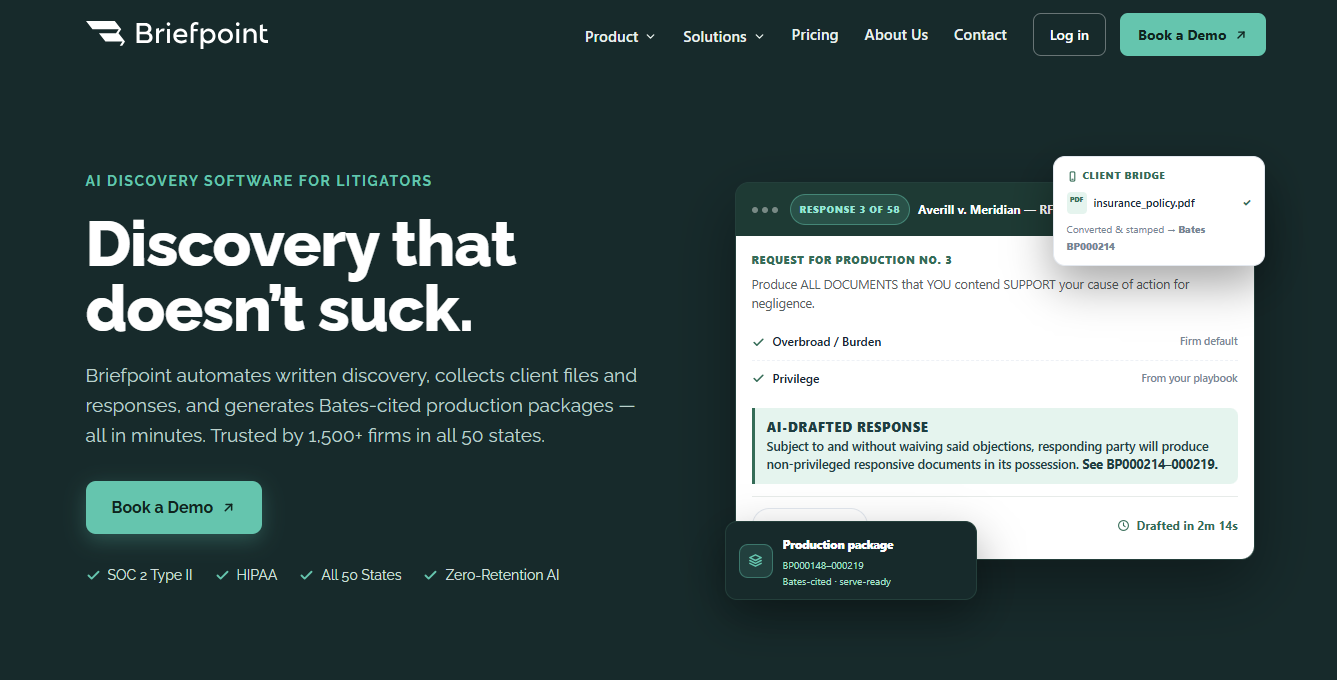
Briefpoint helps you handle that workload across motions, discovery requests, discovery responses, correspondence, and other formal documents.
If you’re dealing with the heavy lift of discovery, Autodoc takes the process even further. It turns productions and case files into ready-to-serve, Bates-cited discovery responses in minutes, not weeks.
You upload the RFPs and documents, Autodoc finds what’s responsive, generates Word-formatted responses, and produces a Bates-numbered package you can serve immediately.
Book a demo and get a closer look at how all these features fit into your practice.
