10 Legal Document Automation Best Practices to Keep in Mind
1. Start With High-Volume, Repeatable Documents
The easiest place to begin is with documents your firm creates often and follows a fairly predictable structure. Repetitive work gives automation a clear job to do, which makes it easier to test the process and spot where manual effort can be reduced.
For law firms, good candidates usually have consistent inputs and a familiar document creation process. Legal professionals can still review the final draft, but they spend less time rebuilding the same material from scratch.
Examples may include:
- Discovery requests and responses
- Engagement letters
- Demand letters
- Routine notices
- Standard court documents
- Client intake documents
- Internal legal forms
- Other legal documents based on approved templates
Starting with a narrow group can help you see how well the workflow handles document drafting before expanding it to multiple documents or more complex work. When the process feels reliable, you can gradually automate additional document types that follow similar patterns.
2. Standardize Templates Before Automating Them
Before you automate a template, make sure it is actually the version you want people using. Old drafts and slightly different versions can create confusion once software starts generating documents from them.
Start by reviewing the language and formatting, then decide which sections should stay fixed and which ones can change based on the matter. Legal document automation software works best when the template already reflects your preferred approach.
For example, your firm might have several engagement letter templates saved over the years. One may contain newer billing language, while another has the wording your attorneys currently prefer for termination.
Rather than automating every version, choose one approved template and update it first. Automated templates become much easier to manage once everyone is working from the same source.
Legal document generation is also easier to review because you know which language should appear in the final document and where changes are expected.
3. Define the Information Each Document Needs
Before you build the workflow, map out what information each document actually requires. A document automation system needs clear inputs, so vague or inconsistent data can create extra cleanup later.
Begin with the fields that appear in most versions of the document, then add any information that only applies in certain situations. For example, automated legal documents may pull from:
- Client and matter details
- Key dates
- Names of parties
- Court or jurisdiction information
- Matter-specific facts
You do not need to collect all the data tied to a case if the document only uses a small portion of it. Keeping the input set focused can make legal document creation easier for the person entering information and simpler to maintain over time.
Plus, it helps to decide where each field should come from. Some information may already live in a case management system, while other details may need to be entered through an intake form. Mapping those sources early makes the document automation easier to build and review.
4. Keep Lawyers in Control of Substantive Decisions
Automation can handle a lot of the mechanical work behind document creation, but substantive legal judgment should stay with the lawyer.
As complex legal documents become more nuanced, it helps to draw a clear line between routine assembly and decisions that affect strategy or legal position.
For example, document assembly software can populate approved language, organize matter details, and produce a first draft. From there, a lawyer can decide how the document should address the facts of the case and where standard language needs to change.
A legal department might automate the first draft of a response using information already collected from the matter file. The software can place the relevant names, dates, and standard provisions into the document. Counsel can then review the draft and adjust any language tied to unusual facts or a particular legal issue.
Ultimately, automation should reduce repetitive drafting work while leaving substantive calls with the person responsible for the legal outcome.
5. Build Human Review Into the Workflow
Even a strong automation setup needs a clear review stage. Automating repetitive tasks can shorten drafting time, but someone should still check the final output before it is sent or shared with a client.
A good workflow makes that review easy to understand. Depending on the document, you may want to check:
- Factual accuracy: Confirm names, dates, amounts, and matter details.
- Legal substance: Review any language that could affect the client’s position.
- Formatting and completeness: Make sure the document is ready for its intended use.
- Approval status: Confirm the right person has signed off before the document moves forward.
For instance, workflow automation might generate a first draft of a discovery response and route it to the assigned attorney. The attorney can review the substance, make any needed changes, and approve the document before it is finalized.
Remember: The best legal document automation platforms should support legal workflows like this instead of removing people from the process entirely. Human review keeps legal service delivery reliable while still letting automation handle the routine work underneath.
6. Use Approved Language and Rules Consistently
Once automation is running, consistency becomes less about the template itself and more about the rules behind it. Decide which wording should be treated as the default, when alternatives are allowed, and who can make those changes.
For example, a firm may have several approved responses to common discovery objections. The system can apply the preferred language based on the request type, while still allowing an attorney to choose a different response when the facts call for it.
Clear rules help reduce human error because lawyers and staff are not relying on memory every time they prepare a document. They can also make automated documents easier to compare during review, since unexpected language stands out more clearly.
As your process develops, keep those rules current. If the firm changes its preferred wording or adopts a new position, update the source used for law firm document automation so future drafts reflect it.
The finished document can then stay aligned with current practice without forcing someone to manually correct the same language over and over.
7. Connect Automation With Existing Legal Systems
Automation is much easier to adopt when it fits into the software your firm already uses. Requiring people to move between disconnected tools can create extra work and make a good workflow feel harder than it needs to be.
Look for document automation tools that can connect with existing systems such as:
- Legal practice management software
- Document management systems
- Contract management platforms
- CRM software
- Electronic signature tools
- Microsoft Word
Many automation solutions offer direct integrations, while some practice management platforms come with built-in document automation. Either approach can work well if information moves cleanly between systems and users can stay close to their normal process.
Pay attention to where matter data is stored, where finished files should go, and how updates move between platforms. Strong connections can cut down on duplicate entry and make automated workflows easier to use in day-to-day legal work.
8. Protect Client and Matter Data
Legal document automation often involves sensitive information, so security should be part of the setup from the start. Before adopting a tool, look closely at how it handles data and who can access it.
A few areas deserve particular attention:
- Access controls: Limit sensitive matter information to the people who actually need it.
- Data storage: Understand where files are stored and how long the provider keeps them.
- Encryption: Check how information is protected while it is stored and transferred.
- Permissions: Set user roles carefully, especially when automated documents contain confidential client details.
- Vendor policies: Review how the provider uses customer data and whether it trains models on uploaded information.
Your own systems matter too. If automated files are saved to document management software, make sure the same confidentiality rules apply there.
It is worth checking client agreements as well. Some may include specific requirements around third-party technology or data handling, and those terms should shape how you configure the workflow.
9. Maintain Version History and Audit Trails
Automated workflows can involve several rounds of edits, approvals, and other steps, so you need a clear record of what happened along the way. Version history and audit trails give you two different views of that process.
Version history shows how the document itself changed over time. For example, a Word document might begin as an automated first draft, then go through attorney edits before a final version is saved to the document management system. Being able to compare those versions makes it easier to see what was changed.
An audit trail focuses on the actions surrounding the document. For example, it might record when the draft was generated, who opened it, when approval was given, and when the final file was stored or sent.
For large law firms in particular, those records can be useful when several people touch the same matter. They make it easier to reconstruct the workflow later and give the firm a clearer picture of how the finished document reached its final form.
10. Measure Results and Refine Your Workflows
Automation should make legal work easier in practice, not simply look efficient on paper. After people have used the workflow for a while, review what changed and where friction still remains.
Useful metrics can include:
- Time drafting documents
- Review time
- Number of manual corrections
- User adoption
- Volume of documents generated
- Frequency of exceptions
The results can show you where the workflow needs another pass. For instance, if attorneys keep rewriting the same section, the template may need better language. Or if staff still spend too much time on data entry, the system may need a stronger connection to existing workflows.
You may also find that some static documents are better candidates for deeper automation than others. Regular reviews help you decide where to simplify the process, where to expand it, and where automation is not adding much.
Keep in mind that good legal innovation is usually incremental. Small improvements based on actual use can make the workflow more practical over time.
Save More Hours on Document Work With Briefpoint
Legal document automation works best when it fits the way your firm already operates and takes repetitive drafting off your plate without making review harder.
The right document automation software should feel easy to use, connect smoothly with your broader workflow, and give lawyers enough control over the final output.
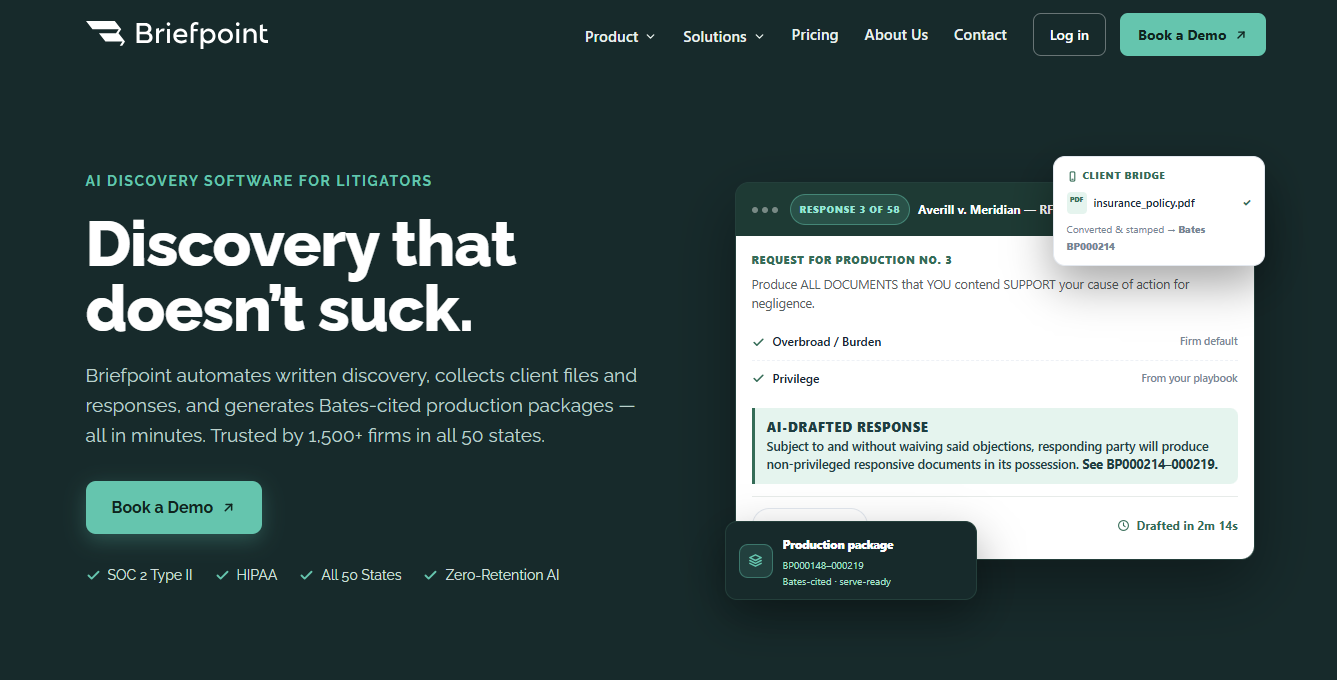
Briefpoint is built for law firms that want to spend less time on discovery paperwork. Attorneys can use it to draft and respond to written discovery, collect client responses, prepare RFP responses, and create production-ready documents with less manual effort.
Features like Discovery Playbooks help firms apply preferred language more consistently, while Word-ready drafts and multi-jurisdiction support make it easier to fit Briefpoint into existing discovery workflows.
Briefpoint can save firms more than 30 hours per case on average and give attorneys significantly more time back for substantive legal work.
If discovery takes up too many attorney hours, Briefpoint can help you reclaim a meaningful chunk of that time.
