7 Legal Document Automation Examples Worth Knowing
How Legal Document Automation Works
Legal document automation takes information you already have and uses it to build a document with much less manual work.
For you, that can mean less copying between systems and a faster path from raw information to a review-ready draft, among many other benefits.
A few different technologies can power the process:
- Document templates: Approved templates provide the structure and standard language, while the software fills in variable details such as names, dates, or case information.
- Conditional logic: Rules control which sections appear based on the information entered. A document can adapt to the facts rather than forcing you to edit a generic version every time.
- Data connections: Information can flow in from sources such as intake forms or case management software, which reduces duplicate entry.
- AI and natural language processing: More advanced systems can read source material, identify useful details, and support document generation or revision based on context.
In practice, legal document creation often starts with information already tied to a client or matter. The software turns that information into a draft, and you review the substance before the document moves forward.
What Legal Documents Can You Automate?
Legal document automation helps with work that follows a repeatable structure or pulls from information your team already collects. If you find yourself reusing the same language or entering familiar case details, there is a good chance part of the process can be automated.
Common examples include:
- Discovery requests and responses
- Engagement letters
- Demand letters
- Legal notices
- Standard motions
- Intake documents
- Contracts and agreements
- Consent forms
- Internal legal forms
- Settlement documents
- Court forms
- Client correspondence
The right candidates depend on your practice and how standardized your current process is. Documents built from templates are often a natural place to start, especially when much of the work involves replacing known information or selecting from approved language.
7 Legal Document Automation Examples
Legal document automation can take several forms depending on the work you want to streamline. As you look at your own process, the following examples show how automation can fit into different stages of document work and where it can save you the most effort:
1. Generate Discovery Documents From Case Information
Discovery can take a large amount of time when legal teams have to pull case details together, apply the right discovery objections, and handle document drafting request by request.
Workflow automation can move much of that preparation into software while keeping attorneys in control of the final response.
For example, a law firm responding to RFPs could upload the complaint, discovery requests, and relevant case files. The software can then use those materials to prepare responses rather than requiring someone to draft each one manually.
A discovery automation workflow may handle tasks such as:
- Drafting responses: Software can generate interrogatories, RFAs, or RFP responses using case information and approved objection language.
- Finding responsive documents: More advanced tools can search uploaded case files and connect responsive material to individual requests.
- Preparing the final work product: Drafts can be formatted for Microsoft Word so attorneys can review and revise them using a familiar workflow.
Briefpoint is built specifically for this process. It can draft written discovery, find responsive documents for RFPs, and generate Bates-cited Word responses with production packages, which helps law firms spend less time drafting documents and related administrative tasks.
Book a Briefpoint demo to see the workflow in action.
2. Turn Client Intake Data Into Legal Documents
Client intake creates a useful pool of information that can feed directly into document creation. Process automation lets you reuse that data input instead of asking staff to copy the same details into forms later.
A typical workflow can pull information from sources such as:
- Online intake forms
- CRM systems
- Matter management software
- Client questionnaires
- Internal databases
For example, a new client might complete an intake form with contact information, case details, and other required facts. The system can use those responses to prepare an engagement letter or another standard document, then send it to the appropriate person for review.
Automating repetitive tasks like this can reduce manual data entry and make the intake process feel smoother for both staff and clients. More than that, it can support better client service because fewer administrative steps stand between collecting information and putting it to use.
3. Create First Drafts From Approved Templates
Template-based automation is one of the most established ways to speed up the drafting process. Automated templates start with language your legal practice has already approved, then use structured data to generate documents with the right details in place.
The technology often relies on fields, conditional logic, and rules tied to the information entered.
For example, a firm preparing estate planning documents could collect client information through client intake forms, then use those answers to populate names, family details, asset information, and relevant provisions in the appropriate template.
More advanced systems can pull from legacy documents too. They can help firms turn existing work product into reusable templates rather than rebuilding documents from scratch.
The result is a first draft that reflects the firm’s preferred structure and language while leaving room for an attorney to make substantive changes based on the client’s situation.
For recurring document types, this approach can make it much easier to generate documents consistently and spend less time on routine setup.
4. Assemble Documents From Reusable Clause Libraries
Clause libraries are organized collections of approved legal language that lawyers can reuse during drafting. They often contain wording for common situations, such as preferred clauses or fallback positions.
A document automation platform can connect those libraries to document assembly rules. Once you enter the relevant deal information, the system can pull in language that fits the situation based on predefined conditions.
For example, an in-house legal department might maintain different indemnity clauses for different levels of risk. During contract management, the software could select the appropriate version based on the agreement type and place it into the draft for review.
Generally, using a clause library can make drafting more consistent and reduce the need to search through legacy agreements for language that has already been approved.
It can be particularly useful when several people contribute to document creation because everyone works from the same source of approved wording.
5. Automate Document Review and Issue Spotting
Automation can support review after a draft is created to help legal professionals catch issues before a document moves forward.
Depending on the software, review features may compare language against approved standards, flag missing information, or surface terms that deserve a closer look.
Common capabilities include:
- Clause comparison: The software can compare draft language against approved wording and flag meaningful differences.
- Missing information checks: Review tools can identify blank fields, incomplete sections, or required provisions that may have been left out.
- Risk flagging: AI-powered systems can highlight language that falls outside a playbook or creates potential legal concerns.
- Consistency checks: Automation can review formatting and defined terms to reduce avoidable human error.
For example, documents generated from a template can still contain unexpected edits or incomplete fields. Automated review gives you another layer of checking before an attorney signs off.
However, the best legal document automation software should support careful review instead of promising completely error-free documents. Attorney judgment still determines whether the final language is appropriate for the situation.
6. Route Documents Through Review, Approval, and Signature
Document automation can keep work moving after a draft is ready. Many automation solutions let you set routing rules based on the type of document or the approval requirements tied to it.
A vendor agreement, for instance, might go to the appropriate legal reviewer first. After approval, the workflow can send it for electronic signatures and then save the finished document in the designated system.
Common workflow steps include:
- Internal legal review
- Business approval
- Wet or electronic signatures
- Final storage
Automated routing can reduce the amount of manual follow-up involved in legal operations and law firm operations. It can also lead to faster document turnaround times because each stage moves forward based on predefined rules rather than relying on someone to send the file manually.
In-house legal teams can use the same setup to keep approvals organized while maintaining a clear record of where each document sits in the process.
7. Generate Final Document Packages With Supporting Files
Legal automation software can help you finish the job after the main document has been reviewed. Supporting materials can be pulled together in the required order and prepared for filing or delivery with much less manual setup.
For instance, a discovery response may need exhibits or other case materials attached before it is complete. Automation can collect those files, convert them into PDF documents when needed, and organize the package according to predefined rules.
You can then send the completed package to a document management system or move it into the existing systems your firm already uses.
Automating the final assembly stage can save you from spending extra time checking file names or rebuilding the same package structure from one matter to the next.
What Should Stay Under Human Review?
It should be obvious that legal automation does not remove the need for human review. In fact, the higher the risk or complexity, the more important that review becomes.
Keep human review focused on areas such as:
- Substantive legal analysis: Software can surface information, but legal professionals still need to decide how the law applies to the facts.
- High-risk language: Complex legal documents often contain provisions that could create significant exposure. Because of that, those terms deserve a closer review before approval.
- Compliance issues: Automated checks can help flag possible concerns, but someone still needs to assess the actual legal and regulatory implications.
- Negotiated changes: In fields like corporate law and contract lifecycle management, edits made during negotiation may change the risk profile or commercial meaning of an agreement.
- Final approval: Before a document is signed or filed, a lawyer should confirm that it reflects the intended position.
How to Choose Legal Document Automation Software
The right software depends on the documents you create and how much of the surrounding workflow you want to automate. A closer look at your current process can help you narrow the options before you start comparing features.
Here are a few areas worth paying attention to as you evaluate your options:
Look at the Types of Documents You Create Most Often
Start with the documents that take up a noticeable amount of your team’s time. Law firm document automation may focus heavily on recurring legal work such as discovery responses or client correspondence, while another legal department may need automation for agreements.
Useful candidates might include:
- Discovery documents
- Engagement letters
- Demand letters
- Contracts
- Internal legal forms
Consider how much each document changes from one matter to the next. A mostly standardized document may work well with automated templates, while highly variable drafting may benefit from AI-assisted tools.
Consider the Broader Software You Already Use
Document automation can be one feature within larger practice management platforms or contract lifecycle management software. Before adding another tool, check what your current systems can already do and how well those capabilities fit your workflow.
A CLM system might generate a contract from an approved template and then help you manage contracts through the entire contract lifecycle. Practice management software, meanwhile, could use information already stored in a case record to prepare a standard client document.
Looking at the broader workflow can help you choose software that fits into your existing setup rather than creating another isolated step.
Check How Easy the Software Is to Use
A confusing user interface can quickly reduce the practical benefit of automation. Lawyers and staff should be able to understand how to generate a document and move the work forward without constantly relying on technical support.
Pay attention to setup too. Some platforms require outside help to create new templates, while others let your staff configure document rules themselves.
Features worth testing during a demo include:
- Template creation
- Document editing
- Search
- Workflow setup
- User permissions
Ease of use can make a meaningful difference in adoption and, ultimately, legal service delivery.
Review Editing and Version Control Features
Generating a draft is only part of the process. Your software should make it easy to review changes and maintain version control as the document moves between people.
Consider how editing fits into the tools your lawyers already prefer. If most drafting happens in Microsoft Word, for instance, a platform that exports clean Word files or integrates directly with Word may fit much better than one that requires all editing inside a separate interface.
You should be able to tell which version is current and review previous changes when necessary. Those basics become increasingly important when several people contribute to the same document.
Evaluate Integrations and Data Flow
Good automation should reduce repeated data entry. Look at where your document information comes from now and where completed files need to end up.
An intake system, for example, might collect client details and pass them directly into a document template. After review, the finished file could move into your document management system automatically.
Check how easily the platform connects with the existing systems your staff relies on. Smooth data flow can save a surprising amount of administrative effort over time.
Think About the Client Experience
Internal efficiency is only part of the equation. Document automation can influence client satisfaction when it shortens turnaround times or makes routine interactions easier.
Look at the process from the client’s perspective. Intake forms should be straightforward, and any document requests should be easy to complete. Signature workflows should feel equally simple.
A faster drafting process can be useful, but the bigger improvement comes when the overall experience feels easier for both your staff and the people receiving your legal services.
Move Legal Document Work Forward With Briefpoint’s Automation
Legal document automation can take a surprising amount of routine work out of document creation.
Depending on the software you choose, you can automate tasks such as drafting from case information, collecting client responses, assembling approved language, and moving completed documents through the rest of your workflow.
Briefpoint brings many of those capabilities into one discovery-focused platform. It can draft and propound interrogatories, RFAs, and RFPs in the appropriate jurisdictional format, while giving attorneys Word-ready drafts to review.
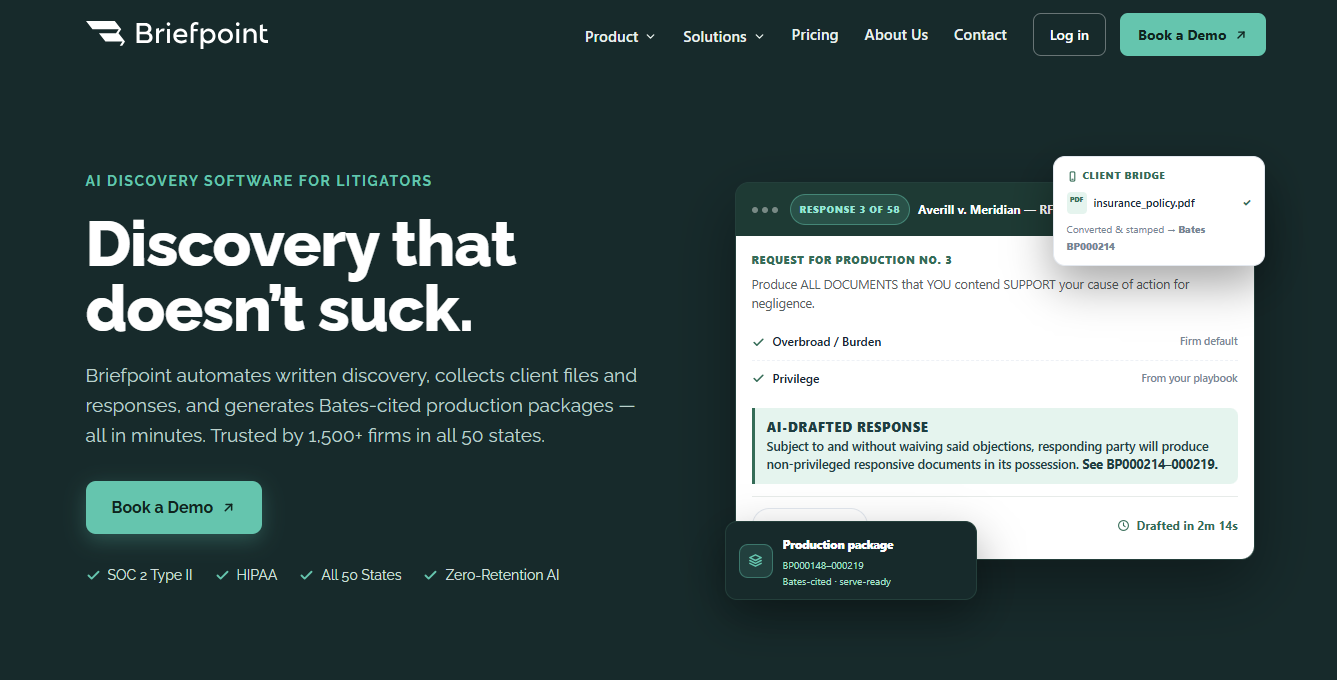
Client Bridge sends clients a secure link where they can answer questions and upload files, and RFP Responses & Production can identify responsive documents, prepare Bates-cited responses, and generate production packages.
Discovery Playbooks help apply the firm’s objection and response strategy consistently from case to case.
Legal innovation becomes much more practical when it improves work your firm already performs every day. Cutting discovery busywork can give attorneys more room for legal strategy while helping the firm build a meaningful competitive advantage around speed and consistency.
