
A Practical Guide to Legal AI Technology

What Is Legal AI Technology?
Legal AI technology covers a wide mix of tools, but they tend to move legal work in the same direction: faster drafting, cleaner organization, clearer insights, and fewer repetitive tasks draining your time.
You’ll see these tools show up in many corners of the legal industry, from contract review and document automation to research platforms and litigation support systems.
Most legal professionals encounter AI in small, practical ways at first. Maybe it’s a drafting assistant that builds a first pass of a document, a research tool that pulls relevant authority in seconds, or an intake system that organizes client information without extra steps.
Each one uses different AI capabilities, yet they all aim to help you move through your workload with a bit more ease and predictability.
Law firms often adopt legal AI tools to handle high-volume tasks with better consistency. Solo and midsize teams tend to appreciate the time savings, while larger organizations lean on these tools to coordinate information across many matters.
In short, legal AI technology describes a growing collection of tools built to support real work, not replace the judgment and skill that sit at the core of legal practice.
The Different Types of Legal AI
Different types of legal AI show up across the practice of law, each one applying artificial intelligence in its own way.
Some tools focus on language, some on prediction, and others on organizing vast amounts of information so you can move through work with less friction. You don’t need deep AI expertise to use them, but understanding the categories helps you spot what fits your workflow.
Here are the main types you’ll see:
- Generative AI tools: Create first drafts, summarize documents, suggest clauses, or rephrase text with help from large language models.
- Natural language processing systems: Read legal text, extract key points, identify entities, and interpret queries written in plain English.
- Predictive analytics: Highlight patterns in litigation data, estimate timelines, or surface similar outcomes based on historical records.
- Reinforcement learning models: Improve through repeated interaction, often used in tools that refine recommendations over time.
- Classification and clustering models: Sort large datasets, group related documents, and reveal relationships you might miss during manual review.
- Search and retrieval engines: Powered by AI that deliver faster access to relevant authority, facts, or contracts stored across your system.
Key Categories of Legal AI Solutions
Key categories of legal AI tools cover the main tasks that shape daily legal work. Each tool type handles a different piece of the workload, and many rely on machine learning to read legal documents, organize information, or connect you to the right sources faster.
Here are some of the most common ones:
- AI assistants for drafting and review: Build first-pass documents, point out issues, and help refine language during edits.
- Contract review and due diligence tools: Scan agreements, compare versions, and highlight important terms or risks in a fraction of the usual time.
- Research platforms that accelerate legal research: Link your queries to relevant case law, statutes, and court documents with far less manual digging.
- Litigation support software: Sort evidence, uncover links across files, and keep case materials structured as matters grow.
- Client intake and communication systems: Organize incoming details, respond to straightforward questions, and keep messages moving.
- Knowledge management tools: Retrieve past work, surface internal insights, and keep firm-wide resources easier to find.
- Workflow automation tools: Carry information between systems and cut down on repetitive steps in common processes.
What Benefits Can You Expect?
AI brings a noticeable lift to the way legal work gets done. Once it becomes part of your routine, everyday tasks start to move with less strain, and you get more room to focus on higher-value work.
Here’s what that looks like in practice.
Faster Output for Everyday Tasks
AI handles specific tasks that tend to slow teams down, like organizing materials, pulling early drafts, or reviewing text. Legal departments and large law firms often see big time savings here, though smaller teams feel the difference quickly, too.
More Consistent Legal Accuracy
Tools that scan legal documents, compare language, or surface authority help tighten your review process. You stay in control of the final call, and the software helps you catch details that might otherwise blend into long files.
Better Use of Internal Time
When repetitive steps fade into the background, your schedule shifts toward analysis, planning, and conversations that shape outcomes. Corporate legal departments rely on this shift to keep workloads manageable.
Improved Client Service
Quicker responses and more organized updates create a better experience for clients. Even simple AI integration, like intake or document prep, helps communication feel smoother.
Stronger Protection for Sensitive Client Data
Modern platforms offer controlled environments that help keep confidential information contained. This gives your team a clearer, safer path to work smarter with sensitive client data.
How to Integrate Legal AI Technology
Integrating legal AI technology works best when it feels like a natural extension of the work your team already handles. You don’t have to rebuild your entire workflow from the ground up.
A simple plan, the right focus areas, and a bit of room for your team to get comfortable with new tools can set the stage for steady progress across your AI initiatives. You can do something like this:
1. Start With One Workflow That Needs Relief
A lot of teams ease into legal AI by tackling a single workflow that clearly drains time. It might be reviewing dense documents, sorting large batches of information, or handling a task that always seems to pile up.
Focusing on one familiar process gives you a clean way to introduce an AI tool without disrupting everything else you already have in motion.
Discovery documents are a great first step for many litigators. The format repeats, the inputs come from materials you handle every day, and the final output supports case strategy.
A platform like Briefpoint can draft the initial version, highlight what stands out, and shape the material into something workable long before you begin your own review.
Once the tool is in place, pay attention to how it affects turnaround time and the general pace of your matters. You’ll start to see where it saves effort, where human review stays essential, and how the handoff between AI output and attorney judgment naturally finds its rhythm.
As those wins accumulate, it becomes easier to spot the next workflow that could benefit from AI support. This steady, practical approach keeps improvements manageable and helps your team stay ahead of rising demands without losing the human side of your practice.
2. Build Guardrails and Clear Review Routines
AI works best when your team has a shared plan for how the review process should flow. Guardrails give legal teams a steady framework that keeps AI output aligned with the standards of your practice of law.
A simple checklist can anchor that process and keep legal services consistent, even as new tools enter the workflow.
Helpful items to include:
- Accuracy checks for facts, names, and figures
- Citation review to confirm sources, case law, and references
- Formatting expectations for complex documents
- Requirements linked to your practice area, so nothing drifts off course
- Security steps to protect sensitive client data throughout the process
It also helps to choose the exact moment AI hands work back to your team.
AI may outline a document, summarize a case file, or extract points from massive amounts of contracts, and your lawyers shape the final version. This division keeps efficiency high while preserving the judgment calls that only humans can make.
Security measures also play a major role here. Pick a platform that keeps files contained, restricts outside access, and fits the privacy expectations of your clients. The more clarity you build into these routines, the smoother your AI initiatives will run across day-to-day legal tasks
3. Prepare Your Team for Daily Use of AI Tools
Even the best platform needs a team that feels confident using it. Offer simple guidance on how to review AI output, how to adjust prompts, and how the tool fits into everyday legal tasks.
Small training sessions tend to work well because they let people ask real-world questions tied to their matters.
Also, keep a shared space where the team can note what works, what feels clunky, and what could make the workflow smoother.
Over time, the technology blends into the background. Lawyers work more efficiently, legal teams move through documents faster, and the practice sees a lift in both law firm productivity and morale.
With each improvement, your team gains momentum and stays ahead of rising demands.
Limitations of Legal AI Tech
Legal AI has come a long way, but it still carries limits that every team should keep in mind.
AI systems can move quickly, yet they can also introduce false information when a prompt is unclear or when the model reaches beyond its training data. That’s the tradeoff with any new technology: speed paired with the need for steady human oversight.
Another point worth considering is data privacy. Many tools rely on shared infrastructure, so legal information must be handled with careful attention to data security and the expectations tied to professional conduct.
Large firms often have strict internal rules around these questions, but even smaller teams benefit from treating AI with the same caution they’d apply to any sensitive workflow.
Context is another challenge. The best AI tools can read text, summarize arguments, or pull patterns from large datasets, but they can’t fully understand strategy, tone, or the subtleties that shape legal judgment. That part still belongs to the humans doing the work.
AI can strengthen your routine, but it works well only when paired with review, guardrails, and a team that knows how to guide the output.
Treat it as support, not authority, and it becomes far easier to fit into your practice.
What Will Legal AI Tech Look Like in 2026?
Legal AI will feel far more routine by 2026, partly because personal use continues to climb. The Legal Industry Report 2025 notes that almost a third of legal professionals now use generative AI for work.
Firmwide adoption is lower, sitting around one in five, which shows how individual comfort is outpacing organizational caution. As firms refine their policies and gain confidence in accuracy and ethics controls, that gap is expected to shrink.
The report also points out that larger organizations are moving faster. Firms with more than fifty lawyers are adopting AI at roughly double the rate of smaller practices.
That trend makes sense when you consider the workloads these teams manage. When a practice moves through complex matters and massive amounts of documentation, even a modest time savings becomes meaningful.
Some practice areas also stand out. Immigration practitioners reported the highest personal use, and civil litigation teams led firmwide adoption. These areas rely heavily on quick drafting, research, and data handling, so AI fits naturally into the pace of work.
By 2026, AI tools will likely offer stronger context awareness and clearer governance structures. They will not replace the expertise required to practice law, but they will support the legal profession with smoother workflows and more dependable tools.
How Briefpoint Fits Into the Future of Legal AI
Legal AI is moving quickly, and the real value shows up when it supports the work you already do.
The tools that feel most useful are the ones that take pressure off your schedule, help you manage information more comfortably, and give you more space for the parts of practice that rely on judgment and experience.
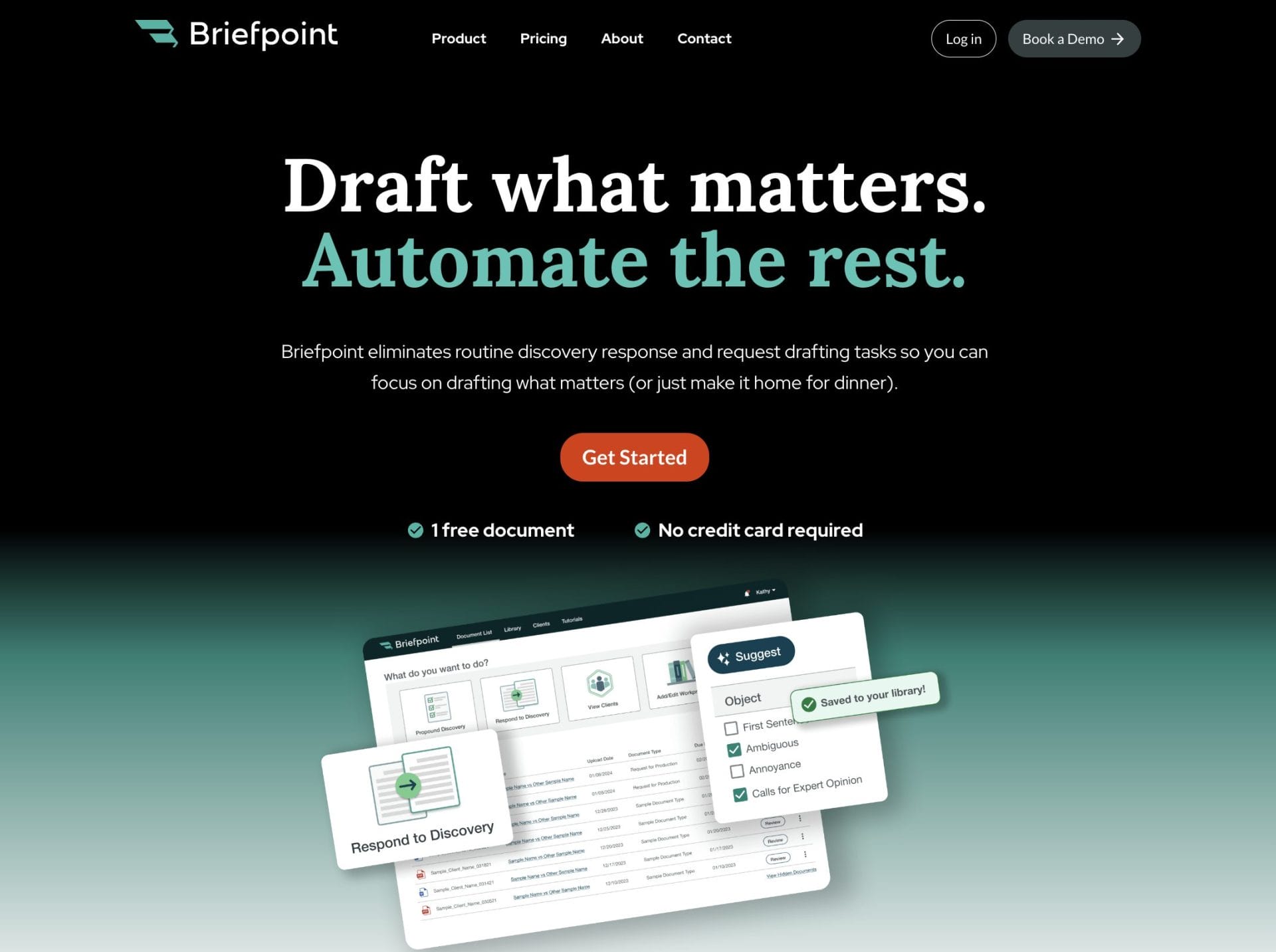
Briefpoint sits in that category. It gives you a clear way to move through drafting and document-heavy tasks without slowing down your day or pulling you away from strategic work.
If you’re exploring AI and trying to figure out what actually makes a difference in your workflow, Briefpoint is worth a closer look. It keeps your documents organized, cuts down on repetitive steps, and helps you work with more confidence and less friction.
Ready to see how it fits into your routine?
7 Best Legal Software for Small Firms

Top 7 Legal Tools for Small Law Firms
Here’s a look at some of the best tech tools that can serve smaller firms well:
1. Briefpoint: Discovery Document Automation
Briefpoint is built for one of the most time-consuming parts of litigation: drafting discovery documents. If discovery shows up often in your caseload, this is the kind of tool that quickly earns its place.
Requests for production, requests for admission, and interrogatories all follow familiar patterns, yet drafting them still eats up hours.
With Briefpoint, you upload the discovery request, and the AI pulls out the core details to create a solid draft right away.
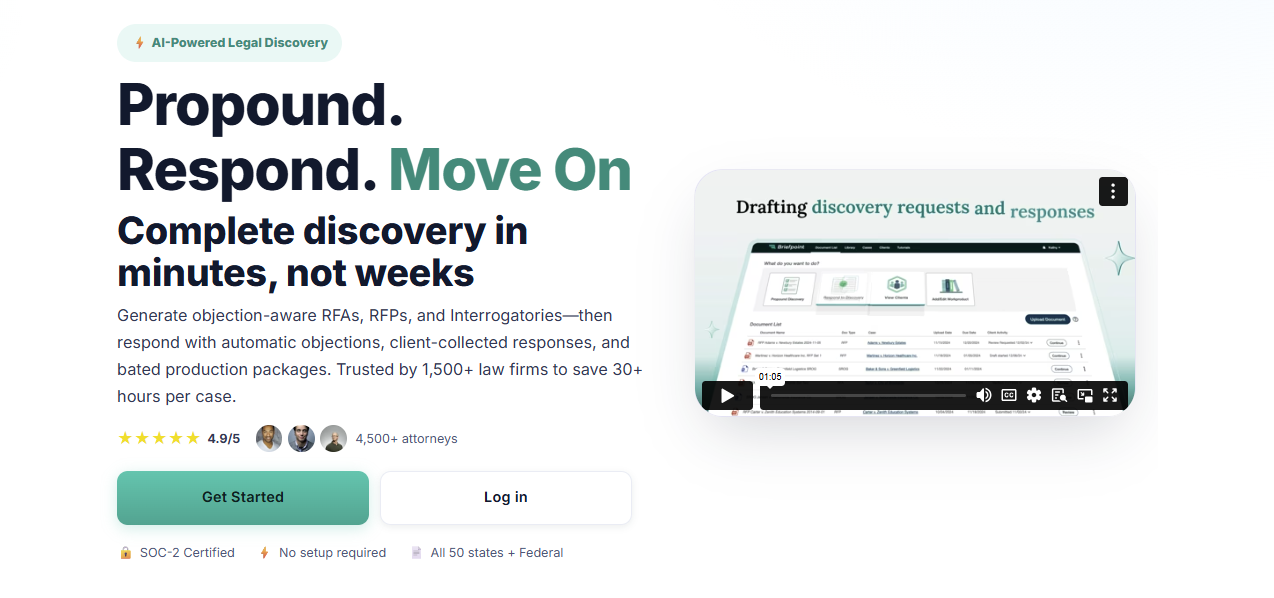
Most of the routine work is handled in minutes. You can review the draft in Word, select objections or responses from Briefpoint’s built-in menu, and focus your attention on the parts that actually need legal judgment.
Briefpoint also includes AutoDoc, which automatically generates properly structured discovery documents with Bates numbers from the uploaded requests. This keeps formatting consistent and removes the need to set documents up manually each time.
Plus, client responses are handled through Briefpoint Bridge. You send clients only the interrogatories they need to answer, rewritten in plain language. They respond online, and their answers drop straight into your document.
Key Features
- AI-powered automation: Briefpoint takes care of the routine details in your discovery documents, so you don’t have to.
- Bridge for client responses: This feature translates legal jargon into simple language to make it easy for clients to respond. Their answers are automatically added to your documents.
- Built-in objections and responses: Customize your documents with a click by adding responses or objections from the built-in menu.
- AutoDoc document creation: Automatically generates properly structured discovery responses based on uploaded requests, removing manual setup work.
- Microsoft Word compatibility: Edit, review, and finalize discovery documents directly in Word without changing your workflow.
- Client-friendly response forms: Clients answer only the interrogatories that apply to them through a simple online interface.
- Consistent formatting: Keeps discovery documents clean and uniform across matters and attorneys.
Pros
- Automates the most time-consuming parts of discovery drafting
- AutoDoc removes manual document setup
- Clients respond without getting stuck on legal language
- Responses flow directly into your document
- Flexible pricing that works well for small firms
Test Briefpoint yourself by scheduling a demo here.
2. Clio: Legal Practice Management Software
Clio is one of the most widely used law practice management software programs, and for good reason.
While not exclusively a piece of small law firm software, Clio is built to support firms of all sizes. It is valuable for any practice looking to improve law firm efficiency without adding complexity.
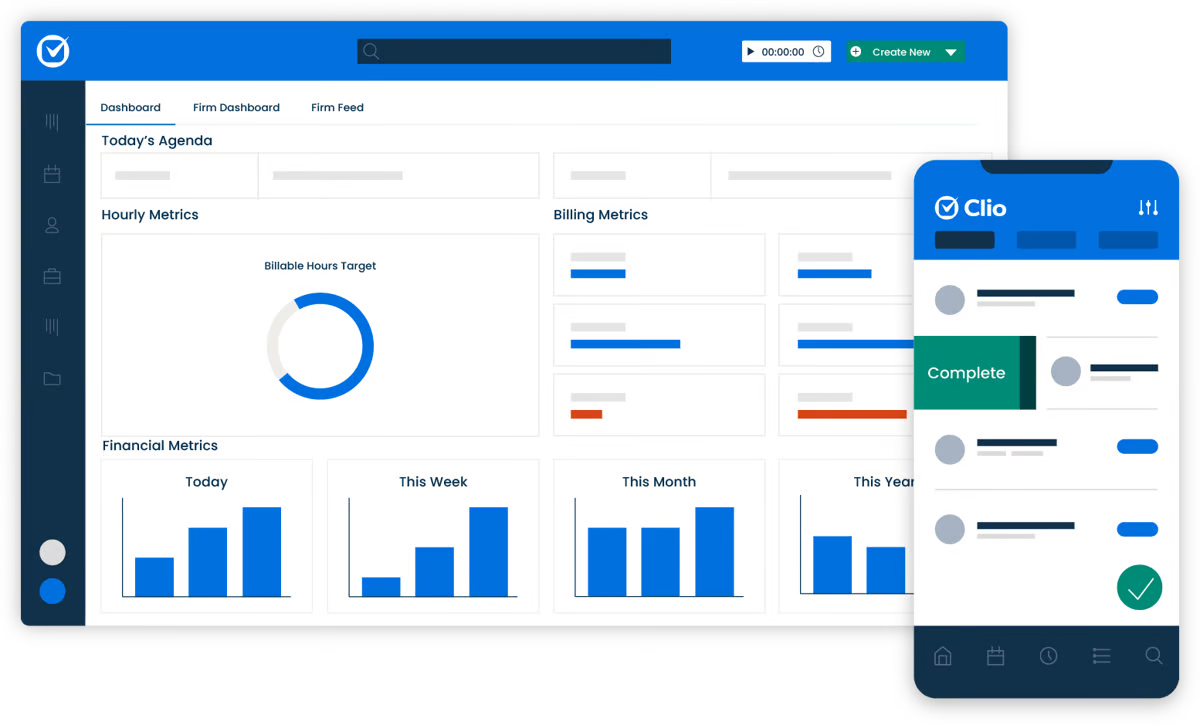
Image source: G2
Its biggest strength? Flexibility. Clio is a cloud-based solution, so you can access everything from your laptop, phone, or tablet. It also plays well with tools you likely already use, which makes it easier to manage client relationships and avoid bouncing between systems.
For small firms, Clio helps centralize casework, streamline legal billing, and support secure document sharing, all while keeping your team connected.
It’s also a solid choice if you’re aiming to onboard new clients faster and stay responsive without adding overhead.
Key Features
- Case management: Keep all your case info, deadlines, and notes in one place.
- Time tracking and billing: Log hours and create invoices with just a few clicks.
- Client portal: Securely share documents and messages while improving how you manage client relationships.
- Integrations: Sync with Google Calendar, Microsoft Office, and more for smoother workflows.
- Mobile app: Stay productive on the go with access to cases, time logs, and messages from anywhere.
Pros
- Brings case management, billing, and client communication into one streamlined system
- Remote access helps you keep work moving, no matter where you are
- Reliable customer support that’s especially helpful for smaller teams without internal IT
- Easy-to-use interface so that you can get started without a steep learning curve
3. MyCase: Legal Case Management Software
MyCase is a suitable choice for small firm attorneys who want to stay focused on legal work without getting bogged down by unnecessary extras. It’s specifically for law offices that need to manage cases efficiently while simplifying day-to-day administrative duties.
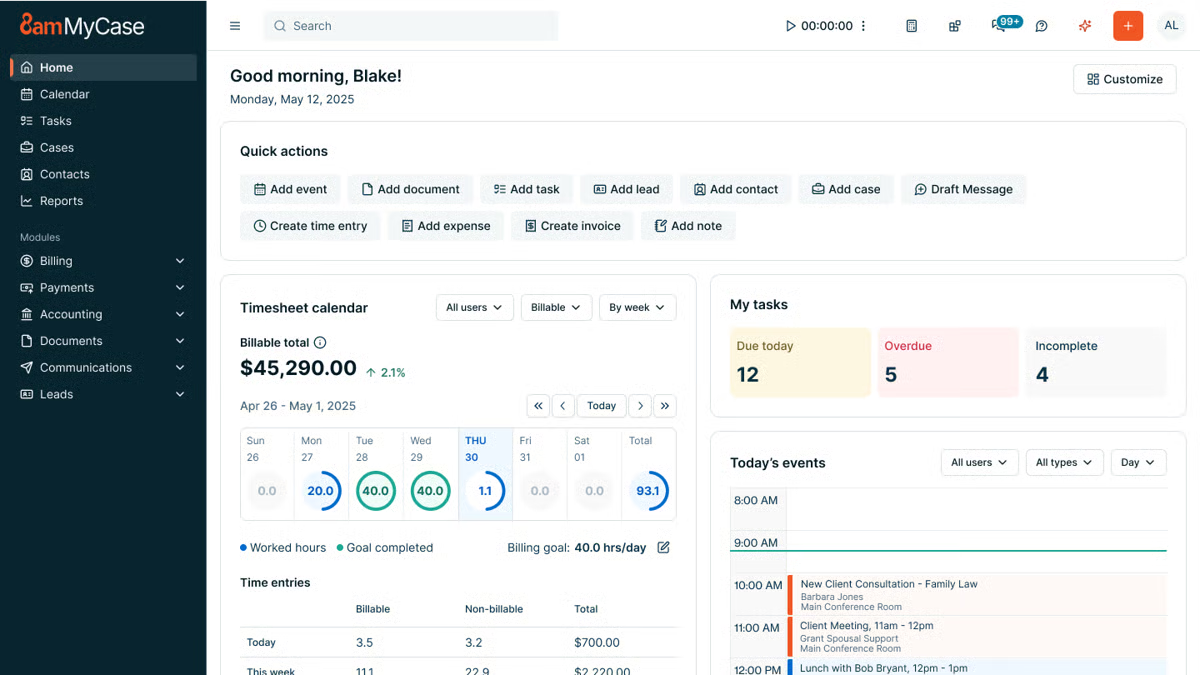
Image source: G2
Rather than trying to do everything, MyCase keeps it simple and strong: track cases, manage documents, and stay on top of tasks from one dashboard.
This all-in-one platform also has a built-in client portal that makes communication easy and secure. This way, you can keep clients in the loop without switching platforms and increase client satisfaction along the way.
Key Features
- Case tracking: Stay on top of every detail with an intuitive case dashboard.
- Document management features: Store and organize legal files so they’re always accessible.
- Task management: Assign and monitor tasks across your team to keep things moving.
- Client communication: Use the secure portal to share documents and case updates without the back-and-forth emails.
Pros
- Built with small legal firms in mind, which means it focuses on what matters without unnecessary features
- Centralizes all case documents and updates to make your law office more organized
- Makes it easy to communicate with clients, handle the client intake process, and provide updates
- Clean, user-friendly interface that minimizes time spent on administrative tasks
4. CosmoLex: Billing and Accounting Software
CosmoLex is one of the best legal billing software tools to date. It’s a smart pick for small law firms that want to handle billing, accounting, and trust management without needing to connect multiple tools.
This legal billing software is specifically for law firms, which means it supports the financial workflows and legal regulations that general accounting software often overlooks.
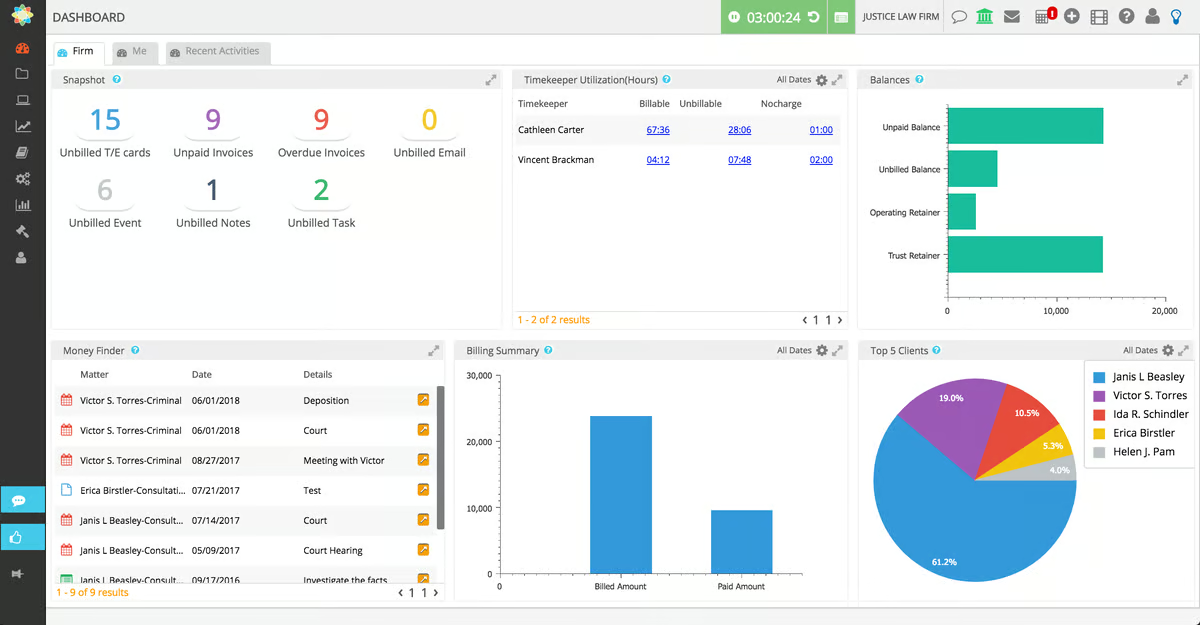
Image source: G2
From generating invoices to managing trust accounts and tracking expenses, CosmoLex covers the full scope of financial management for your firm.
This legal accounting software tool also allows you to generate detailed financial reports, which can give you a clear view of your law firm’s performance at any moment.
For solo attorneys or small firms, this transparency helps you make better business decisions without sacrificing client service or compliance.
Key Features
- Legal billing and invoicing: Track time, send invoices, and accept online payments without leaving the platform.
- Trust accounting: Built-in tools help maintain compliance with legal trust requirements and avoid costly errors.
- Time tracking: Easily log billable hours and assign them to specific cases from anywhere.
- Full legal accounting: Manages expenses, payroll, taxes, and general ledger, tailored to legal-specific needs.
- Financial reporting: Quickly generate detailed financial reports to stay on top of your law firm’s finances.
Pros
- Robust features cover billing, accounting, and trust management in one cloud-based system
- Reduces manual accounting work that often leads to errors or delays
- Clear reporting gives better visibility into firm performance and cash flow
- Designed specifically for legal workflows, which makes daily financial tasks easier to handle
5. NetDocuments: Document Management Software
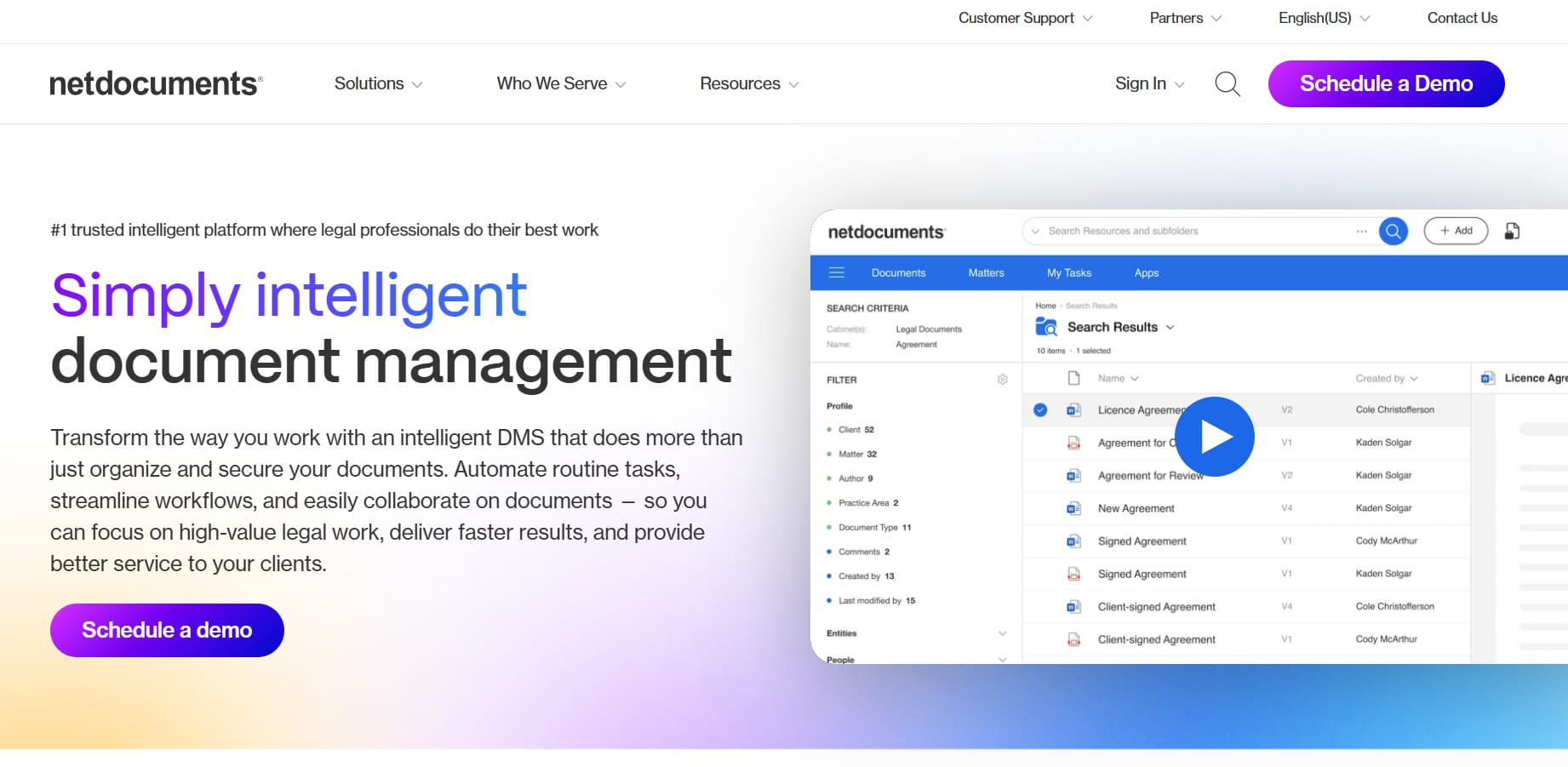
NetDocuments is a reliable choice for law firms that want to simplify how they store, manage, and access files.
For small firms balancing casework and administrative duties, this cloud-based software takes the stress out of document storage and organization.
Source: NetDocuments.com
Built specifically for legal professionals, NetDocuments offers a secure and intuitive way to manage case details and sensitive files.
With robust compliance standards, version control, and powerful search capabilities, it helps reduce the learning process that often comes with adopting new tools.
Whether you’re working from the office or remotely, you’ll be able to access files quickly, collaborate with your team, and build strong client relationships by staying organized and responsive.
It also integrates seamlessly with tools like Microsoft Word, which allows you to work within familiar environments while maintaining secure document workflows.
Key Features
- Cloud-based storage: Secure access to all your files from anywhere.
- Advanced search tools: Quickly locate case details or documents by keyword, metadata, or full-text search.
- Version control: Keep track of every document revision so you can easily refer back to earlier versions.
- Microsoft Word integration: Edit, save, and manage documents directly from Word.
Pros
- Centralized document storage makes it easy to efficiently manage case files
- Cloud-based software allows your team to collaborate and access documents from anywhere
- Helps maintain strong client relationships through fast, reliable access to case materials
- Version control ensures clarity and accuracy when multiple people are editing the same file
6. CloudLex: Matter Management Software
CloudLex is purpose-built for small and mid-sized law firms that want to stay organized while managing legal matters from intake through resolution.
It’s more than just a case tracker, though. It’s a full matter management system designed to support collaboration, document assembly, and client communication across your entire team.
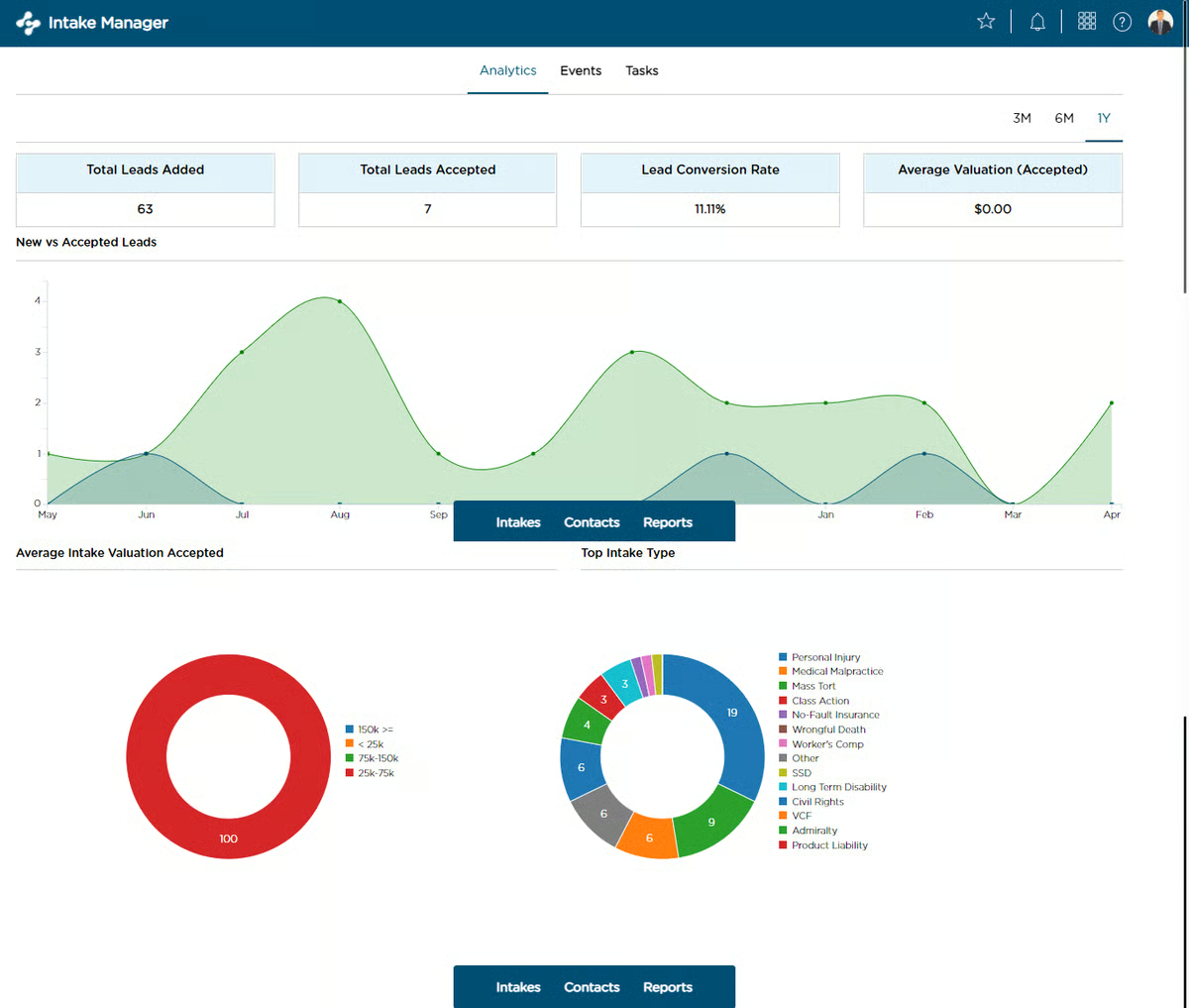
Image source: G2
What makes CloudLex stand out is its emphasis on teamwork. It helps your staff stay aligned, cuts down on internal confusion, and makes sure everyone is working with the same case information.
It’s also cloud-based, which means you can securely access and manage your matters from anywhere.
Additionally, CloudLex helps keep clients informed without extra effort. Through its secure client portal, you can share documents, send updates, and manage client communication efficiently, all while protecting valuable time that would otherwise be spent on back-and-forth.
Key Features
- Matter tracking: Manage all case-related data, deadlines, tasks, and contacts in a single place.
- Collaboration tools: Keep your team aligned by sharing documents and updates in real-time.
- Client management and communication: Use the client portal to keep clients informed and minimize inbox overload.
- Task management: Assign, track, and complete tasks without missing a beat.
- Cloud-based access: Log in from anywhere and stay connected to your firm’s caseload at all times.
- Document assembly: Streamline repetitive paperwork with built-in document creation tools.
Pros
- Collaboration tools make it easier to manage cases as a team, even across locations
- Keeps your clients informed through secure, centralized communication channels
- Scales well for firms handling tens of thousands of legal matters across different attorneys
- Helps small firms save valuable time by automating repetitive administrative steps
7. DocuSign: Electronic Signature Tool
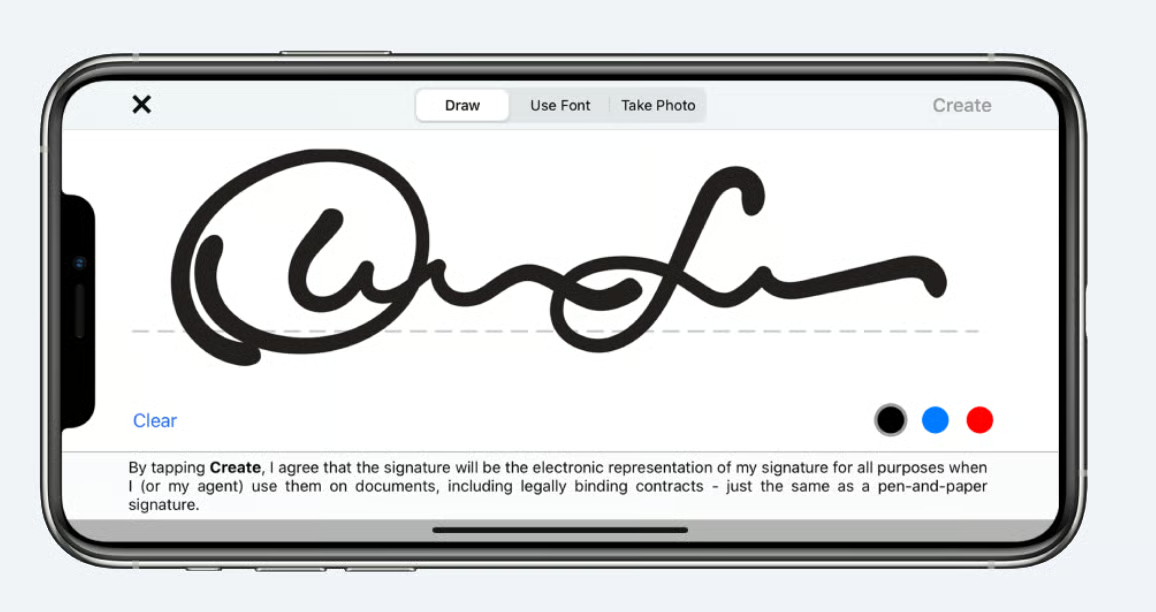
DocuSign is a familiar name for a reason. It gives small and mid-sized law firms a simple way to send documents out for signature and get them back faster than pen-and-paper methods.
The platform stays focused on one thing and does it well: getting documents signed. Engagement letters, agreements, settlement paperwork, and similar files move through the signing process quickly, which helps keep matters moving forward.
Source: G2
Clients tend to pick it up right away. Documents arrive ready to sign, work on any device, and don’t require logins or setup. You can also see when a document has been opened or signed, which makes follow-ups easier and more predictable.
And since DocuSign runs in the cloud, signed documents are always accessible and securely stored. It also works comfortably alongside tools you already use.
Key Features
- Electronic signatures with audit trails: Track when documents are sent, viewed, and signed for clear records.
- Multi-device signing: Clients and staff can sign from desktop, tablet, or mobile devices.
- Document templates: Reuse commonly signed documents to save preparation time.
- Status tracking: See real-time updates on document progress without checking in manually.
- Secure cloud storage: Store completed documents safely and retrieve them when needed.
- Integrations: Connect with Microsoft Word and popular cloud storage platforms.
Pros
- Speeds up document signing without changing how your firm works
- Easy for clients to review and sign documents from anywhere
- Clear visibility into document status reduces follow-up emails
- Fits well into small firm workflows that already rely on digital tools
Factors to Consider When Choosing Legal Tools for a Small Firm
When selecting the right legal technology software for your small law firm, it’s important to make sure it fits your firm’s unique needs and helps simplify your daily tasks.
Keep these factors in mind:
- Budget – Choose a solution that fits your financial limits without cutting essential tools like expense tracking or payment processing.
- Ease of use – You shouldn’t need a manual to get started. Look for tools that are simple enough for any managing partner or staff member to pick up quickly.
- Cloud-based vs. on-premise – Cloud-based platforms offer more flexibility, letting you access case files and client details from anywhere.
- Data security – With sensitive information involved, strong encryption, backups, and two-factor authentication are a must.
- Customer support – Issues will pop up. Fast, reliable support through phone, chat, or email can keep your workflow on track.
- Integrations – Choose tools that connect with your calendar, email, and billing systems to avoid rework and delays.
- Scalability – Pick software that can grow with you, whether that’s handling more clients or supporting additional attorneys.
A strong platform lets your firm operate more smoothly in all kinds of ways (or just the ones you need). Remember that it’s not just about tech; it’s about making each day easier to manage.
Build Your Tech Stack With the Right Law Firm Software
As you can probably tell by now, finding the right legal software can really transform how your small law firm operates.
Tools like MyCase and NetDocuments help streamline everyday tasks, but if you’re dealing with discovery documents often, Briefpoint is the perfect way to save both time and effort.
Why not give it a try? With Briefpoint, you can cut down the hours spent on drafting discovery documents and get back to focusing on your clients.
It’s fast, tailored for small law firms like yours, and already trusted by over 1,500 law firms.
Ready to see how much time you can save? Schedule a demo with Briefpoint today and discover how much smoother your workday can be!
What You Should Know About Document Automation Software
What Is Document Automation Software?
Document automation software is a system that builds documents for you based on rules, templates, and the information you provide.
At its core, it replaces repetitive drafting with a smart process that assembles polished files in minutes. You give the software your data, and it produces a complete draft without the usual copying, searching, or manual edits.
Law firms lean on it because drafting legal documents demands precision, clear structure, and consistent language. When the routine parts run through automation, you gain extra room to concentrate on the legal work that actually needs your attention.
The same advantage shows up in any setting where teams generate agreements, onboard clients, prepare reports, and more.
You fill in details once, and the software handles the rest. Names, dates, clauses, and formatting all land in the right places, which gives you accurate documents from the start.
So, if you manage recurring paperwork or long templates, this kind of system turns a slow task into something that fits neatly into your day.
How Document Automation Works
You’ve probably seen how long a document workflow can take when you build everything from scratch. Automation changes that pace.
Each tool has its own approach, but most follow a similar pattern:
1. Start With Smart Templates
Everything begins with a template built to match the layout of your legal documents or business forms. The structure, preferred language, and formatting live inside these templates, so you don’t recreate the same choices over and over.
Once you set them up, they guide your entire document workflow with far less effort. This alone can tidy up processes across a law practice, especially when documents follow a predictable pattern.
2. Add Your Data Once
After choosing a template, you enter the information tied to your matter, client, or project. The document automation tool then places the same data everywhere it belongs in the document.
That means no scanning for fields, no missed updates, no jumping between drafts. New documents stay consistent because the system pulls from a single source of truth.
Here’s what this step usually looks like:
- You add names, dates, clauses, and case details in one place
- The software fills those details into every matching field
- Updates happen automatically, so you don’t repeat the same edits
- Documents stay aligned with the rules you’ve already set
- You save time by avoiding routine typing and manual checks
This approach keeps your document workflow predictable and reduces the chance of small mistakes that tend to appear during repetitive drafting.
3. Apply Logic and Automation
This is the part that turns templates into something smarter. Conditional fields control what appears based on the data you’ve added.
At the same time, artificial intelligence may help refine language or suggest missing pieces, and automated workflows walk you through each step so nothing goes out of order.
These systems support faster decisions, reduce errors, and keep complex workflows from slowing down your day.
4. Generate the Final Draft
Once the rules kick in and all the information is mapped, the software assembles a polished document. You can export to Word, share it online, or save it as one or more PDF documents.
The result usually needs far less cleanup because formatting, spacing, and structure already follow your standards.
5. Integrate With Other Tools
Most platforms connect to tools you already rely on, such as CRM systems, document storage apps, and practice management software.
These connections keep automated workflows moving in a straight line, help teams stay aligned, and give you more focus for higher-value tasks.
Common Use Cases for Document Automation
Document automation shows its value anywhere you deal with repeat work or complex documents that follow a familiar pattern.
If your business moves through the same forms every week or your team spends too much time updating old files, this kind of system lightens that load.
Many companies use it to support standard workflows like contract management, client intake, internal operations, and day-to-day tasks that don’t need a full rewrite each time.
Here are some of the most common document types people automate:
- Engagement letters and retainer documents
- NDAs for clients, vendors, or partners
- Contracts and contract amendments
- Discovery responses and other litigation documents
- HR onboarding packets and internal forms
- Sales proposals, quotes, and follow-up files
- Compliance paperwork and recurring submissions
The real benefit shows up once you’ve seen how quickly a new draft comes together. It’s a simple way to keep work moving, especially when your team handles a steady stream of similar tasks.
In other words, automation gives you the breathing room to focus on decisions and strategy while the software handles the predictable steps.
The Biggest Benefits of Document Automation Software
Once you start using automation, the difference shows up quickly. Routine drafting feels lighter, accuracy improves, and your team moves through work with more confidence.
Here are the benefits that matter most, especially for teams handling detailed or highly regulated documents.
Higher Accuracy and Fewer Mistakes
Automated templates rely on structured rules, which means names, dates, and key details land exactly where they belong. This simple feature cuts down on human error and gives you documents that stay consistent across matters, clients, or deals.
Less Time Spent on Repetitive Tasks
A system handles the repetitive steps you normally do by hand. You type information once, and the software applies it across the entire draft. That frees up more time for decision-making and any work that calls for judgment rather than repetition.
Better Organization Across Your Workflow
Documents follow the same layout and language every time. Teams stay aligned, and it becomes easier to pick up work midstream without sorting through mismatched formats or old versions.
Stronger Security for Sensitive Information
Many tools offer role-based access, audit trails, and safe storage for your files. This matters in highly regulated industries where client data, contracts, and internal records need reliable protection.
Faster Turnaround Times
When routine steps move quickly, you deliver services sooner, send out contracts faster, and close deals without unnecessary delays. Law firm productivity rises because the process no longer stalls at drafting.
Scalable Capabilities for Growing Teams
As your workload increases, legal automation supports a larger volume of documents without adding pressure to your schedule. New requests fit into the same system, and everything moves at the same speed you’re used to.
What Features to Look For in Document Automation Software
A good document automation setup should feel easy to work with and supportive of the way your team already handles information.
You want something that keeps client data organized, helps you create accurate documents, and gives your entire team a smooth path from start to finish.
Here are the features that tend to matter most when you’re comparing solutions.
- Template builder: Helps you create templates that reflect your formatting, structure, and preferred language, so document generation stays consistent.
- Conditional logic: Adjusts sections based on client information or case details, cutting down on the back-and-forth edits that usually slow things down.
- Data mapping: Pulls information from forms or connected systems and places it directly into your files. This keeps the creation process efficient and removes repeated typing.
- Collaboration tools: Give your team a shared workspace to review drafts, offer input, and keep everything organized throughout the process.
- Access controls: Helps you manage who can view or edit documents, which keeps client data protected and supports compliance needs.
- Integrations: Connects with the tools you already rely on, so your workflow stays smooth instead of scattered across multiple platforms.
- Audit trails and compliance features: Tracks edits and activity, which helps teams in regulated environments maintain proper records with confidence.
Briefpoint Can Bring Real Relief to Heavy Drafting Work
Long discovery tasks can take over your schedule quickly, especially when you’re managing repetitive drafting, formatting, or page-by-page review.
Document automation helps lighten that load, but Briefpoint goes even further by taking on the parts of discovery most teams struggle to keep up with.
Briefpoint gives you a full discovery workflow that moves far faster than traditional drafting. You can generate objection-aware RFAs, RFPs, and interrogatories, respond with AI-assisted objections and client-collected answers, and export Word-ready documents that follow state or federal rules.
Autodoc handles another major bottleneck: reviewing productions and preparing responses. Upload your complaint, RFPs, and case files, and Autodoc identifies responsive documents, applies Bates numbers, and generates a Word response with page-level citations.
If you want discovery to move faster and with far less friction, Briefpoint can help you get there.
5 Best Legal AI Tools for Accelerated Growth
What Is the Driving Force Behind Legal AI Adoption?
The legal industry has always been conservative and slow to embrace change, but AI is starting to shift that. More firms are using AI tools to handle tasks like document preparation and discovery review, reducing human error and making legal work more efficient.
Still, full adoption is far from common. According to Clio’s Legal Trends Report, only 8% of firms have fully integrated AI into their workflows, while 17% use it extensively.
Many remain hesitant; 59% aren’t sure AI will actually improve their work, while others don’t trust it (44%), think it’s unreliable (34%), or feel the technology isn’t advanced enough yet (30%).
But for the firms that have taken the leap, legal AI is already proving its value.
Machine learning-powered tools analyze massive amounts of legal data and improve with use, which makes research, drafting, and case management faster and more precise.
The most widely used AI solutions right now include legal research platforms, document drafting tools, and general AI like ChatGPT.
As AI continues to evolve, law firms and legal professionals will have to decide how to integrate it into their workflows rather than whether to use it at all.
Top 5 Legal AI Tools in the Industry
The legal field is getting a tech makeover, and AI tools are leading the charge. If you’re ready to join the AI era, here’s a look at the top 5 legal AI tools on the market.
1. Briefpoint
Briefpoint is a discovery document automation tool that gives litigation teams a faster way to draft and respond to discovery. With this AI-powered tool, you can spend more time on strategy and less on formatting, reviewing legal texts, and chasing client input.
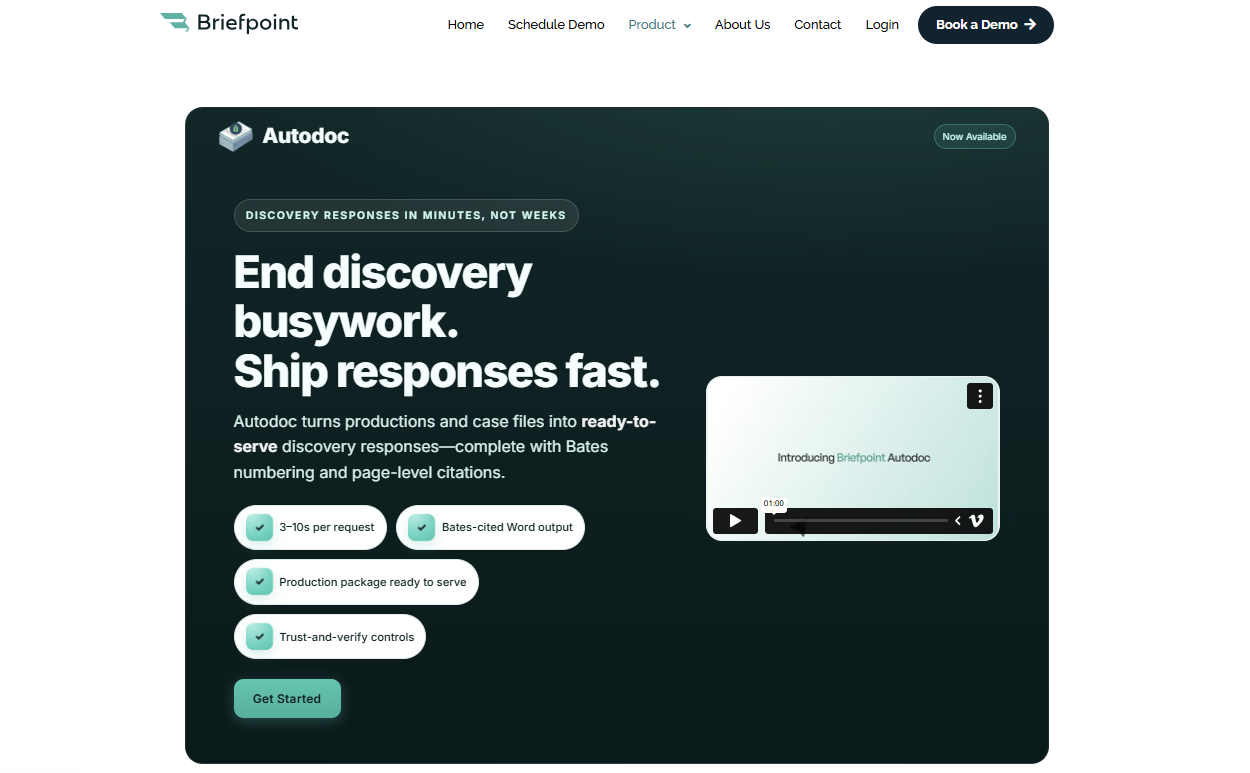
Essentially, it analyzes the requests you receive, helps you build objections and responses, and turns high-volume work into something you can manage in minutes.
The tool handles the core discovery documents that normally eat up the most time, including:
You can also use Bridge to collect client responses without long email threads. It turns complicated interrogatories into plain-language questions, gathers responses in a secure portal, and places everything directly into your draft.
And if your matters involve large productions or due diligence-style review, Autodoc adds another layer of automation.
It maps documents to each request, pulls page-level Bates citations, and creates Word-ready responses and a production package, which makes high-volume discovery far more manageable.
Key features
- AI-assisted drafting: Builds objections and responses for RFAs, RFPs, and interrogatories to reduce manual drafting effort.
- Bridge client collection: Translates interrogatories into plain English or Spanish and gathers client input through a secure portal that flows directly into your draft.
- Autodoc production automation: Maps documents to each RFP, applies page-level Bates numbering, and generates Word-ready responses and a complete production package.
- Trust-and-verify controls: Shows where the AI searched and lets you confirm or deselect files before finalizing work product.
- Privilege tagging: Flags sensitive materials and supports the creation of a privilege list during high-volume or due diligence work.
- Word-first editing: Exports to Microsoft Word for review, adjustments, and final approval.
- SOC-2 certified security: Safeguards client data and discovery materials across every step of the workflow.
Over 1,500 law firms already rely on this workflow upgrade. Test Briefpoint yourself by scheduling a demo.
2. Clio
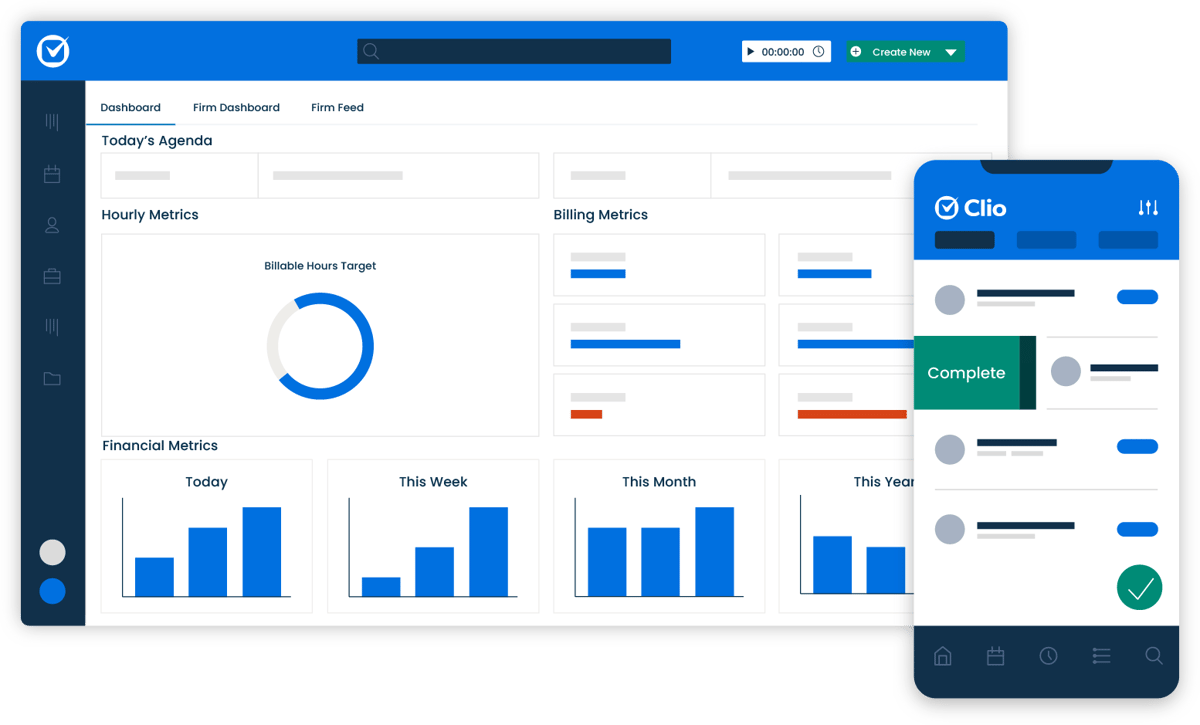
Clio is a widely used case management platform that helps firms organize matters, coordinate client communications, and keep daily work moving without relying on multiple documents across different systems.
Its layout is straightforward, and most teams appreciate how easy it is to get up to speed after onboarding.
Source: G2
A centralized dashboard gives you a clear view of case details, deadlines, billing activity, and upcoming tasks. You can manage legal document templates, store files, automate routine steps, and send documents out for electronic signature, all from one place.
Clio also integrates with a large ecosystem of apps and services, which makes it easier to stay ahead of scheduling, communication, and administrative work.
And because it’s cloud-based, you can access your matters from anywhere, whether you’re in the office or meeting with a client.
Key Features
- Case management tools: Organizes matters, deadlines, tasks, and client communications in one dashboard.
- Document management: Stores files, handles multiple documents per matter, and supports legal document templates.
- E-signature support: Sends documents for signature directly through the platform.
- Legal billing and time tracking: Tracks billable work and generates invoices with minimal manual entry.
- App integrations: Connects with email, accounting platforms, legal research tools, and other legal software.
- Cloud accessibility: Lets you work from any device without relying on local servers.
3. PatentPal
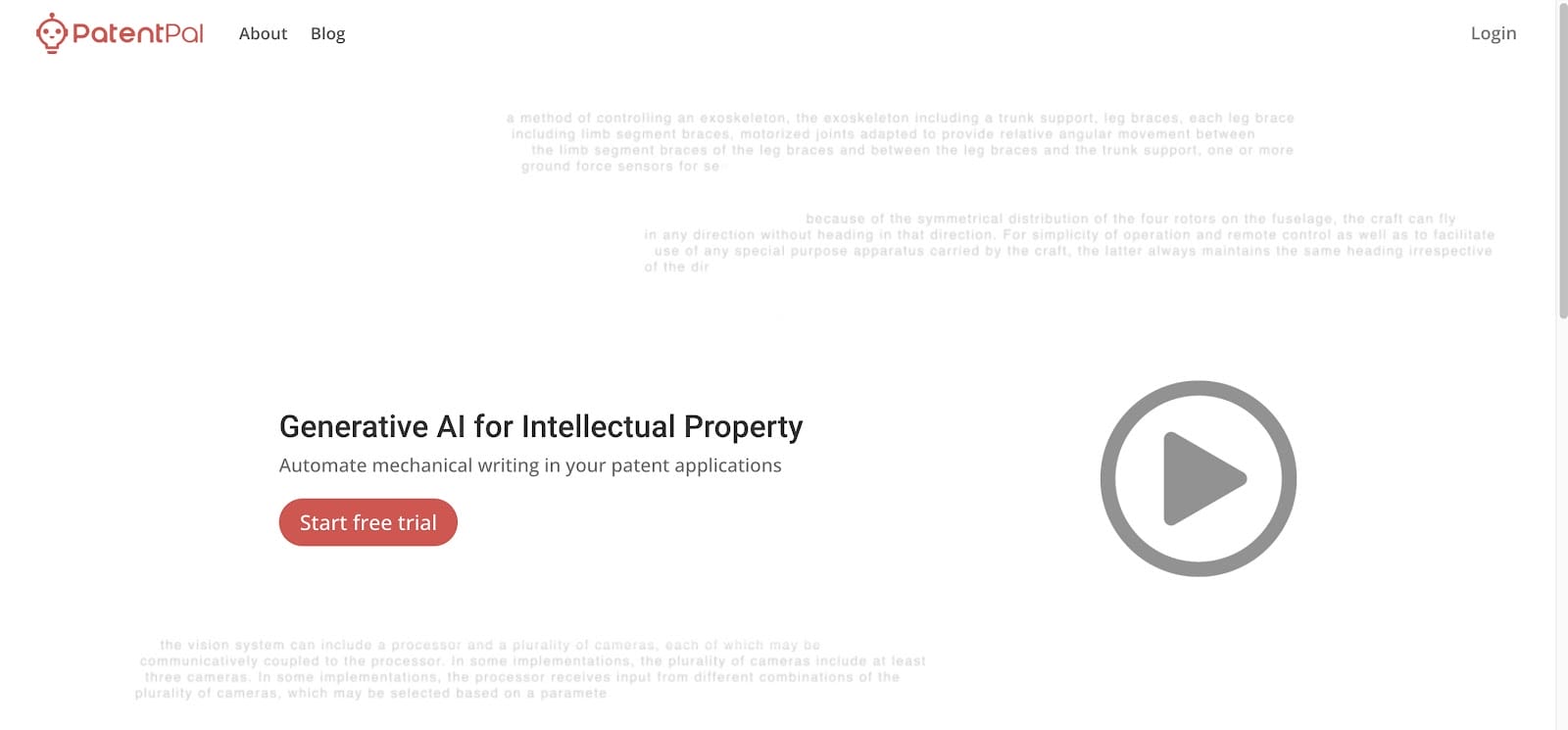
PatentPal is an AI platform built to lighten the workload involved in drafting patent applications. It focuses on the mechanical writing that often slows down IP professionals, turning early ideas and claims into organized legal content that’s ready for refinement.
Source: PatentPal.com
Users enter their claims, and PatentPal generates structured specifications, illustrative diagrams, and early drafts that follow common patent-office expectations.
The system relies on a knowledge graph and transformer-based models to interpret claim language, run document analysis, and produce content that fits the legal context of patent work.
The platform helps solo inventors, patent prosecutors, and in-house legal teams move faster during business development or early-stage filings, especially when there’s pressure to prepare multiple applications at once.
It also supports seamless integration with other drafting tools, which makes it easier to keep everything in one workflow rather than bouncing between platforms.
Key Features
- Claim-driven drafting: Turns user-submitted claims into full specifications, diagrams, and preliminary application drafts.
- Structured legal content generation: Uses transformer models and knowledge-graph data to produce text aligned with established patent standards.
- Document analysis tools: Interprets claim language, identifies relationships, and organizes information into consistent application sections.
- Diagram creation: Generates illustrative figures that support the technical narrative in the application.
- Seamless integration: Works alongside other drafting tools to keep the workflow organized from start to finish.
- Support for high-volume work: Helps legal teams and inventors move efficiently when managing multiple filings or rapid business development cycles.
4. Spellbook AI
Spellbook AI is designed to help corporate and commercial lawyers move through contract drafting and review with far less friction.
It runs inside Microsoft Word, so you can analyze contracts, suggest revisions, and review legal documents without switching tools or disrupting your workflow.

Source: Spellbook.legal
Powered by GPT-4, Spellbook can work through detailed provisions, answer complex questions about the language in front of you, and flag risks you may want to address before finalizing a draft.
It’s particularly helpful when dealing with long agreements filled with boilerplate clauses or sensitive client information that requires close attention.
Key Features
- AI-assisted contract drafting: Suggests language, improves clarity, and helps build agreements more efficiently.
- Document review tools: Analyzes provisions, highlights risks, and reviews legal documents for issues that may need correction.
- Complex question handling: Answers detailed questions about definitions, obligations, or clause interactions directly within Word.
- Compliance support: Flags areas that may affect regulatory or internal requirements so lawyers can ensure compliance before sending a draft out.
- Boilerplate analysis: Reviews standard clauses to identify gaps, inconsistencies, or outdated language.
- Secure data handling: Manages sensitive client information with strong privacy and security safeguards.
- Microsoft Word integration: Keeps all drafting and analysis work inside a familiar environment, making adoption straightforward.
5. CoCounsel
CoCounsel is Casetext’s AI-powered legal assistant designed to help lawyers move through research, drafting, and document review with far less effort.
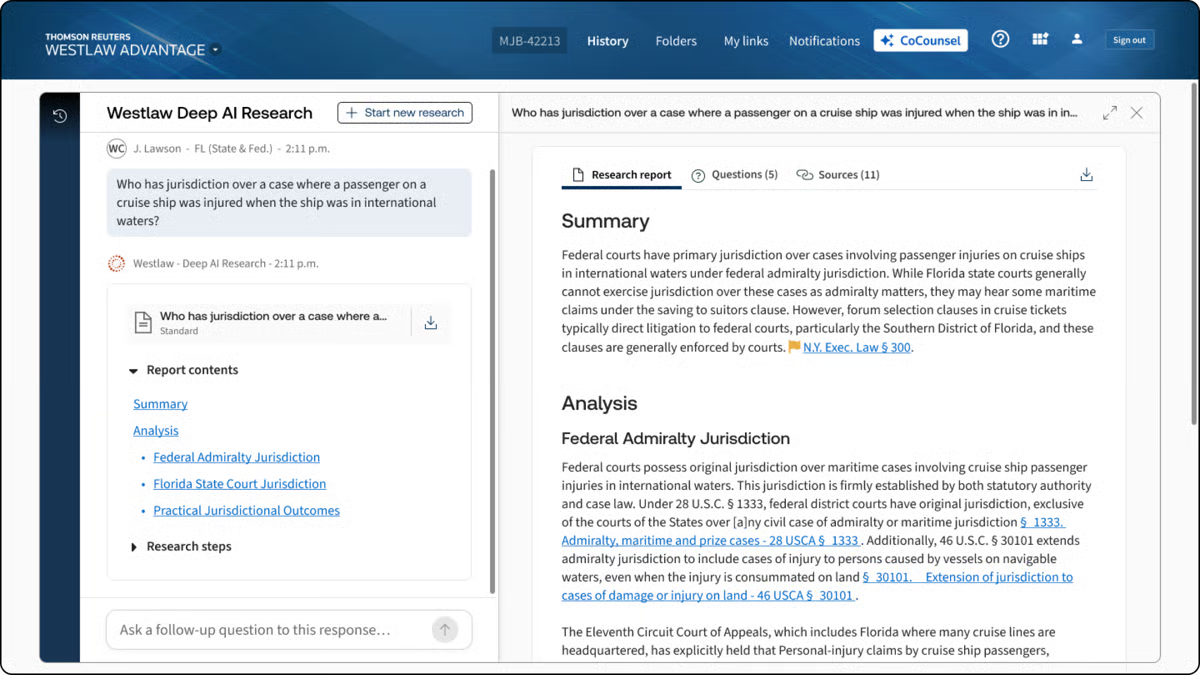
Many firms treat it as a virtual assistant that can answer legal questions, summarize large documents, generate research memos, and support early analysis before refining the final work product.
Source: G2
Trusted by more than 10,000 law firms, CoCounsel builds on Casetext’s long history of context-aware research.
It reads legal briefs, understands the legal framework behind your queries, and surfaces authorities that match the reasoning rather than just the keywords. This makes it especially helpful when you’re working through complex matters or evaluating case outcomes.
The chatbot-style interface makes it easy to ask questions in plain language and get structured responses quickly.
Whether you’re reviewing discovery or sorting through case law, CoCounsel helps lighten the load while keeping you in control of the legal judgment calls.
Key Features
- AI research assistant: Answers legal questions, prepares research memos, and provides insight into case outcomes.
- Brief analysis: Reviews legal briefs and identifies relevant authorities to guide stronger research.
- Automated legal document review: Processes discovery materials and flags important information for faster analysis.
- Drafting support: Generates early drafts, summaries, and language suggestions for legal documents.
- AI chatbot interface: Supports conversational requests and helps you work through complex issues quickly.
- Context-aware search: Surfaces case law based on legal reasoning and context rather than simple keyword matches.
How to Choose the Best Legal AI Tools for Your Business
Picking the best legal AI tool for your legal practice doesn’t have to be overwhelming or a guessing game. Here are some key tips to help you find the one that fits just right:
Pinpoint Your Practice’s Pain Points
The first step to finding the right AI tool is understanding where it can make the biggest impact. Take a look at the tasks that tend to take up a lot of time in your practice. Is document drafting slowing you down?
If so, a tool like Briefpoint can simplify this process and save hours on preparing responses and briefs.
Or, if you’re juggling client files and deadlines, a broader case management solution like Clio might be what you need.
Knowing your specific needs will help narrow down the tools that are truly worth considering.
Match Features with Your Needs
Once you’ve identified your needs, it’s time to match them with the features offered by different AI tools.
Some platforms are specialized for tasks like contract review, while others excel in managing discovery documents.
Consider the tools’ capabilities in terms of features and see if they integrate smoothly with your existing setup, like Microsoft Word or Clio. This will help make sure the new tool fits into your current legal workflow without causing disruptions.
Understand the AI
Before choosing a tool, it helps to understand what kind of AI is actually powering it. Different platforms rely on different AI models, and those choices can shape how well the tool fits your practice areas or day-to-day work.
Some tools focus on drafting support and use large language models trained to generate legal text. Others rely on machine learning trained on a legal database to improve tasks like litigation analytics, document review, or predictive insights.
A tool built for research might prioritize context recognition, while one designed for litigation strategy may focus on spotting patterns across past cases.
For example, an AI assistant like CoCounsel can answer complex questions and pull insights from a large research corpus, while a tool like Briefpoint uses AI to draft discovery responses and map documents to specific requests.
These are very different capabilities, even though both fall under “legal AI.”
Understanding what the AI is built to do (and what it isn’t) will help you choose a tool that matches the way you work rather than one that looks impressive but doesn’t fit your workflow.
Look for User-Friendly Design
Adopting a new tool shouldn’t be a struggle, so focus on finding one with an intuitive, user-friendly design.
AI-powered tools like Briefpoint and Clio are well-regarded for their simple interfaces, which help reduce onboarding time and make adoption smoother for everyone on your team.
A user-friendly platform is essential if you want to get the most out of your new AI tool without a steep learning curve or constant support.
Prioritize Data Security
Data privacy and security are non-negotiable in legal work. Legal AI software needs to prioritize protecting client information, especially when sensitive case details are involved.
Look for platforms that meet industry compliance standards like GDPR or HIPAA and offer strong encryption. Making sure these security measures are in place not only protects your clients but also gives you peace of mind, knowing that your data is secure.
Consider Support and Resources
Solid customer support and resources can make a huge difference in your experience with any new tool.
Check whether the provider offers accessible support options, like live chat, email, or phone, and if they have useful resources like training videos, guides, or webinars.
These resources can help your team make the most of the tool and troubleshoot quickly if issues come up.
Try Before You Buy
Lastly, always take advantage of free trials or demos when available. Testing out a tool firsthand is the best way to get a feel for how it fits into your practice and whether it meets your needs.
It also allows you to test the interface, performance, and integration options before making a financial commitment. By trying it out, you’ll know for sure if it’s the right choice for your practice.
Will AI Replace Lawyers?
It’s a question everyone in the field has heard by now, and it’s easy to see why. AI can accomplish daily work like drafting text, analyzing documents, and moving through certain legal tasks in seconds. But replacing lawyers entirely? That’s a very different conversation.
AI can support the work behind legal services, but it doesn’t understand people, nuance, or the strategy behind legal arguments.
It can read patterns, but it can’t grasp intent. It can review a document, but it can’t weigh the real-world consequences of a decision or guide a client through a difficult moment.
You’ve probably already seen how AI speeds up the background work. Those gains matter. They clear space for the part of the job that actually calls for judgment and experience. And that’s the part no model can replicate.
So, will AI replace lawyers? No. But it will change the rhythm of the work. The lawyers who get comfortable using these tools will move faster, think more clearly, and spend more time on the decisions that truly shape a case.
Briefpoint’s Role in a More Efficient Discovery Process
The discovery process can take over your week before you even notice it. One set of requests turns into hours of drafting objections, checking citations, and making sure everything lines up with jurisdiction-specific requirements. Not the best use of your time.
Briefpoint takes that weight off your plate by producing clean drafts, accurate citations, and organized responses that are ready for review.
What stands out is how naturally it fits into the way litigation teams already work. Objections follow your standards, client input flows straight into your documents through Bridge, and Autodoc handles the heavy lifting when you’re working with large productions.
You stay in control of the strategy while the routine steps move faster in the background.
It’s worth thinking about how much time those repetitive tasks take from your week. What could you shift your focus to if discovery didn’t demand so much of your attention?
If you want to see the difference for yourself, book a demo today!
Litigation Management Software: A Practical Guide
What Is Litigation Management Software?
Litigation management software gives legal professionals a structured way to run civil litigation cases without bouncing between disconnected tools and systems.
It’s a broad category of legal software, not one single type of tool. Different platforms cover different parts of the litigation workflow, so the term works as an umbrella for anything that helps organize case details, documents, deadlines, and administrative tasks tied to active matters.
Some firms rely on general practice management systems that handle billing, calendars, client communication, and basic document storage.
Those help with everyday operations but don’t always offer the deeper support litigation teams need once legal discovery, drafting, or document-heavy review begins.
Litigation-focused tools go further by offering features built for structured responses, document production, collaboration during discovery, and tools that keep long matters moving in a predictable rhythm.
In short, litigation management software brings the moving parts of a case into one coordinated experience. It supports the practical work legal teams deal with every day while giving them more control over timelines and essential tasks tied to criminal or civil litigation.
5 Main Types of Litigation Management Software
Some litigation tools handle one specific task really well, and others cover several parts of a case at once. However, even the most feature-packed platforms usually leave a few gaps, so most firms rely on a mixture of software to cover everything that happens during a matter.
Let’s walk through the main categories you’ll see and how each one supports the work involved in active litigation.
1. Discovery Document Automation
Discovery document automation simplifies the parts of litigation that usually depend on hours of drafting, revising, and formatting.
Essentially, these tools help legal professionals move through the discovery process with less manual work, especially when preparing legal documents tied to key litigation events.
Tasks like building interrogatories, requests for admission, and requests for production (RFPs), or turning production sets into court-ready responses, become far more manageable when the heavy lifting happens automatically.
Many platforms now use artificial intelligence to organize structure, apply formatting rules, and generate clean drafts that follow jurisdiction-specific expectations.
Briefpoint is a leading example, giving teams a full discovery workflow that supports both propounding and responding. It drafts objection-aware requests, turns client responses into Word-ready documents, and keeps everything consistent across a matter.
Autodoc adds another layer of speed for the document creation stage. It maps productions to each request, identifies responsive documents, adds page-level Bates citations, and produces a ready-to-serve package. So, a workflow that once took days can move forward in minutes.
2. Case and Matter Management
Case and matter management tools give your team one centralized platform to keep the litigation process organized from the moment a case opens.
A strong litigation management system brings documents, deadlines, notes, assignments, and other essentials into a single, predictable workflow so routine tasks feel easier to manage.
Instead of hopping between folders, emails, and spreadsheets, everything is centralized, so you can track case progress and see what needs attention.
These platforms help legal professionals manage tasks tied to motions, discovery, hearings, and client communication. They also support task tracking for critical deadlines to make sure nothing gets overlooked during a busy period.
Most tools also offer clear views of upcoming responsibilities, who owns each assignment, and how far along each step is.
Common features include:
- Calendars that show all case-related dates in one place
- Task management tools that help teams manage tasks efficiently
- Document storage with search and version control
- Contact and client information tied directly to each matter
A good case management setup keeps your team aligned and reduces the friction that tends to build up during long civil litigation cases. It also creates a smoother path for onboarding new team members who need quick access to case details and outstanding work.
3. Discovery Support
Discovery support tools help teams handle the heavier parts of document review, production prep, and data organization that appear throughout civil litigation practice.
They’re essential for firms managing large sets of case documents, especially in complex cases where identifying relevant documents can take a significant amount of valuable time.
These platforms give you a clear way to sort, categorize, and search through materials pulled from email, shared drives, uploads, or client-provided records.
Strong document management features make it easier to group files, apply tags, highlight key passages, and keep everything organized as the matter grows. Many tools also surface patterns or connections that provide valuable insights during early strategy discussions.
Common examples of discovery support tools include:
- eDiscovery software that handles large volumes of files and maintains consistent search results.
- Document review tools with tagging, commenting, and filtering to speed up attorney and paralegal workflows.
- Production preparation tools that assemble organized sets for service.
- Analytics features that help identify themes, timelines, or communication trails.
With the right discovery support tools in place, teams gain a clearer path through large data sets and a more reliable way to organize discovery documents throughout litigation.
4. Communication and Collaboration
Law firm communication and collaboration tools make your day a lot easier when you’re working through an active case.
You probably deal with a heap of emails, quick side conversations, and documents passed around in different formats. Bringing all of that into one platform helps you stay organized and gives your team a clearer picture of what’s going on.
If you work in a larger firm or legal department, this becomes even more helpful since multiple people may touch the same matter at different points.
These tools let you share updates, talk through strategy, and keep conversations connected to the right case file. Clients benefit too, since communication feels more structured and easier for them to follow.
When everyone can find the information they need without digging through old messages, managing cases feels smoother, and you save time throughout the week.
Key features you might find useful include:
- Secure messaging that keeps matter-related conversations in one spot
- Shared document spaces so you don’t hunt for files
- Tags or @-mentions that quickly loop in the right people
- Client portals that make communication easier to track
- Activity logs that show what’s been updated
5. Billing and Time Tracking
Legal billing and time-tracking tools help law firms stay on top of billable work without relying on spreadsheets or generic accounting software.
While general billing systems can handle invoices and basic bookkeeping, they rarely match the way legal teams record time, tag tasks, or capture work tied to specific matters.
On the other hand, legal tools built into litigation support software take those needs into account. They give you a clearer picture of your hours and the value of the work you’re doing.
Time-tracking software designed for litigation lets you record work as it happens, associate each entry with the right matter, and keep an accurate record of everything from drafting to discovery preparation.
You don’t have to guess what you worked on at the end of the day, and you’re less likely to miss billable work that should have been captured.
On the billing side, legal-specific systems help produce invoices that match client expectations, matter structures, and standard formats for litigation work. They also make it easier to review entries, organize them by matter, and send polished invoices with fewer edits.
What Are the Benefits of Litigation Management Software?
You can probably tell what the main advantages look like after seeing all the different types of tools a litigation management system can include. Still, it helps to step back and look at the overarching benefits that show up once everything sits in one coordinated place.
Here are some of the benefits you’ll notice:
- Less admin work: Routine steps take less time, which leaves you with more hours for legal analysis and client needs.
- Better oversight of deadlines: Every important date stays visible, and each matter has a clear timeline you can rely on.
- Stronger support for complex matters: Large volumes of documents and moving parts stay organized, which can help you keep steady progress.
- Faster access to information: Key notes and case documents appear quickly, so you can make earlier, more informed decisions.
- Smoother collaboration: Attorneys, paralegals, and staff work from the same information without extra back-and-forth.
- More consistent work product: Templates and structured workflows help your team produce aligned and reliable documents.
Once everything fits together, the workflow feels lighter, and your attention shifts naturally toward the work that drives case outcomes.
What to Consider Before Choosing a Platform
Choosing the right platform gets easier once you’ve seen what these tools can do and how the benefits line up with your daily work. All that’s left are a few practical considerations to help narrow the list and point you toward a setup that fits your team’s needs:
Ease of Use and Learning Curve
Choose software that your team can understand without long training sessions. A smoother learning curve means everyone can start using the core features quickly, which keeps the transition from disrupting your cases.
If a platform feels intuitive from the start, adoption tends to go faster, and fewer questions pile up later.
Primary Functions Your Team Relies On
Every litigation team handles tasks a little differently, so pay attention to the features your workflow depends on. Some tools focus on case organization while others revolve around discovery or document creation.
Picking a platform that supports your daily responsibilities makes the system feel like a natural extension of your work.
Cloud-Based Storage and Mobility
Access to key documents across devices helps you stay productive even as you move between the office, home, and court.
Secure cloud-based legal software also reduces the risk of misplaced files and keeps important materials within reach whenever you need them.
Team Collaboration Needs
If multiple people contribute to a matter, look for features that keep everyone aligned.
Tools that connect comments, tasks, updates, and documents in one space help reduce confusion and keep the whole team moving in the same direction.
Scalability and Future Growth
Your needs today may not be the same a year from now. A platform that grows with your caseload or team size gives you more stability over time.
Plus, it saves you from switching systems later when your practice becomes busier or more specialized.
Security and Compliance Requirements
Legal work depends on trust, so data protection matters. Choose software that treats security as a priority, with safeguards that protect sensitive files and keep your practice aligned with professional standards.
How Briefpoint Fits Into a Modern Litigation Workflow
Litigation management software gives your team a clearer, more organized way to handle the moving parts of a case, from document handling to collaboration.
When it comes to drafting court documents and keeping work aligned with court rules, Briefpoint stands out as one of the best options for teams looking to modernize their workflow.
Briefpoint is a specialized tool designed to take the most repetitive steps off your schedule, which means you can focus on valuable work that moves a case forward.
With features that support discovery drafting, client response collection, and automated formatting, Briefpoint helps you maintain consistency and keep documents ready for review and service.
For teams that want a faster, more predictable process across multiple matters, it brings the kind of support that pairs naturally with your existing systems.
If you’re ready to upgrade the way you handle litigation tasks, Briefpoint makes the transition easy.
Will AI Replace Lawyers? The Future of Legal AI

What Are AI-Powered Legal Tools?
Legal AI tools are software platforms that use artificial intelligence to take on tasks that usually eat up a lot of time for legal professionals. Many law firms use them to handle routine work more quickly and keep their teams focused on higher-level decisions.
These tools can help with traditionally tedious tasks like:
- Document automation
- Document review
- Legal research
- Contract analysis
- Case pattern recognition
Most of these systems rely on large language models (LLMs), machine learning (ML), and other data-driven methods to process information at a speed humans can’t match. For example, they can pull out key points, surface relevant documents, and spot patterns across large sets of files.
In practice, these legal AI tools don’t replace legal judgment; they support it. They handle the repetitive steps, and lawyers step in to interpret results, weigh risks, and guide strategy.
For many firms, this blend of human insight and modern legal technology leads to smoother workflows and more reliable outcomes.
Advantages of Integrating AI into Legal Workflows
AI systems bring a range of practical benefits to everyday legal work, which ultimately gives human attorneys more time and space for strategic thinking and the parts of a case that require experience and judgment.
Here are some of the advantages many law firms see:
- Law firm productivity and efficiency: AI handles repetitive tasks, freeing lawyers to focus on strategy, client communication, and complex legal matters.
- Cost reduction: Automating routine administrative work can lower operational costs and help teams use their time more intentionally.
- Fewer human errors: AI law firm tools manage large data sets with consistency to reduce mistakes in documents, timelines, and investigatory work.
- Better information access: AI can surface relevant documents, key terms, and patterns much faster than manual review, which can improve overall legal assistance.
- Improved turnaround times: Tasks that once took hours (like sorting documents or summarizing evidence) can be completed in minutes.
- More consistent workflows: Standardized outputs help teams maintain quality and keep cases moving, even during busy periods.
Potential Risks of Employing AI in Legal Practice
It’s just as important to talk about the drawbacks and limitations of legal AI tools as it is to highlight their benefits. Even with strong capabilities, AI’s ability to support legal work still depends heavily on human judgment and oversight.
Some of the key risks include:
- Data security: Relying on digital platforms introduces vulnerabilities, especially when sensitive client information is involved. Law firms must stay alert to cybersecurity threats and maintain strong protections as the technology evolves.
- Ethical concerns: Questions around confidentiality, privacy, and the lawyer-client relationship remain front and center. AI can process information quickly, but it can’t navigate the human elements of trust or context, which is why human oversight retains the final say.
- Dependence on technology: If teams lean too heavily on legal automation, core skills can weaken over time. AI should assist the work, not replace the professional judgment required for complex decisions.
- Factual accuracy and bias: AI systems can produce confident but incorrect outputs or mirror biases found in training data. Without careful review, errors can slip into important legal documents.
In an evolving legal landscape, these risks remind firms that AI works best as a tool that supports, but never replaces, skilled practitioners.
Will AI Replace Lawyers?
We raised this question at the start, and it’s worth taking a closer look now that we’ve covered both the benefits and the risks of using AI in legal work.
So here’s the big question in plain terms: Will AI actually replace lawyers?
We know that AI can handle a lot of routine tasks, but its strengths stay squarely in the technical side of the job. It doesn’t understand legal principles the way trained attorneys do, and it can’t apply judgment, weigh competing interests, or navigate sensitive client situations.
The practice of law often depends on interpreting gray areas, building trust, and making decisions that blend logic with human insight. That’s not something software can step into.
So while AI changes how legal work gets done, it doesn’t replace the need for human lawyers. It offers support, speeds up repetitive tasks, and gives attorneys more room to focus on strategy and client needs.
Next, we’ll break down the specific reasons AI won’t replace lawyers, because each one highlights a limit that only human expertise can fill.
Why AI Will Not Replace Lawyers
Since we’ve now looked at the broader question, it’s time to break down the specific reasons AI won’t replace lawyers.
There are just some jobs AI cannot and should not take over, and law falls squarely into that category. The practice of law is built on human expertise, professional conduct, and judgment shaped through years of education, real cases, and work with clients.
Here’s where the limits of AI become clear:
Complex Reasoning and Judgment
AI can review legal documents and analyze patterns, but it can’t understand context or apply legal principles the way experienced lawyers do.
Human lawyers draw on law school training, case law, and lived experience to navigate gray areas, conflicting precedents, and sensitive legal issues that require critical thinking skills, not just data.
Emotional Intelligence
Clients often need more than information. They need reassurance, clarity, and someone who understands the human side of their situation.
Empathy, communication, and trust-building are essential in legal work, and no system can replicate those interactions.
Adaptability
Legal matters shift quickly. Facts change, negotiations evolve, and unexpected issues surface without warning. Lawyers adapt on the fly and adjust strategy based on judgment and experience. AI can support the process, but it can’t handle that level of flexibility.
Integrating Artificial Intelligence Into the Practice of Law
For law firms and professionals, the key is not to resist AI but to embrace it strategically. Integration can take several forms:
Augmentation
In most firms, AI-powered tools fit best as extra support. They help legal teams get through the parts of the legal process that tend to eat up time, which might include things like sorting documents, checking for key terms, or pulling information from large files.
The real value shows up in the day-to-day tasks you already know well. AI can scan long contracts, organize discovery documents, draft simple sections of a document, or highlight language that might need your attention.
That leaves you with more room to focus on strategy, client guidance, and the legal issues that call for real judgment.
At its core, augmentation is simple: the legal tech software handles the repetitive steps, and you bring the insight that only a human can offer.
Education and Training
As AI becomes a bigger part of legal work, it helps to make sure you and your team feel confident using these tools. Understanding how generative AI works, how it relies on training data, and where it needs human judgment makes everyday use much smoother.
Most firms find it useful to offer practical, hands-on learning, such as:
- Short workshops that walk you through AI chatbots and legal drafting tools
- Clear guides on how generative AI processes information
- Training for young lawyers and law students preparing to enter AI-ready workplaces
- Regular refreshers when new features or tools roll out
Keep in mind that the goal is to help you get comfortable with what these tools do well and where they need your supervision. When you know how to review AI output, ask the right questions, and apply your legal expertise on top of it, the tools become genuinely useful.
Strong training makes AI adoption feel less like a leap and more like a natural part of your legal workflows.
Ethical Guidelines
Using AI in legal practice brings real advantages, but it also introduces important questions you can’t afford to ignore.
Anytime an AI model touches client data or influences part of your workflow, you’re operating within the ethical standards that keep the legal system trustworthy.
Clear guidelines help your legal operations stay aligned with privacy rules, professional responsibility, and the expectations clients have when they seek legal services.
Many firms look to well-known frameworks like the OECD AI Principles or the NIST AI Risk Management Framework as a starting point. You don’t have to follow them word-for-word, but they offer helpful guidance on fairness, transparency, and accountability.
When building or updating your own guidelines, it’s worth covering areas such as:
- Client confidentiality and data handling: How the AI model stores and processes sensitive information.
- Accuracy and verification: A requirement that humans review AI-generated content before it’s used in any legal matter.
- Bias and fairness: Steps for monitoring and reducing unfair outcomes in search, drafting, or analysis.
- Transparency with clients: When and how you disclose that AI tools are being used as part of your legal services.
Clear ethical standards give your team confidence and protect both you and your clients as AI tools become more common in everyday legal work.
The Practical Value Briefpoint Brings to Your Cases
AI can be helpful in legal practice, but the real value shows up when a tool cuts out the busywork without disrupting the way your team already operates.
Briefpoint focuses on that goal by giving litigation teams a faster, more reliable way to handle discovery from start to finish.
Briefpoint helps you propound and respond to discovery in minutes. Autodoc moves things even faster by turning your productions and case files into ready-to-serve discovery responses.
You upload the complaint, the RFPs, and the materials. Autodoc finds the responsive documents, prepares a Word response with objections, answers, and Bates citations, and builds a complete production package that is ready to serve.
Firms using Autodoc routinely save 30–40 hours per matter because they skip the slowest steps of discovery. No setup is required, and nothing you upload is used to train any model. You keep full control, and you get consistent, defensible documents without weeks of manual work.
If your team wants a faster and more predictable way to handle discovery, Briefpoint is built for exactly that kind of everyday workload.
How Legal Technology Software Supports Your Everyday Work
What Is Legal Technology Software?
Legal technology software covers a wide mix of tools that help law firms and legal professionals handle everyday work with less friction. It’s a broad category because legal processes vary so much from team to team.
One group may need help organizing matters, another may focus on legal document automation, and others may put more emphasis on research, communication, or billing. All of these fall under the same umbrella.
Most teams use legal tech software to keep daily tasks moving without relying on scattered systems or long manual steps. It gives you a clearer system for things like tracking information, storing documents, sharing updates, and handling the work that fills a typical day.
Some platforms are also built specifically for legal teams, while others come from general business software that adapts well to legal workflows. Either way, the common goal is to make it easier to manage information and stay organized.
As more legal work shifts online, these tools help create a setup that feels steady and predictable. They bring together the pieces of your practice in a way that lets you focus on the work that needs your attention, not the tools slowing you down.
Why Legal Tech Matters for Today’s Workflows
It’s hard to stay on top of everything when legal work keeps expanding, so it helps to have tools that take some pressure off your plate.
Here’s how modern legal tech tools support smoother workflows and give you more room to focus on the parts of legal practice that need your expertise.
Fewer Repetitive Tasks Slowing You Down
A lot of legal work gets eaten up by steps that feel small on their own but add up fairly quickly. Luckily, tools powered by generative AI can draft outlines, summarize long sections, or spot key language in legal documents so you don’t have to start from scratch.
A good example would be using an AI assistant to pull main deadlines from a contract before you dive into the fine print yourself.
Better Organization Across Your Files and Matters
Strong document management helps you keep everything in one platform rather than spread across emails and folders.
Here’s where you gain the most:
- Faster access to files when you need them
- Clearer version history
- Less time spent searching
For corporate legal departments or busy litigation teams, that clarity makes a noticeable difference during high-volume periods.
Improved Security for Sensitive Information
Many platforms now come with robust security features like encryption, access controls, and detailed audit logs. This makes it easier to protect client information while keeping your team’s workflow steady.
Smoother Collaboration and Higher Client Satisfaction
Quick updates, shared workspaces, and easier communication help clients feel informed and supported.
When your team can work from the same information and update each other without delay, the overall experience becomes more consistent.
Tools That Handle the Heavy Lifting Behind the Scenes
Some tasks benefit from automation running quietly in the background. Billing entries, reminders, signature tracking, and document routing can all operate with minimal oversight. You get cleaner records and fewer chances for mistakes without extra effort.
Core Categories of Legal Technology Software
Legal tech software comes in many shapes, and each category solves a different kind of problem you deal with every week.
Here’s a simple breakdown to help you understand what each one brings to your workflow.
- Practice management: Helps you organize matters, track legal tasks, manage calendars, and keep client communications in one place. Many platforms also include a client portal and options to help clients sign documents without extra steps.
- Document management and automation: Keeps important files organized and gives you easy access to drafts, versions, and shared folders. Some tools use artificial intelligence and machine learning to handle repetitive formatting or generate quick summaries.
- Contract management: Supports legal drafting, edits, approvals, and contract review in a single system. These tools help you see where an agreement stands and move it forward without losing track of changes.
- Legal billing and accounting: Designed for accurate billing, billable hours tracking, generating invoices, and expense tracking. Many tools also help you get paid faster through built-in payment options.
- Communication and collaboration: Helps your team coordinate tasks, share updates, and keep clients informed. Messaging, video calls, shared calendars, and client-facing spaces all fall here.
- eDiscovery and research: eDiscovery tools for reviewing data collections and finding relevant case law without wading through countless files on your own.
How These Tools Work Together
Once you start seeing these categories side by side, it becomes clear how much smoother things feel when they support each other. Legal tech works best as a connected setup, not a group of isolated tools.
Take a look at how the pieces can fit together in a typical legal workflow.
A Steady Path From Client Intake to Case Details
Practice management tools collect client intake information, store case details, and keep everything organized from the start. When paired with document tools, you can upload new client materials immediately and link them to the right matter without digging around for folders.
For example: A new client fills out an intake form online, and their responses automatically appear in your system alongside the documents they upload.
Cleaner, Faster Document Review in Complex Legal Work
Document management systems and eDiscovery software work well together during heavy document review. A cloud-based platform gives you a central place to sort, tag, and search through large data sets, while research tools help you check authorities during analysis.
A few benefits you’ll notice:
- Less backtracking between systems
- A clearer view of what still needs attention
- Easier collaboration when multiple reviewers step in
Smoother Communication and Collaboration Across Your Team
Communication tools connect everything by helping your team share updates and stay aligned. When your messages, files, and tasks all live within connected systems, there’s less room for confusion and fewer duplicate efforts.
Think of a scenario where your team flags a contract issue directly inside your contract management tool, then discusses it in your collaboration app without losing the context.
A More Predictable Workflow for Busy Teams
When your tools share information, your workload feels steadier and easier to manage. Tasks flow from one stage to the next without as many pauses.
A few things become noticeably smoother:
- Assigning tasks based on real-time case details
- Moving documents from review to approval without extra uploading
- Keeping everyone aligned during fast-moving matters
For example, a contract routed for approval in your contract management tool can automatically trigger a task in your practice management system, which then gives the right person a clear next step.
This kind of connected workflow helps teams stay efficient during busy periods and reduces the friction that normally shows up during complex legal work.
How to Choose the Right Legal Tech for Your Needs
The easiest way to choose legal tech is to look at what actually slows you down and match tools to those gaps. A good setup should support the whole process, feel cost-effective, and give you back time that can be spent practicing law rather than dealing with manual tasks.
Here’s a simple way to work through the selection:
- Pinpoint the tasks that take too long or pull you away from real legal work
- Note the time-consuming and repetitive steps you want to reduce
- Look for tools built to solve those specific issues
- Consider software with AI technology
- Compare options that fit your budget and firm size
- Test each platform through a demo or trial to see how natural it feels
- Make sure it connects smoothly with the tools you already use
- Review the vendor’s training resources and support
- Confirm that the tool helps you improve law firm efficiency
As you evaluate different options, focus on how each one will actually fit with the way you already practice. The right choice should remove friction, save valuable time, and make your overall process feel more manageable.
A Smarter Way to Support Litigation Work With Briefpoint
Legal technology works best when each tool handles a part of your workload that normally feels slow or repetitive.
Practice management, research platforms, billing systems, and eDiscovery tools all play a role, but litigation teams often need something extra — a way to move through discovery documents without sinking hours into formatting and repetitive drafting.
That’s where Briefpoint fits naturally into your setup. With Autodoc, which helps handle formatting tasks and document cleanup, Briefpoint gives you the automation power you need during discovery.
It automates the creation of discovery documents with AI-powered precision to give you a smoother path through tasks that usually take far too long. You get clean, ready-to-use drafts, consistent formatting, and fewer manual steps pulling you away from real legal work.
If you’re building a more modern, efficient workflow, Briefpoint is one of the easiest upgrades you can make. It supports the tools you already use, takes pressure off your schedule, and gives your team more room to focus on case strategy rather than routine drafting.
The Fundamentals of Cloud-Based eDiscovery
What Is Cloud-Based eDiscovery?
The primary goal of cloud-based eDiscovery is to provide legal teams with a more flexible way to collect data, sort through large data volumes, and quickly spot relevant data.
Older, non-cloud systems rely on local servers and fixed storage limits, which usually means everything feels slower once the documents pile up or new data sources get added. You often have to wait for IT support, upgrades, or extra capacity before moving forward.
With a cloud platform, on the other hand, the whole process feels smoother. You can pull information from email, chat platforms, cloud drives, and other sources without worrying about how much your system can handle.
The tools also scale automatically, so big matters or sudden surges in volume don’t force you to pause your workflow.
Collaboration is another thing that improves. Traditional setups sometimes create bottlenecks when multiple reviewers are working at the same time. A cloud environment keeps everyone on one shared system, reviewing legal documents side by side with consistent search results and updated data.
The eDiscovery market has leaned heavily toward cloud options because they handle modern communication data more reliably and adapt to changing workloads. For many teams, it’s simply a more practical way to manage growing collections without fighting with limited infrastructure.
How Cloud-Based eDiscovery Works
Once you understand the basics, it helps to see how everything functions in practice. Cloud platforms bring each step of the eDiscovery process into a single solution to make sure legal professionals can manage the entire review workflow more easily.
Here’s an overview of how it works:
1. Data Collection From Modern Data Sources
Cloud tools pull information from email, chat platforms, cloud drives, mobile devices, and other data sources you encounter in investigations or litigation. This makes gathering relevant information faster and more reliable, even when you’re dealing with large volumes of data.
2. Early Case Assessment and Processing
Once the system ingests the data, it indexes and organizes everything. Many platforms include early case assessment features that help you spot patterns, reduce noise, and estimate the scope of a matter before the deeper review process begins.
3. Review and Collaboration
Reviewers can search, tag, filter, and organize documents in one shared environment. Real-time updates help teams stay aligned as issues develop, which keeps legal workflows moving without unnecessary back-and-forth.
4. Legal Holds and Preservation
Most cloud systems include built-in legal holds, making it easier to preserve potentially relevant data and notify custodians without relying on spreadsheets or manual tracking.
5. Reporting, Production, and Export
Finally, you get detailed reporting, audit trails, and easy options to produce the data in standard formats for opposing counsel or the court.
Key Benefits of Cloud-Based eDiscovery
Cloud platforms lighten the load and help you move through discovery with fewer delays. With these tools, you can create more room to shape a stronger case strategy.
Aside from that, you can expect the following benefits from cloud-based eDiscovery software:
- Scalability: Works smoothly with large data volumes and adjusts as matters grow.
- Speed: Faster processing and indexing make it easier to search and analyze information right away.
- Security: Protects your evidence with encryption, access controls, and activity logs you can track at any time.
- Better collaboration: Keeps everyone in one shared review space with consistent tags, notes, and updates.
- Email threading: Groups conversations so you’re not reading the same emails again and again.
- Lower IT burden: Cuts down on hardware, updates, and maintenance to free your team from tech headaches.
- Informed decisions: Early insights help you spot patterns sooner and choose a clearer direction before the heavy review work.
- Support for investigations: Centralized data and smoother legal workflows help legal teams move from collection to production with less friction.
- Consistent reporting: Built-in reporting keeps everything organized and defensible.
Common Use Cases of Cloud-Based eDiscovery
Cloud-based eDiscovery fits naturally into a wide range of situations, especially when matters involve fast-moving data, tight deadlines, or teams working across different locations.
That’s why this kind of software is suitable for:
- Litigation cases: Teams handle document review, depositions, and production in one environment, which cuts down on back-and-forth and keeps everything organized.
- Internal investigations: Centralized data collection helps you sort through emails, chat messages, and cloud files without slowing the process or missing key details.
- Regulatory matters: When an agency requests information, cloud tools help you gather relevant data fast and maintain clean audit trails.
- Compliance monitoring: Ongoing oversight becomes easier with repeatable workflows, consistent reporting, and built-in tracking for higher-risk communication channels.
- Data breach response: Rapid collection and review give you a clearer picture of what happened, who was affected, and what your next steps should be.
- Client services: Firms that support many clients at once use cloud eDiscovery to manage multiple matters without overwhelming internal resources.
- Early case assessment: Quick processing helps teams estimate scope, detect issues, and make informed decisions before the review work expands.
Essential Features To Look For in Cloud-Based eDiscovery Software
The right cloud eDiscovery platform gives you more control, clearer insights, and smoother day-to-day work. As you compare options, it helps to focus on tools that offer the following features:
- Advanced analytics: Look for tools that highlight patterns, surface important terms, and cut down the time you spend sorting through data.
- AI-powered review: Features like generative AI summaries, classification, and smart tagging help teams move faster when the document count starts climbing.
- Search and filtering: Strong analysis and filtering capabilities help you narrow big collections into sets you can actually work with.
- Flexible data access: Your team should be able to log in securely from anywhere, review documents, and maintain consistency without chasing files across multiple locations.
- Email threading and deduplication: These features reduce clutter and prevent time wasted reviewing the same content repeatedly.
- Audit trails and reporting: Clear logs help you demonstrate defensibility, track decisions, and monitor activity across your matters.
- Security controls: Encryption, permissions, and identity tools reduce risk and protect sensitive information throughout the process.
- Cost transparency: Cloud solutions should help you anticipate costs, avoid surprises, and stay aligned with your budget.
Each of these features supports a smoother workflow and keeps your team grounded in a single source of truth.
Briefpoint Makes Cloud-Based eDiscovery Feel Manageable
Now that you’ve seen what strong cloud tools can offer, it’s clear how much time and stress you can save with the right setup.
Briefpoint takes that idea even further by removing the parts of legal discovery that usually slow everyone down.
The platform focuses on the work that eats up the most hours, like drafting responses, organizing information, keeping objections consistent, and preparing clean documents.
You can move through requests, responses, and client input in a way that feels steady and predictable, all within one workspace that keeps everything easy to follow.
Where Briefpoint really shines is Autodoc. It turns productions and case files into Word-ready, Bates-cited responses in minutes. Upload your complaint, RFPs, and files, let Autodoc pinpoint responsive documents, and download a fully prepared response package.
Many firms that used to spend days sorting, reviewing, and formatting now finish that same work in a single session.
If you’ve been looking for a way to cut down the heavy lifting in discovery, book a demo today!
5 Best Legal Project Management Software to Choose From
What Is Legal Project Management Software?
Legal project management software brings your tasks, deadlines, case details, and other important information into one organized system.
Many legal professionals use these platforms to keep matters moving without dealing with scattered emails or mismatched notes. Everything sits in a single place, which makes it easier to understand what needs attention and what’s already on track.
These tools help with tasks like:
- Scheduling
- Task assignments
- Progress tracking
- Document sharing
- Team coordination
Law firms often use legal management software to keep workloads balanced and make sure no one loses sight of important steps in a matter. It also supports budgeting, client expectations, and recurring processes that show up in different cases.
Strong legal project management tools give legal teams a clearer view of who’s doing what, how far along each task is, and where timelines might need adjustment. When used correctly, the overall workflow becomes more predictable and easier to manage.
For busy teams handling multiple matters at once, having that structure can make day-to-day work feel smoother and far less chaotic.
Why Should You Be Using Legal Project Management Software?
To reiterate, legal project management software helps legal firms keep matters organized, track moving pieces, and maintain steady progress across cases.
Many attorneys deal with shifting priorities and constant communication, so having a good project management tool gives the entire team a shared system that cuts down on disorganization and manual tracking.
Here’s why these platforms make such a difference in the legal sector:
- Greater visibility across matters: Everyone sees deadlines, task status, and upcoming steps easily.
- Clear task ownership: Legal work moves faster when responsibilities are assigned and easy to follow.
- More predictable schedules: Deadlines, milestones, and reminders help attorneys stay ahead of busy calendars.
- Smoother legal workflows: Routine steps, recurring tasks, and matter stages stay consistent from case to case.
- Better resource planning: Legal practice management software helps teams balance workloads and avoid bottlenecks.
- Improved client service: Organized communication and timely updates naturally raise client satisfaction.
- Fewer manual processes: Centralized information reduces the time spent tracking work in spreadsheets or scattered notes.
Legal teams that rely on structured project coordination often feel more in control of their caseloads, especially when managing multiple matters at once.
Top 5 Legal Project Management Software
Choosing the right platform can shape how smoothly your cases move from start to finish. To help you narrow things down, here’s a quick look at five legal project management tools many teams rely on when they want clearer workflows and better day-to-day organization.
1. PracticePanther
PracticePanther offers a flexible workspace that suits legal departments, small firms, and growing teams managing complex projects.
It brings together tasks, documents, deadlines, and communication so you’re not jumping between different systems to keep matters organized.
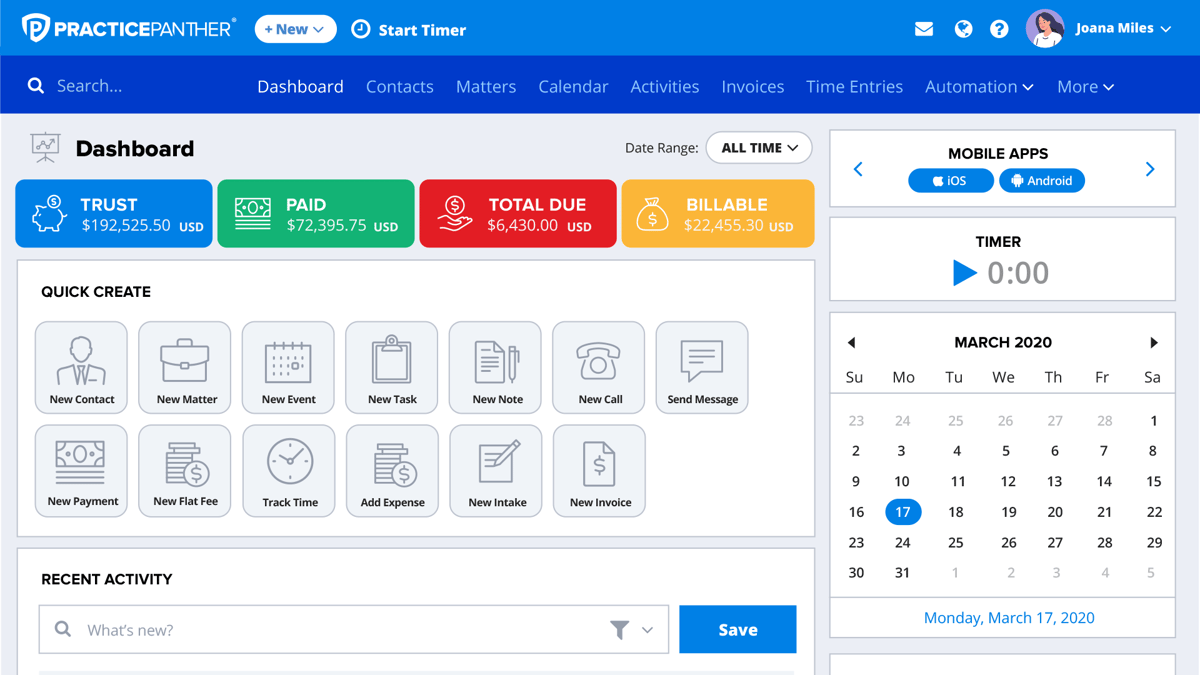
Source: G2
Many legal professionals appreciate that it adapts easily. You can set up project templates, build custom workflows, and shape the platform around how your team already handles legal processes.
The overall feel is structured without being rigid, which helps legal work move with fewer hiccups.
Best Features
- Custom workflows: Build matter stages and automated actions that match your internal steps and support consistent legal workflows.
- Project templates: Create reusable templates for cases you handle often, making it easier to set up new matters with the right structure.
- Document management: Store, manage, and share documents in one place so the entire team always knows where to find key files.
- Task and deadline tracking: Assign tasks, stay ahead of due dates, and follow progress from one dashboard.
- Integrations with other tools: Connect calendars, email platforms, accounting systems, and other tools to keep your workspace connected.
Pros
- Simple setup that helps teams get organized without a long learning curve
- Strong customization options for different practice areas
- Helpful document features for large matters and ongoing projects
- Clear visibility into workloads across the entire team
- Good balance of usability and power for firms in the legal industry
2. MyCase
MyCase offers a more guided way to manage matters, tasks, and communication, especially if your team wants something organized but not overwhelming.
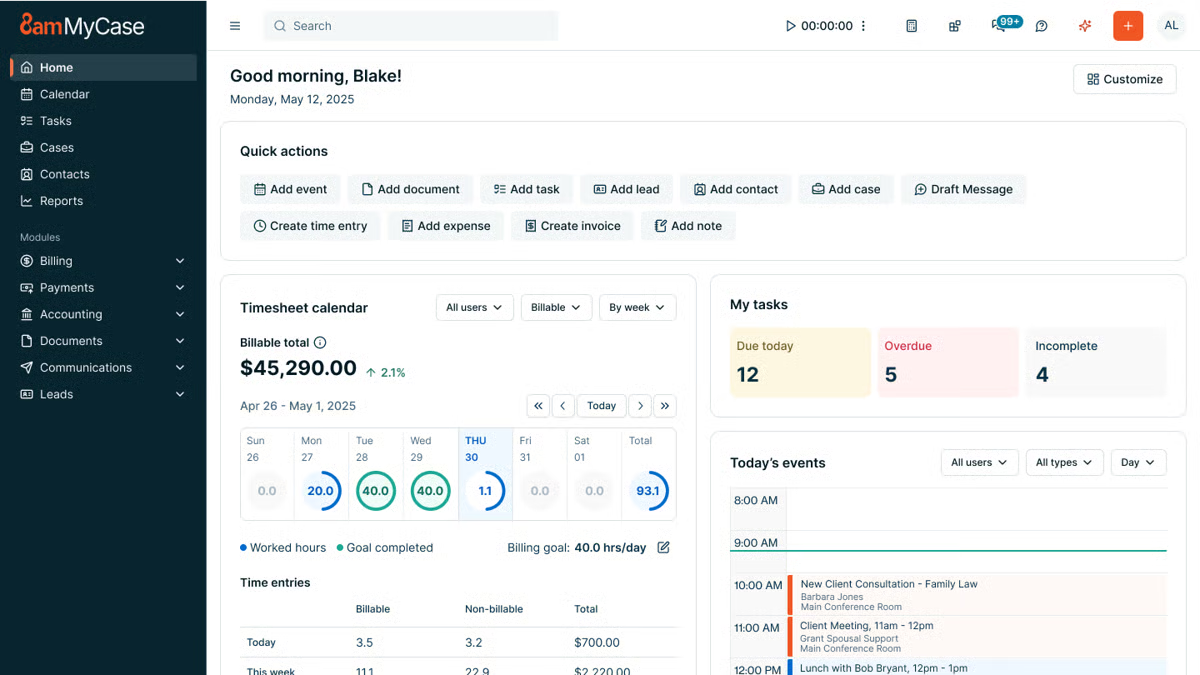
Source: G2
The platform focuses on keeping your work structured from the moment a case opens. It gives you a clear place to track actionable tasks, store legal documents, and stay aligned with your team throughout each matter.
You might like how naturally it supports case management while still giving you project-focused tools that help everyone keep pace with deadlines and daily responsibilities.
Best Features
- Actionable task management: Break down work into clear, trackable steps so nothing gets overlooked.
- Centralized case management: Keep client details, deadlines, notes, and progress in one easy-to-follow system.
- Document storage and sharing: Organize legal documents, research files, and matter-related materials in a single hub.
- Built-in communication tools: Coordinate with your team and clients without relying on outside apps.
- Workflow tools: Use structured steps that help streamline workflows and keep matters moving predictably.
Pros
- Clean interface that enables users to work efficiently
- Reliable document tools for busy practices and small firms
- Helpful law firm communication features for both internal and client updates
- Strong case organization that keeps everything accessible
- Secure platform that supports consistent, organized project work
3. Clio Manage
Clio Manage gives legal teams a structured way to handle matters, track work, and coordinate daily activity without bouncing between multiple systems.
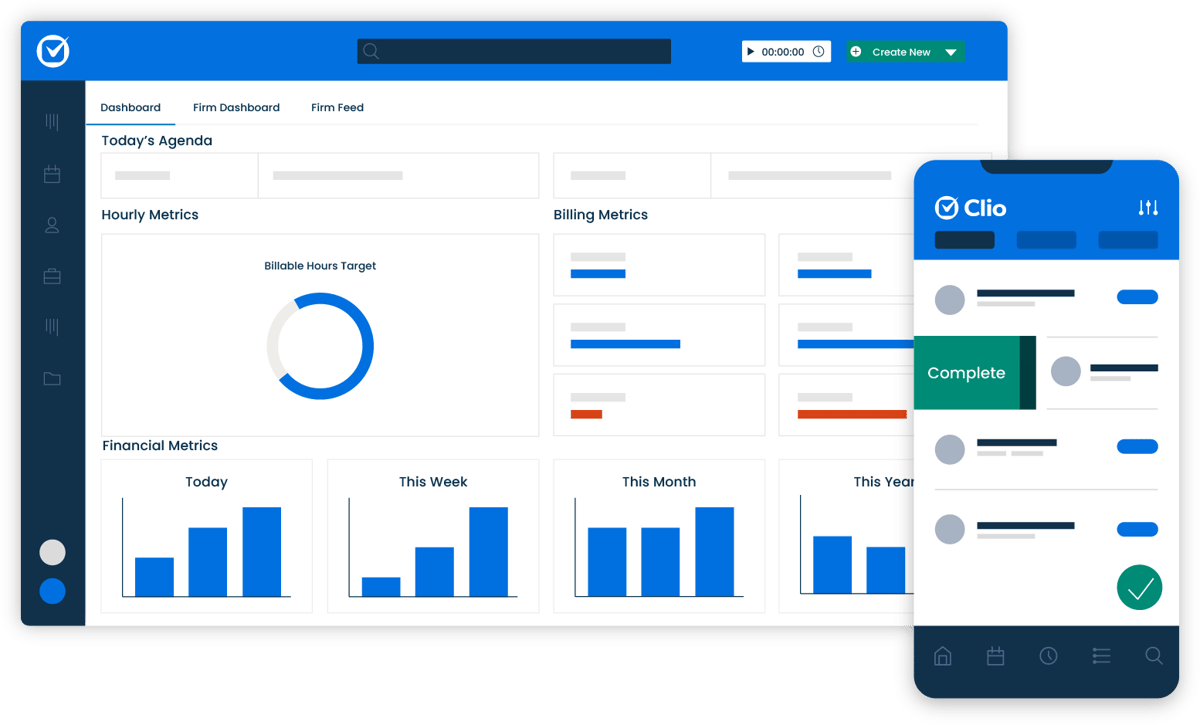
Source: G2
It combines client intake, task management, time tracking, and collaboration tools in one place. With that, your team can always have a steady flow of information as cases progress.
The platform also makes it easy to sync data from your calendar, email, and other apps you rely on, and the real-time dashboards offer a quick read on law firm productivity and upcoming deadlines. It’s a practical setup for teams that want a clearer rhythm to their work.
Best Features
- Client intake tools: Capture new client information smoothly and move it straight into your matters.
- Time tracking: Track billable and non-billable time as you work, with options to log entries from multiple devices.
- Team collaboration: Share updates, assign tasks, and keep the flow of information steady across your team.
- Real-time dashboards: See performance metrics, matter progress, and upcoming deadlines instantly.
- Customizable workflows: Set up processes that match how your firm operates and improve daily efficiency.
Pros
- Strong time tracking for accurate legal billing
- Helpful intake tools that support new client onboarding
- Clear dashboards for quick insight into active matters
- Smooth collaboration across different practice roles
- Easy integrations that keep your data synced and organized
4. Smartsheet
Smartsheet works well for legal teams that want a flexible, spreadsheet-style workspace without feeling stuck in traditional grids. It gives you an easy way to organize tasks, capture information through custom fields, and track progress across matters or internal projects.
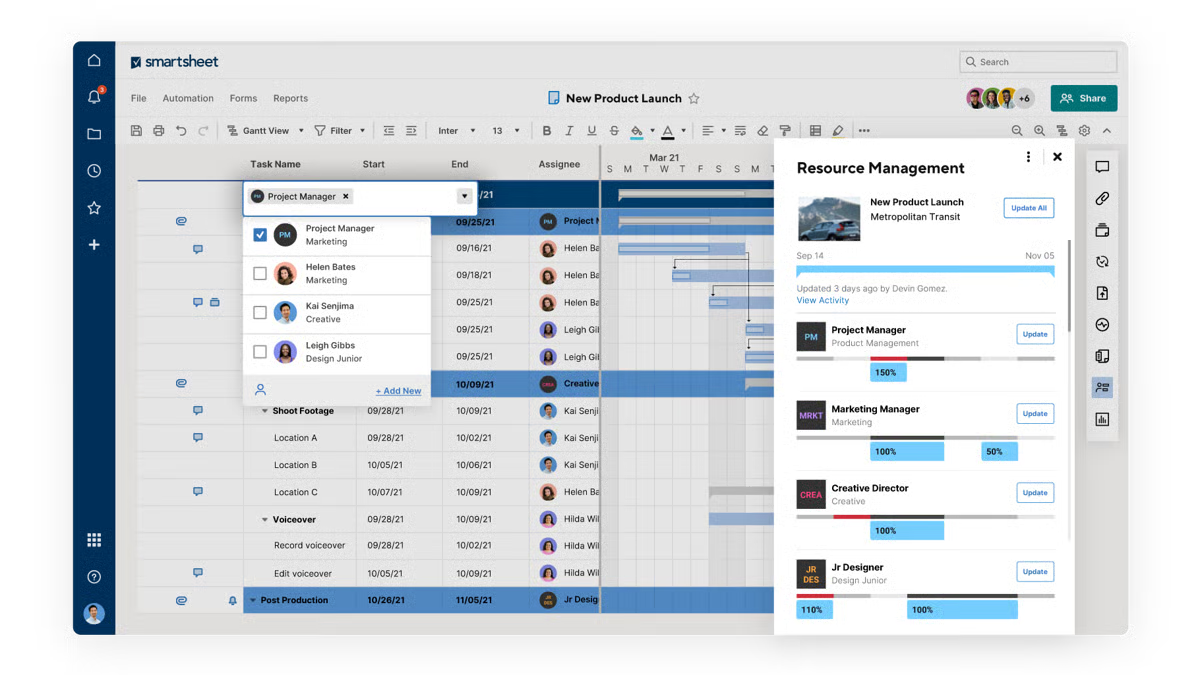
Source: G2
Staff members can add status updates, attach documents, and monitor deadlines in a layout that feels familiar but far more structured than a basic spreadsheet.
It’s often used by legal operations teams that want a clear view of business performance while keeping day-to-day work organized.
Best Features
- Custom fields: Build the exact data structure you need for matters, tasks, or internal processes.
- Status tracking: Follow progress in real time with color-coded updates and clear task ownership.
- Dashboards: Pull together key information to quickly assess workload, deadlines, and priorities.
- Automated alerts: Receive notifications when tasks change, deadlines shift, or updates are added.
- Flexible views: Switch between grid, calendar, Gantt, and card views based on how you prefer to see your work.
Pros
- Familiar layout that’s easy for staff members to adopt
- Strong tracking tools for monitoring progress across multiple projects
- Helpful dashboards for a quick read on business performance
- Good flexibility for teams that juggle different types of work
- Clear status updates that keep everyone aligned on next steps
5. Filevine
Filevine offers a structured workspace that helps legal teams manage cases with fewer scattered updates and a lot more clarity. The platform keeps your tasks, documents, notes, and communication in one place, so important details stay connected as a matter progresses.
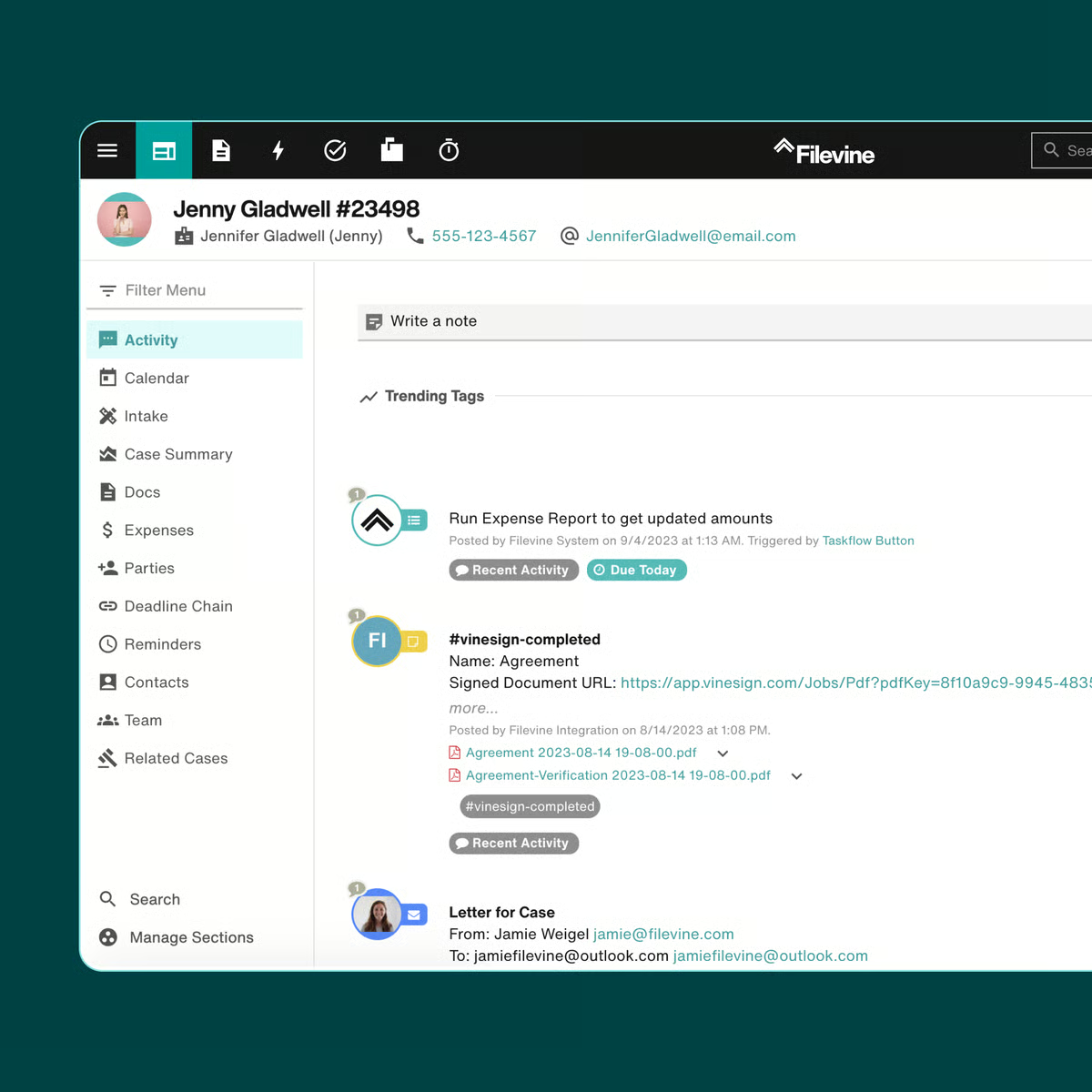
Source: G2
Its customization options are a standout, too. You can shape legal workflows, store legal briefs in organized folders, and save notes directly inside each file without losing track of information.
For teams looking to increase productivity and maintain a steady rhythm across their workload, it provides a dependable setup.
Best Features
- Customized workflows: Create processes that match the way your practice handles matters from start to finish.
- Document handling for legal briefs: Keep briefs, case files, and supporting documents neatly organized.
- In-matter notes: Save notes right where they belong so key points are easy to find later.
- Collaboration tools: Share updates, assign tasks, and keep everyone on the same page.
- Reporting tools: Review performance trends and workload insights without manual data gathering.
Pros
- Flexible workflow options suited to different practice areas
- Convenient note-taking inside each matter
- Solid document tools for briefs and related files
- Clear task visibility for smoother team coordination
- Useful reporting for tracking workload and performance
Why Briefpoint Complements the Best Project Management Software
Project management platforms keep your matters organized, but they don’t handle the document-intensive side of discovery and litigation workflows.
Briefpoint fills that gap by generating discovery documents for you, reducing manual drafting, and improving workflow efficiency where legal teams often lose the most time.
And with Autodoc, you get an even smoother lift. It takes the routine formatting, labeling, Bates numbering, and structure-based tasks off your plate. You get cleaner documents, faster turnaround, and a process that feels far more manageable.
Project tools manage the structure of your work; Briefpoint supports the substance. Together, they give you a smoother path through deadlines, requests, and the back-and-forth that defines discovery.
It’s a practical add-on for teams that want less friction in their document work and a more predictable pace during litigation.
If you’re ready to remove the most time-consuming part of your process, Briefpoint can help you get there.
MyCase vs. PracticePanther: What Are the Key Differences?
What Is MyCase?
MyCase is a cloud-based legal practice management software that gives you one place to organize your firm’s work. It’s essentially a system that keeps your tasks, contacts, billing, calendar, and legal documents from living in ten different tabs.
It first launched in 2010 and quickly picked up traction with small and midsize firms that wanted something modern but easy to learn.
Source: G2
Part of its appeal comes from its straightforward layout. You don’t need a week of training to get comfortable. Most users jump in and start managing matters, sending invoices, or uploading documents without much friction.
Its document management setup is also a big reason people choose it. You can store files, share them with your team, and keep everything tied to the right case.
Something else you might appreciate is how client-friendly it feels. The built-in portal, online payments, and messaging tools help you cut down on emails and long phone chains. Clients get a clearer view of what’s happening, and you spend less time tracking small updates.
Overall, MyCase works well for firms that want an all-in-one platform that keeps everyday tasks moving and brings your documents, communication, and case details into one organized space.
What Is PracticePanther?
PracticePanther is a legal practice management platform built for firms that want a system they can grow into.
You get a cloud-based dashboard that brings your matters, billing, calendar, and communication together, but the real draw is how flexible the software feels once you start using it.
Source: G2
If you’ve ever felt boxed in by rigid legal workflows, this tool tends to be a nice change of pace. You can customize tasks, automate repetitive steps, and shape processes around the way your firm already works.
In other words, it’s designed to support everything from simple daily checklists to more specific tasks that vary from case to case.
Another standout trait is its connection to third-party tools and apps for lawyers. Email, payment processors, document services; PracticePanther plugs into many of the platforms firms already rely on, which keeps transitions smooth and avoids extra busywork.
And because the platform scales well, it fits solo attorneys just as comfortably as expanding teams. You get comprehensive features, plenty of control over how you work, and a structure that adapts as your caseload grows.
MyCase vs. PracticePanther: An In-Depth Comparison
Not sure which tool to choose? This quick comparison gives you a clearer sense of which option fits the way your firm actually works.
Main Purpose
When you look at the core purpose of each platform, the differences become easier to spot.
MyCase simplifies daily work for law firms that want an organized, all-in-one hub. Its goal is to cut back on time-consuming admin tasks and give you a straightforward system for matters, billing, communication, documents, and more.
If you want something that works smoothly as long as you have an internet connection and doesn’t overwhelm your team, MyCase offers a very direct path.
PracticePanther takes a slightly different angle. The platform aims to give firms more control over how they work, offering deeper customization and more flexible workflows.
PracticePanther excels when you want to tailor your processes, connect with third-party tools, and build out legal automations that match your firm’s habits. It also focuses on scalability, so teams with growing caseloads or more complex workflows often appreciate its structure.
When you’re comparing MyCase and PracticePanther, it really comes down to what you value most.
Overall, MyCase offers simplicity and a clean workflow that keeps everything in one place. PracticePanther offers more advanced functionality and the freedom to shape the software around your firm. Both solve everyday challenges, just in different ways.
Key Features
Taking a closer look at the features helps you understand how each platform supports your daily flow and where its strengths differ:
MyCase’s Key Features
- Secure client portal: Clients can view case files, send secure messages, and pay invoices while keeping everything confidential.
- Automated time tracking: Tracks time as you work, so billing and completing invoices feel easier.
- Customizable invoicing: Lets you adjust formats, payment options, and payment history.
- Document solution: Stores case files, supports customizable templates, and connects with Google Drive.
- Google Calendar sync: Keeps deadlines and events aligned across your devices.
- Accounting software: Helps you manage retainers and trust balances accurately.
- Client communications: Offers secure messages and organized updates in one place.
PracticePanther’s Key Features
- Custom fields and custom tags: Lets you tailor matters with details that match your legal workflow.
- Automated time tracking: Captures billable time in the background.
- Customizable templates: Helps you create repeatable documents for recurring or specific tasks.
- Third-party integrations: Works with Google Drive, payment systems, email tools, and other solutions.
- Secure client portal: Gives clients protected access to documents, invoices, and messages.
- Trust accounting: Tracks retainers, payments, and transfers with clear reporting.
- Reporting dashboard: Helps you gain insights into billing performance and law firm productivity.
Who It’s Best For
MyCase usually clicks with lawyers who want something they can get comfortable with right away. If your priority is a clean layout, easy case management, and quick access to the basics, it fits that style well.
Legal professionals who don’t want to spend time configuring every detail tend to appreciate how smoothly it handles law firm communication, scheduling, and billing. It’s especially appealing for small firms or teams that want things organized without juggling extra setup.
PracticePanther leans toward firms that like having more control. If your practice area involves complex steps, custom fields, or a need to connect with a bunch of other tools, the platform gives you that extra flexibility.
Many lawyers choose it because they want something that grows with their client base and adapts as workloads shift. Its advanced features and customization options make it a comfortable match for teams with expanding needs or more structured workflows.
Pricing
Pricing for both platforms depends on the plan you choose and the size of your team, but here’s what you can expect at a high level.
MyCase Pricing
- Basic plan: $49 monthly: Core case management, billing, payments, client messaging, and the secure client portal.
- Pro plan: $99 monthly: Everything in Basic plus advanced reporting and enhanced document management tools.
- Advanced plan: $119 monthly: Adds MyCase Drive, advanced document automation, and expanded analytics.
PracticePanther Pricing
- Solo plan: $59 monthly: Designed for individual attorneys with core case management, billing, and calendar tools.
- Essential plan: $79 monthly: Adds integrations, automated workflows, and more robust document management.
- Business plan: $99 monthly: Includes advanced features like deeper automation, advanced reporting, and more customization options.
Add Briefpoint to Strengthen Your Legal Tech Stack
Choosing between MyCase and PracticePanther comes down to what your firm values. Both tools cover case management, billing, communication, and client-facing features, so you’re already headed in the right direction with either one.
That said, no practice management platform handles everything on its own, especially when you’re dealing with heavy document work.
This is where Briefpoint becomes a smart addition to your legal tech stack. It automates routine litigation drafting, helps you move through legal documents faster, and keeps your work product consistent across matters.
If you’re already using systems like MyCase or PracticePanther, Briefpoint fits right in by handling the pieces those platforms don’t focus on.
You can also take advantage of the Autodoc feature for quick, accurate document assembly when you’re under pressure with multiple deadlines. It generates ready-to-serve discovery responses, complete with Bates numbering and page-level citations, so you’re not piecing things together manually.
The combination saves time and keeps your workflows running smoothly, no matter which practice management system your firm prefers.