What Is AI Legal Research & How Do You Use It?
What Is AI for Legal Research?
AI for legal research helps you move through legal questions faster and with more direction. Rather than relying only on exact keywords, you can describe the issue in plain language and get results tied to the facts or jurisdiction you are researching.
Most AI legal research tools use AI technologies like natural language processing and machine learning to interpret your query and sort through legal sources.
Depending on the platform, you may also be able to summarize a long opinion or compare authorities that take different approaches.
You can use the results to narrow your search, spot stronger lines of inquiry, and decide which sources deserve a closer read. That makes AI in legal research useful early in the process, when you are still shaping the issue and trying to understand how courts have handled similar questions.
How Is AI Changing Legal Research?
AI is changing legal research by helping you get to a useful starting point faster. Instead of testing one search phrase after another, you can describe the issue in plain language and refine the results through follow-up questions.
For legal professionals, that changes how the early research process feels and where time gets spent.
- More natural searches: AI systems can interpret full questions, so practicing attorneys do not always need to build complex keyword strings before finding relevant source material.
- Faster case review: AI can pull key points from long opinions and help you decide which authorities deserve a full read.
- Clearer comparisons: Legal teams can compare how courts treat similar issues, which can make conflicting rulings or factual distinctions easier to spot.
- Better research direction: AI usage can reveal related doctrines or alternative arguments that may not have appeared in the first search.
General AI tools may help with brainstorming or organizing ideas, while legal-specific platforms are usually better suited for locating authority and working with verified sources.
As these tools improve, lawyers can spend less time sorting through broad results and more time developing the analysis.
What Can AI Help With During Legal Research?
AI can support several parts of the research process, from finding stronger authorities to making dense source material easier to work through. The sections below look at the most practical ways you can use it during legal research:
Finding Relevant Cases and Authorities
AI can make the legal research process feel much less scattered when your first search brings back too many results. You can describe the issue in plain language, add the key facts, and look for relevant case law tied closely to the question you are researching.
For example, a lawyer reviewing a noncompete dispute could include the jurisdiction, the employee’s role, and the scope of the restriction. A platform like Bloomberg Law can then help surface relevant primary sources and other legal materials that deal with similar facts.
From there, you have a more focused set of authorities to review rather than a long list of loosely related results.
Summarizing Cases and Legal Documents
Long opinions can take time to unpack, particularly when you only need to know whether a case is worth a closer read.
AI software can summarize the central issue, the court’s reasoning, and the outcome so you can understand the decision before working through the full text.
For example, a lawyer reviewing several legal cases on the same procedural question could use AI to pull out how each court applied the rule and which facts shaped the result. The same approach can help with other documents, such as briefs or agency guidance.
AI-assisted legal research can reduce time-consuming tasks during the first pass and help you focus your attention on the most useful sections.
Comparing Multiple Authorities
AI can help you compare several authorities side by side rather than working through each one separately. You can ask it to organize legal information around the issue you care about, such as how different courts define a standard or which facts changed the outcome.
For example, a lawyer researching bad-faith claims could compare decisions from several courts and look for recurring reasoning. AI can help identify patterns in the rulings, point out where the authorities diverge, and make factual distinctions easier to spot.
A structured comparison gives you a clearer view and helps you decide which cases are strongest for your analysis.
Identifying Research Gaps
Research can look complete until you ask what has not been covered yet. AI platforms can help you test the work from that angle by surfacing missing jurisdictions, overlooked exceptions, or questions that still lack direct support.
For instance, you may have several cases explaining the general rule but nothing addressing the exact procedural posture in your matter.
A targeted AI search could reveal that the issue has been treated differently in another line of cases or that newer authority changes the analysis.
Used well, this step helps you catch weak spots before they turn into incorrect information. In the legal field, that can make the difference between a broad summary and research that truly holds up.
How to Use AI for Legal Research
Using AI for legal research usually takes a few rounds rather than one perfect prompt. The steps below show how to shape the question and build toward a useful result:
1. Define the Legal Issue
Before you open an AI tool, get clear on the question you are trying to answer. A vague issue will usually lead to vague results, so narrow it down to the rule, jurisdiction, and facts that could affect the analysis.
For this example, say you are researching whether a court may compel further responses to requests for production after the opposing party gave boilerplate objections and produced only part of the requested material.
That question gives you a useful starting point because it identifies the procedural issue and the conduct in dispute. You can refine it further by adding the jurisdiction, the type of case, or any deadlines tied to the motion.
2. Choose the Right AI Tool
The tool you choose should match the type of research you are doing. General generative AI tools can help you frame the issue or brainstorm search terms, but legal AI platforms are usually better for finding authority tied to a specific jurisdiction.
Look for a few practical features:
- Reliable source access: The platform should connect its answers to cases, rules, or other legal authority you can open and review.
- Jurisdiction filters: You should be able to narrow results to the court system and time period that apply to your issue.
- Useful follow-up tools: Strong platforms let you refine a question, compare cases, or trace how a rule has been applied.
For the legal discovery dispute example, you would want a tool that can search controlling authority on motions to compel and show how courts have treated boilerplate objections.
A general chatbot may help you shape the query, while an AI legal research platform can take you closer to the source material you need.
3. Write a Clear Research Prompt
A strong prompt gives the tool enough context to understand the issue you are researching. Include the jurisdiction, the legal question, and the facts that could affect the result. You can also specify the type of output you want, such as recent cases or a comparison of competing approaches.
In this situation, you might ask:
“Find recent California cases addressing motions to compel further responses to requests for production where the responding party used boilerplate objections and produced only part of the requested material.”
Generative artificial intelligence works better when the request is narrow and concrete. A prompt like “Find cases about discovery objections” leaves too much open, while the more detailed version gives the tool a clearer path into the research.
You can refine the prompt again after reviewing the first set of results.
4. Use the First Answer as a Research Map
Your first answer should point you toward the next round of research and not serve as the finished result. Review it for the legal principles, cases, and search terms that could help you build a clearer path forward.
For the motion to compel issue, your research map might include:
- California rules governing further responses
- Cases addressing boilerplate objections
- Decisions involving partial document production
- Secondary sources explaining the applicable standard
- A research guide for local motion requirements
You can then open the strongest authorities and use what you find to narrow the question further.
5. Review the Original Sources
Once you have a workable list of authorities, open the cases and read the relevant sections yourself.
AI models can help you find possible support, but they cannot replace professional judgment when you are deciding how a court’s reasoning applies to your facts.
For example, pay close attention to the procedural posture, the objections the court considered, and the relief it granted. Check the cited rules as well, then confirm that each case is still good law.
Reading the source directly gives you the context needed to exercise legal judgment and decide which authorities truly support your position.
6. Verify Citations and Quotations
Before using any authority in your legal work, confirm that the citation is accurate and that the source supports the point you plan to make. Open the case, find the quoted language, and read enough surrounding text to understand how the court used it.
Check that the authority comes from the correct jurisdiction and follows the court rules that apply to your filing. You should also compare the AI-generated summary with the original opinion, since small changes in wording can alter the meaning of a legal rule.
Document review at this stage should stay focused on accuracy. If your research includes sensitive information, keep it out of tools that have not been approved for confidential client work.
7. Ask Focused Follow-Up Questions
When you understand the first set of results, use follow-up questions to test the issue from a narrower angle. Good follow-ups can reveal distinctions the initial search missed and help you see how strong your position really is.
You might ask:
- Which cases reached the opposite result?
- How have courts treated partial production?
- What facts led courts to reject boilerplate objections?
- Are there newer cases from the controlling court?
- What exceptions could limit the general rule?
Each question should build on what you already found. The more specific you get, the more useful the next round of research becomes.
8. Turn Research Into a Usable Work Product
Research becomes useful when you shape it into something another lawyer can quickly understand and act on. AI can help organize your findings into a practical format, but the final structure should reflect the needs of the case and the audience reading it.
Common work products include:
- Research memo: Summarize the governing rule, strongest authorities, and any unresolved questions.
- Case comparison chart: Lay out how different courts approached similar facts and where their reasoning diverged.
- Argument outline: Arrange the authorities around the position you plan to advance and the responses you expect from the other side.
- Drafting notes: Pull together quotations, citations, and factual points that may be useful in a motion or brief.
As AI adoption grows in the legal profession, this step can help legal services move from research to drafting with less rework and a clearer record of how the analysis developed.
Risks and Ethical Considerations of AI Legal Research
AI can speed up research, but law firms still need clear rules for how these tools are used. The biggest risks usually come from weak source checking, poor handling of client data, or treating generated output as settled law.
Watch out for:
- Inaccurate results: AI may produce outdated authority, misstate a holding, or create a citation that does not exist. Lawyers should never rely solely on generated answers when preparing legal work.
- Client confidentiality: Entering confidential information into an unapproved platform can expose facts that are protected by professional duties. Firms should limit what users can upload and choose tools with strong data protection standards.
- Data privacy: Providers may store prompts or use submitted material to improve their systems. Review the platform’s retention policies before sharing client data.
- Hidden bias: AI systems may favor commonly cited authorities and overlook less prominent decisions that could change the analysis.
- Professional competence: AI ethics now form part of responsible technology use in legal practice. Ongoing legal education can help lawyers understand what a tool can do and where its limits remain.
Make AI Research Part of a Smarter Legal Practice
AI can help you reach useful authority sooner and bring more structure to the research process. The strongest results still come from using each answer as a lead, refining your questions, and reading the sources that shape the final analysis.
Once the research is complete, the work usually moves into drafting and case preparation. That transition is a natural place to look for further efficiency.
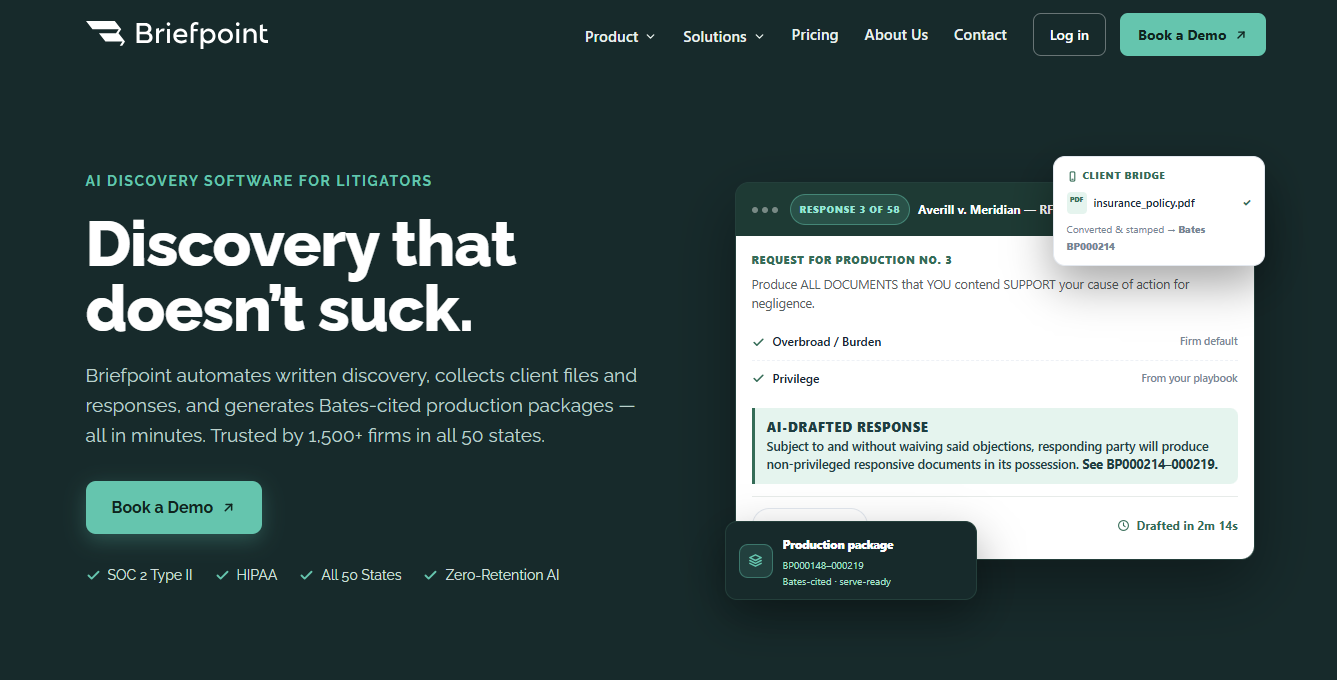
Briefpoint helps litigation teams automate written discovery after the legal and factual direction of a case is clear.
The platform supports both propounding and responding to discovery, so firms can handle more of the process in one place.
You can draft and respond to interrogatories, RFAs, and RFPs, collect client answers through a secure link, and prepare Bates-cited production packages in one platform. Briefpoint also exports editable Word documents to make it easier to review the work and make final changes before service.
Book a demo to see how Briefpoint can reduce the manual work surrounding discovery.
5 Tools to Add to Your Legal Tech Stack in 2026
What Is a Legal Tech Stack?
A legal tech stack is the collection of software your firm or legal department uses to handle day-to-day work. It may include tools for case management, legal research, billing, client intake, document drafting, and other parts of the legal workflow.
The right setup looks different for every organization. For example, a litigation firm may place discovery automation and document review near the top of its list, while a transactional practice may prioritize contract tools.
Priorities can also vary between practice areas, firm sizes, and in-house legal departments.
Your tech stack should reflect how your team actually works. Useful legal software should reduce repetitive tasks, support smoother handoffs, and fit into the systems you already rely on.
Of course, adding more legal technology does not automatically create a better workflow, so each tool should solve a clear problem and earn its place in the stack.
5 Software Options You Can Add to Your Legal Tech Stack
Here are five software options that cover different parts of a modern legal workflow, from discovery to accounting. Each one can strengthen a specific part of your legal tech stack, depending on where your team needs the most support:
1. Briefpoint for Discovery Automation
Briefpoint is a discovery automation platform built for litigation teams that want to spend less time drafting and reviewing written discovery.
You can use it to prepare interrogatories, requests for admission, and requests for production, then generate objection-aware responses for incoming requests.
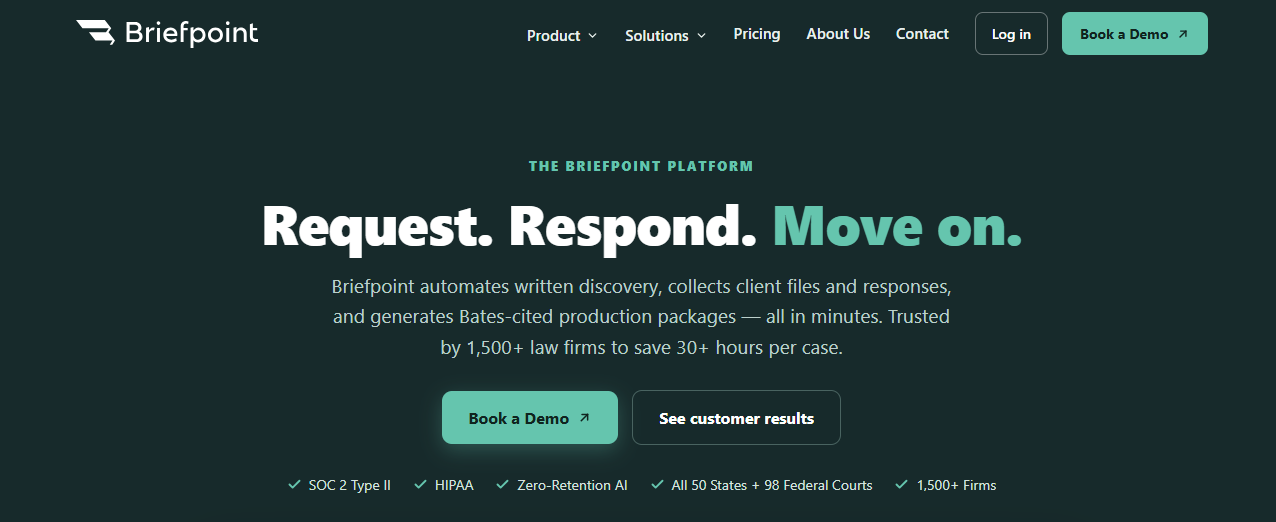
The platform also helps you collect client information through a secure link. Clients can answer questions and upload files from a phone or computer, and those responses are added to the correct draft.
For document-heavy requests for production, Briefpoint can identify responsive files, add page-level Bates citations, and prepare a Bates-numbered production package.
The time saved can help lawyers increase efficiency and focus more of their attention on legal strategy, case preparation, and client communication.
Best Features
- Discovery request drafting: Generate interrogatories, RFAs, and RFPs from the complaint and case details.
- Objection-aware responses: Prepare draft answers and objections for attorney review.
- Client Bridge: Collect client answers and documents through a secure, mobile-friendly link.
- Autodoc: Review uploaded files, identify responsive documents, and connect them to the relevant production requests.
- Bates-cited responses: Create Word-formatted drafts with page-level citations.
- Production packages: Prepare organized, Bates-numbered files for service.
- Jurisdictional support: Draft discovery documents for all 50 states and federal district courts.
2. Clio for Practice Management
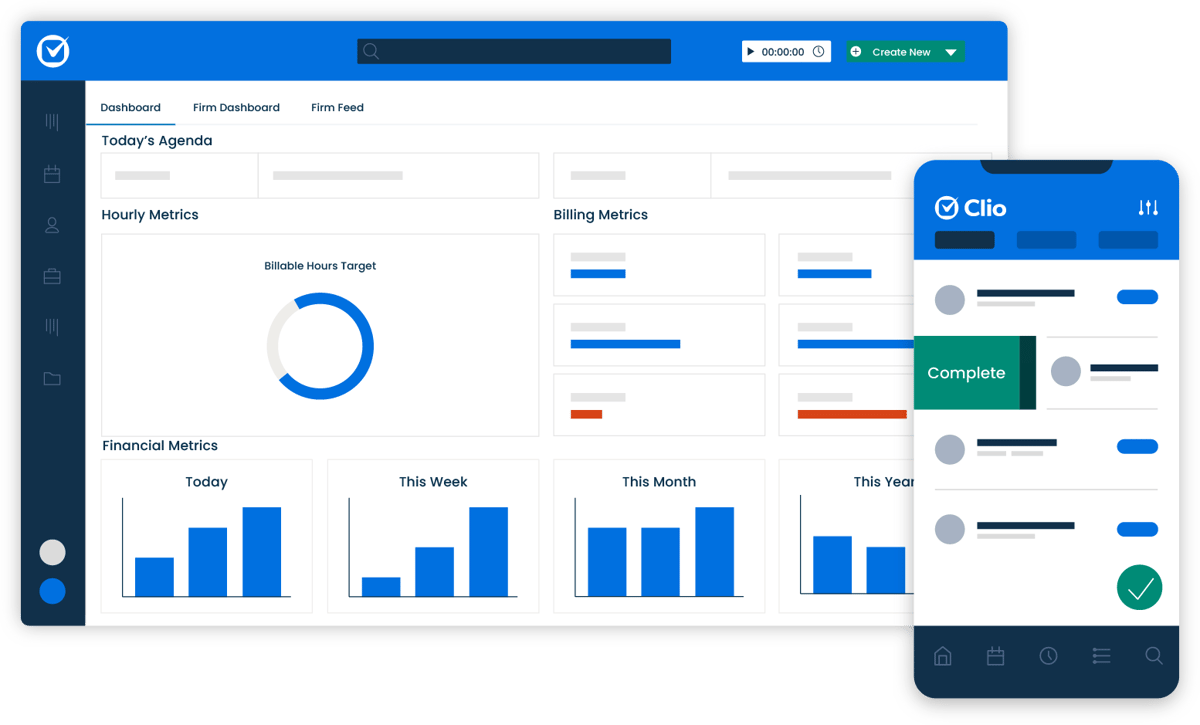
Clio is cloud-based law practice management software that brings your firm’s daily operations into one central system. You can manage matters, track time, prepare bills, organize calendars, and keep client information connected to the correct case.
Source: G2
Its user-friendly interface also gives your team instant access to files and matter details from any device with an internet connection.
Clio includes document storage and management tools, so you can upload, edit, search, and share case files without relying on a separate document management system.
For firms looking to simplify legal operations, Clio can serve as the main hub for work completed elsewhere in the tech stack. Its matter management software connects with a wide range of legal tools, including Briefpoint, which can help reduce repeated data entry and support increased productivity.
Best Features
- Matter management: Keep case details, deadlines, notes, and communications connected in one place.
- Time and billing: Track billable work and create invoices from recorded time and expenses.
- Document management: Store, organize, edit, and search legal files in the cloud.
- Calendar tools: Manage appointments and case deadlines through a shared firm calendar.
- Client portal: Give clients a secure place to view updates and communicate with your team.
- App integrations: Connect Clio with other software used throughout your legal tech stack.
3. Lawmatics for Client Intake and CRM
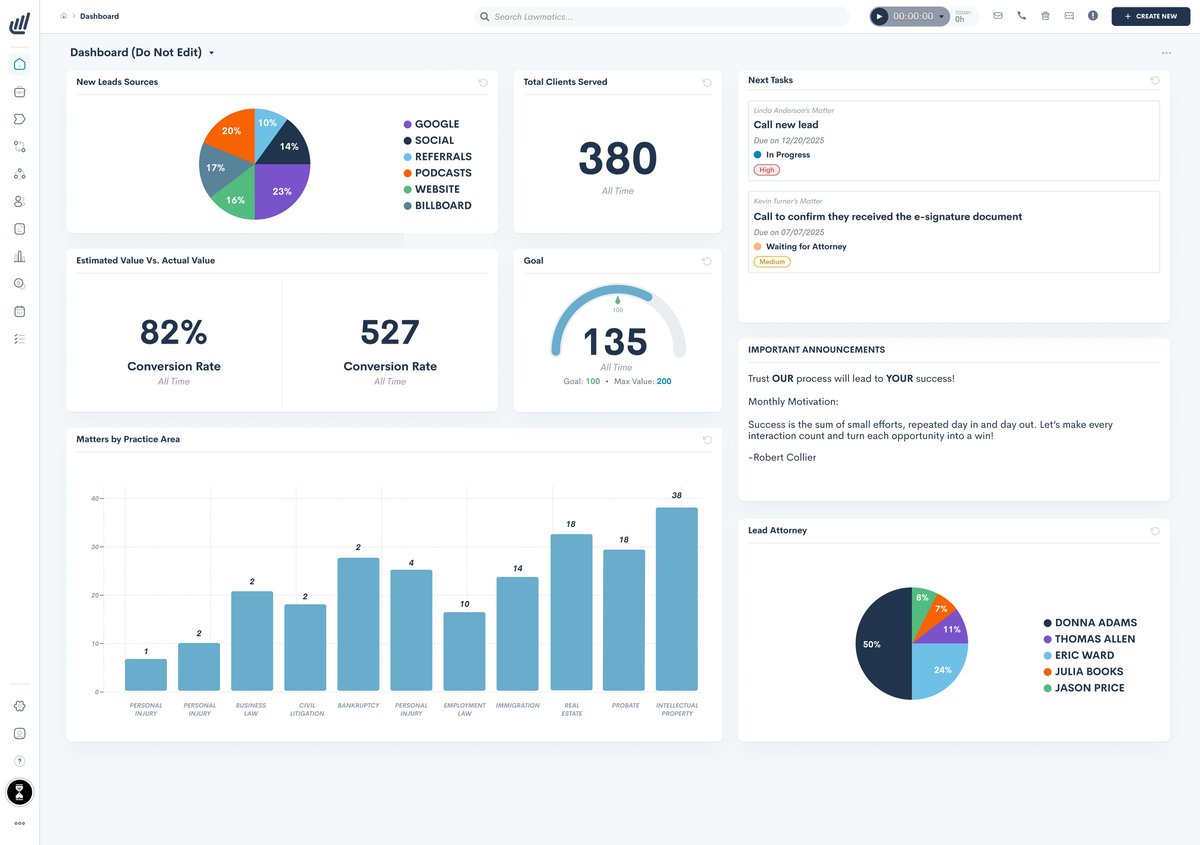
Lawmatics is client management software designed to help law firms manage prospective clients from the first inquiry through onboarding.
Your legal team can track leads, schedule consultations, collect intake details, and keep every interaction connected to the same contact record.
Source: G2
Much of the intake process can also run through automated workflows. You can send follow-up messages, deliver forms, request signatures, and assign internal tasks without relying on the same manual processes for every new lead.
That can help your firm respond faster, minimize errors, and create a smoother experience at a stage where clients expect clear communication.
Lawmatics also gives you reporting tools for reviewing lead sources and conversion activity. For firms exploring technology solutions to streamline operations, it can serve as the client-facing part of the legal tech stack while practice management software handles active casework.
Best Features
- Legal CRM: Track prospects, contacts, and intake activity in one organized system.
- Custom intake forms: Collect information based on the practice area or case type.
- Automated follow-ups: Send emails and reminders at predefined stages of the intake process.
- Appointment scheduling: Let prospects book consultations through an online calendar.
- Document automation: Create and send intake documents and engagement agreements.
- E-signatures: Allow new clients to review and sign paperwork electronically.
- Lead reporting: Review where inquiries come from and how they move through the intake pipeline.
4. QuickBooks Online for Legal Accounting
QuickBooks Online is cloud-based accounting software that can help your firm manage its finances from the same technology stack used for the rest of the business.
It allows you to track income and expenses, send invoices, record payments, and monitor cash flow without relying on disconnected spreadsheets.

Source: G2
Time tracking is available on select plans, making it easier to connect recorded work with invoices and project costs. Your accountant or other authorized users can also receive secure access to the books, which supports collaboration without repeatedly exporting financial records.
QuickBooks Online is not built solely for legal practices, so firms may still need separate tools for trust accounting or legal billing requirements.
Even so, it can be a practical option for firms that want to streamline operations, use their financial resources more carefully, and get maximum value from a widely supported accounting platform.
Best Features
- Income and expense tracking: Keep an updated record of money coming into and leaving the firm.
- Invoicing and payments: Create invoices, accept payments, and track outstanding balances.
- Cash flow tools: Review current financial activity and identify upcoming cash needs.
- Time tracking: Add tracked time to invoices on eligible plans.
- Financial reports: Generate reports for profit and loss, accounts receivable, and other business activity.
- Cloud access: View and manage financial information from supported computers and mobile devices.
- App integrations: Connect QuickBooks with other tools used throughout your technology stack.
5. Lexis+ AI for Legal Research
Lexis+ AI, now offered as Lexis+ with Protégé, is an AI-powered tool for legal research, drafting, and document analysis.
You can ask legal questions in conversational language, review answers linked to supporting authority, and move directly into the cited cases or other source material.
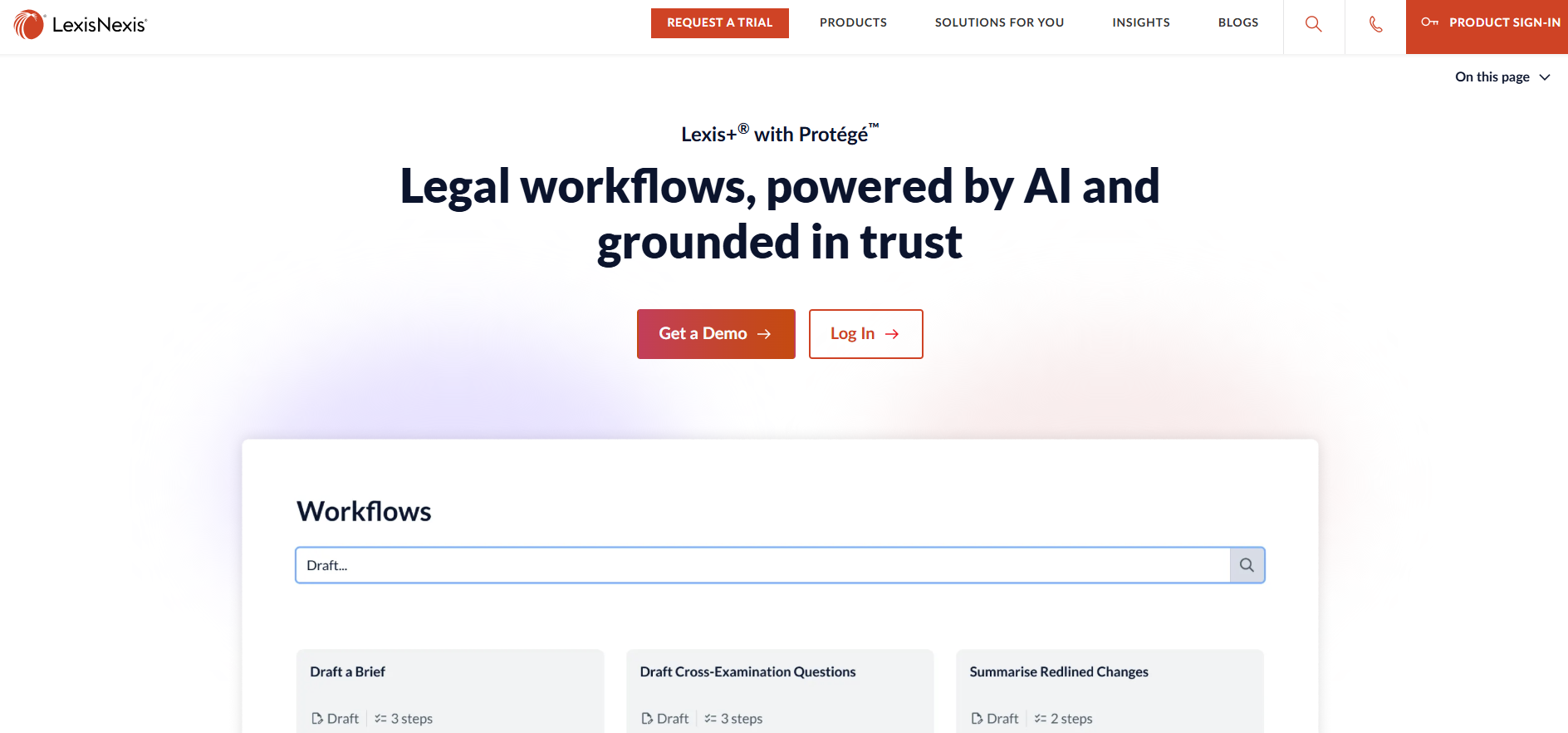
Source: LexisNexis.com
The platform can also summarize uploaded documents, identify relevant arguments, and help create an initial draft based on LexisNexis content. Shepard’s Citation Service lets you evaluate how a case has been treated before relying on it in your work.
These features can reduce the manual work involved in reviewing long result lists and piecing research together from separate screens.
For firms where research is a recurring pain point, the platform may improve efficiency and streamline processes within a single workspace.
Its cost may require closer evaluation, but teams that use legal research tools frequently may find a stronger ROI than those with occasional research needs.
Best Features
- Conversational research: Ask questions in natural language and receive answers connected to legal sources.
- Linked citations: Open the authorities supporting an AI-generated response.
- Shepard’s Citation Service: Check the subsequent treatment and current status of cited cases.
- Document analysis: Upload legal documents to identify citations, arguments, and possible risks.
- Drafting support: Develop initial legal drafts using research and source material already in the platform.
- Practical Guidance: Access forms, checklists, and practitioner resources covering numerous practice areas.
- Integrated workspace: Move between research, analysis, and drafting without switching platforms.
How to Build the Right Legal Tech Stack
Start with the work your team handles every day and look for tools that solve a clear operational need. New technology should support long-term success instead of acting as a series of quick fixes that create more systems to manage.
Here are several steps you can follow:
- Map your current workflow: Review how work moves through the firm, including client intake, legal project management, billing, and document review. This helps you identify which tools are essential.
- Prioritize integration: Check whether each platform connects with systems your team already uses, such as Google Workspace, Microsoft Office, or your practice management software.
- Review security controls: Look closely at data security, access permissions, cloud storage policies, and how the provider handles confidential client information.
- Consider total cost: Compare subscription fees with possible cost savings, reduced legal spend, and the time your team may recover through automation.
- Plan for document control: Document management software should support reliable search, permissions, and version control so your team can find the correct file quickly.
- Choose tools that can grow: Your needs may expand into areas like contract management or more advanced reporting, so select software that can adapt as the firm changes.
Build a Tech Stack That Fits Your Firm
A strong legal tech stack should reflect how your firm works, where your team loses time, and which tasks create the most friction.
You do not need every available platform. A smaller set of well-chosen tools can give you a cleaner workflow and make future growth easier to manage.
Start with your biggest operational need, then add software that connects well with the systems already in place. Review usage over time, remove tools that overlap, and keep looking for areas where repetitive work can be reduced.
For litigation teams, written discovery is often a practical place to start.
Briefpoint helps you draft and respond to interrogatories, RFAs, and RFPs, collect client answers through a secure link, and prepare Bates-cited production packages. It also supports discovery work in all 50 states and 98 federal district courts.
7 Best Legal AI Software for Lawyers in 2026
What Is Legal AI Software?
Legal AI software supports lawyers with tasks that would otherwise require hours of manual effort. These tools can support legal work such as reviewing documents, drafting initial versions of filings, researching case law, and organizing information from client files.
Some products focus on a specific part of the practice. For example, discovery platforms may draft requests and responses, while contract tools can flag unusual terms or suggest revisions. Other AI tools work throughout broader legal workflows and connect with software a firm already uses.
Legal platforms also differ from general AI tools. A public chatbot may provide a quick summary or help brainstorm language, but legal software is usually designed around attorney tasks, firm security requirements, and source materials tied to a matter.
The strongest options give you a usable starting point while leaving the final judgment and review in your hands.
What Can Legal AI Software Help Lawyers Do?
The exact capabilities will become clearer when we look at the individual tools later. For now, legal AI software can help legal professionals handle several parts of their work with less manual effort.
- Draft legal documents: Create a first draft of discovery responses, contracts, letters, or internal memos using matter-specific information.
- Review documents: Scan files for key language, missing details, and potential issues that may need closer attention.
- Support legal research: Find relevant authorities, summarize decisions, and organize research into a format that is easier to review.
- Analyze contracts: Help transactional lawyers compare clauses, identify unusual terms, and suggest revisions based on specific needs.
- Organize case information: Pull facts from large files, connect related documents, and make important details easier to locate.
- Handle repetitive work: Reduce the time spent formatting documents, entering information, or preparing routine materials.
The level of intelligence behind these platforms varies. Some handle a narrow task well, and others support a broader portion of the legal workflow. So, the best fit depends on the work your team wants to improve.
The 7 Best Legal AI Software Tools for Lawyers
The best legal AI software for you depends on the work you want to make easier. As you compare the tools below, look at how each one fits your current workflow and the tasks taking up the most time:
1. Briefpoint
Briefpoint is legal AI software built for litigation teams that want to spend less time preparing written discovery. You can use it to draft and respond to interrogatories, requests for admission, and requests for production using the complaint and other matter details.
The platform also helps collect client answers and files through Bridge. Clients receive a secure, mobile-friendly link where they can respond in plain English, while their answers are mapped back to the correct requests.
For document-heavy RFP responses, Autodoc searches uploaded case files for responsive material, creates page-level Bates citations, and prepares a Bates-numbered production package.
Briefpoint then generates a formatted response in Microsoft Word for attorney review. It focuses on discovery rather than court filings or general tasks within the legal profession, which makes it a practical option for legal teams handling recurring litigation work.
Best Features
- Discovery request drafting: Creates interrogatories, RFAs, and RFPs from complaints and case details.
- Objection-aware responses: Drafts answers and discovery objections for your team to review and revise.
- Bridge: Collects client answers and documents through a secure link written in plain English.
- Autodoc: Finds responsive documents and prepares Bates-cited Word responses.
- Production packages: Organizes selected files into a Bates-numbered package for service.
- Supplemental responses: Updates earlier responses while preserving the prior language.
- Jurisdictional support: Supports state and federal discovery documents throughout the United States.
Pros
- Built specifically for written discovery
- Gives attorneys control over document selection and final edits
- Reduces repetitive drafting and formatting work
- Connects client input directly to discovery requests
- Produces editable Microsoft Word documents
- Supports both propounding and responding to discovery
2. Harvey
Harvey is a broad legal AI platform designed for law firms and in-house teams handling complex work. Its AI models can assist with legal research, due diligence, litigation tasks, and contract work from one secure workspace.

Source: Harvey.ai
The platform is a strong fit for larger teams that want AI support beyond one narrow workflow. Lawyers can use Harvey to analyze large document sets, draft and revise legal materials, or work through questions that require legal reasoning.
Plus, its Contract Intelligence product helps teams review agreements, surface key terms, and prepare for negotiations.
Best Features
- Legal research: Researches complex legal and regulatory questions using connected sources.
- Contract Intelligence: Reviews agreements and surfaces information that can guide negotiations.
- Harvey Agents: Carries out multi-step legal workflows with less manual prompting.
- Vault: Stores and analyzes large collections of legal documents in a secure environment.
- Due diligence support: Helps lawyers review deal documents and organize findings.
- Shared Spaces: Gives internal and external legal teams a secure place to collaborate.
Pros
- Useful for transactional and litigation practices
- Handles complex legal reasoning and document analysis
- Combines research with contract drafting and review
- Suited to firmwide AI adoption
- Works with internal sources and existing legal systems
3. CoCounsel Legal
CoCounsel Legal is Thomson Reuters’ AI platform for legal research, drafting, and document analysis.
It draws from Westlaw and Practical Law, giving lawyers access to authoritative legal content without moving between separate research systems. The platform can also account for the relevant jurisdiction and provide citations that let you verify its work.
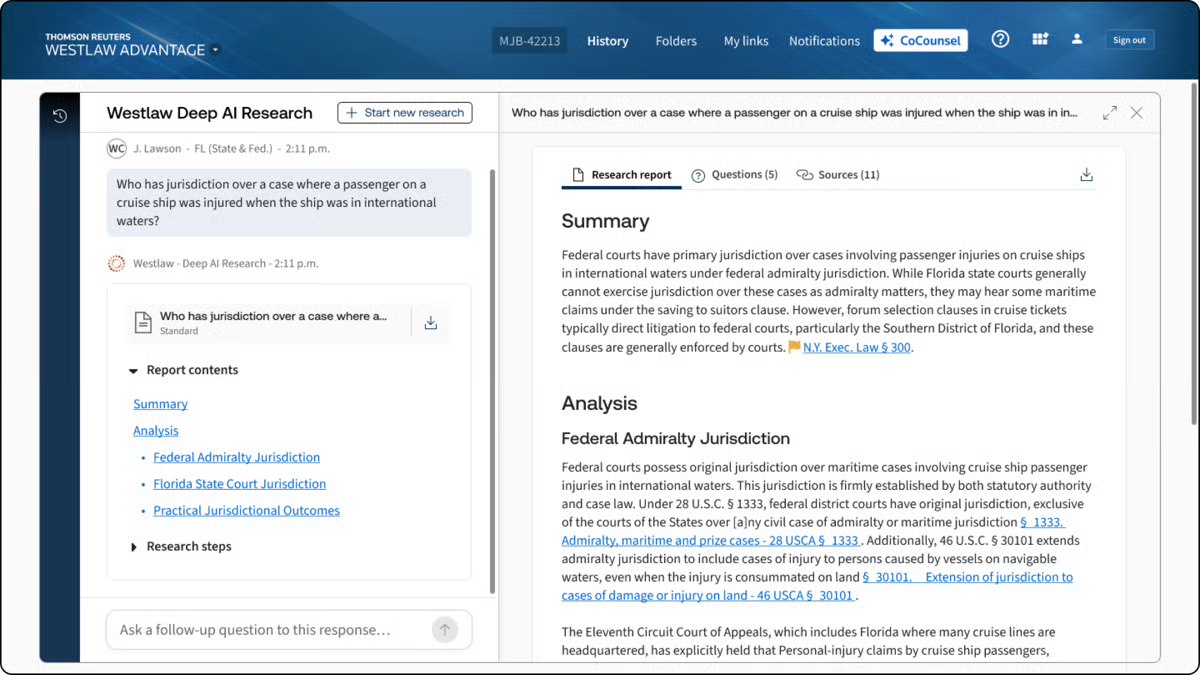
Source: G2
Its legal research capabilities are a major part of the appeal. You can ask a detailed question, review a synthesized answer, and trace the supporting sources.
CoCounsel Legal also works with uploaded matter documents, so you can use it to summarize records, compare language, or prepare an initial draft based on your own data.
Best Features
- Deep research: Investigates complex questions using Westlaw and Practical Law, then returns cited findings.
- Jurisdictional research: Tailors results to the jurisdiction connected to your legal question.
- Document analysis: Reviews uploaded files and extracts relevant facts or issues.
- Drafting workflows: Helps prepare legal documents using research and matter materials.
- Practical Law access: Finds templates, practice notes, and other attorney-developed resources through natural-language requests.
- Microsoft Word integration: Brings CoCounsel tools into the document lawyers are already editing.
Pros
- Grounds research in established Thomson Reuters content
- Provides citations for easier verification
- Combines legal research with drafting and document review
- Adjusts research based on the relevant jurisdiction
- Gives lawyers access to Westlaw and Practical Law in one workspace
4. Eve Legal
Eve Legal is built for plaintiff firms handling work such as personal injury and employment cases. Its EveOS platform supports casework from intake through litigation while keeping documents and matter details connected in one system.

Source: Eve.Legal
You can use Eve to draft demand letters, summarize medical records, prepare discovery, and review files for missing information.
Eve Agents can take on recurring tasks using your firm’s documents and preferred writing style, while attorneys keep control of the final work product.
Best Features
- Demand letter drafting: Creates customized demands using case facts and supporting records.
- Medical record summaries: Organizes treatment history into a clearer format for attorney review.
- Discovery support: Helps firms prepare discovery requests and responses.
- Eve Agents: Handles recurring casework using the firm’s documents and internal processes.
- Eve Auditor: Reviews active files for overlooked injuries, deadlines, and other potential case issues.
- Client communication: Supports routine updates and outreach during the life of a case.
Pros
- Built for plaintiff-side practices
- Covers pre-litigation and litigation work
- Learns from the firm’s documents and writing style
- Connects case data with drafting and review workflows
- Supports sensitive records with encrypted infrastructure and security controls
5. Lexis+ With Protégé
Lexis+ with Protégé combines legal research, drafting, and document analysis in one AI-powered workspace.
The platform is built on LexisNexis content, which gives you access to primary law, secondary sources, and Practical Guidance while you work through a legal question.
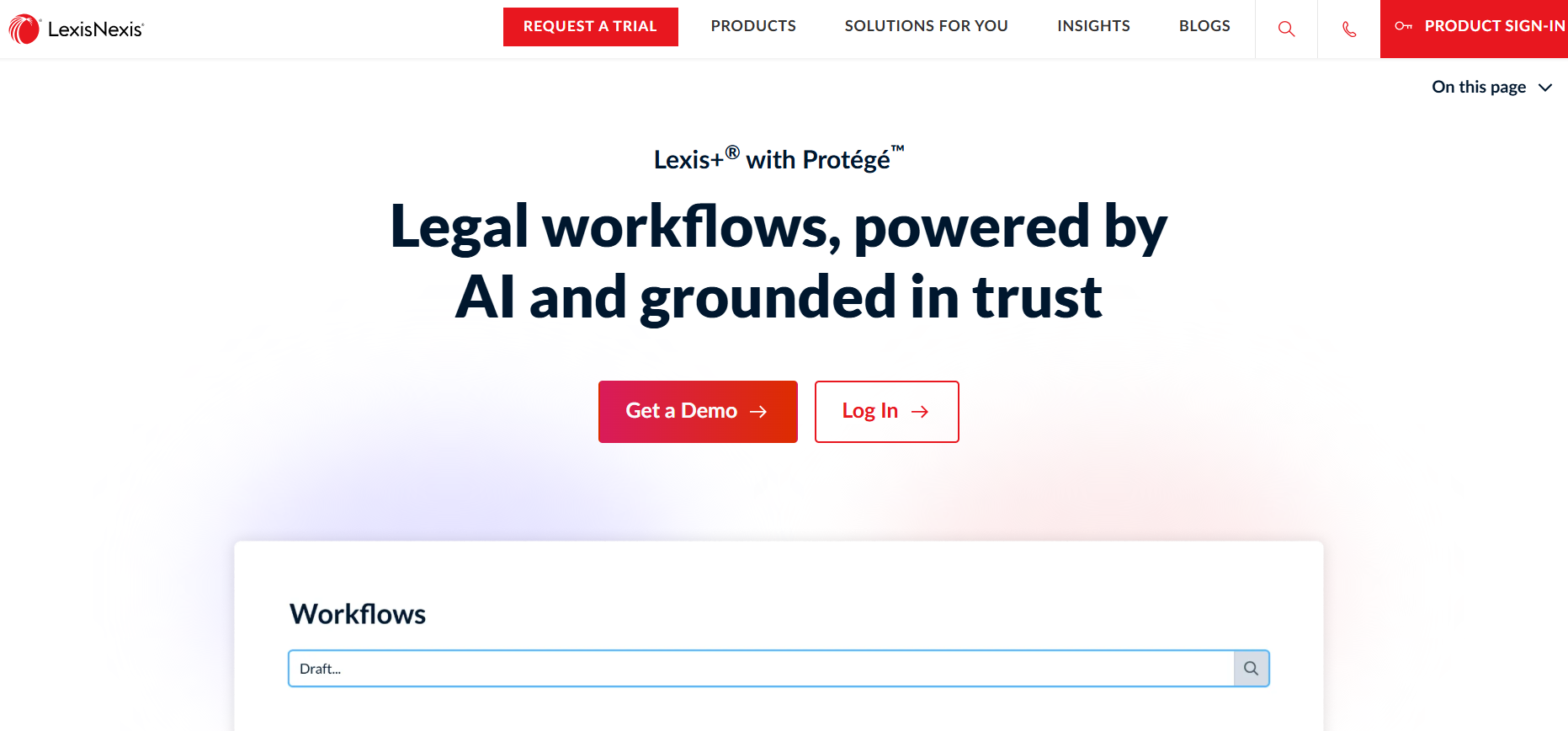
Source: LexisNexis.com
Protégé can help you prepare drafts, summarize uploaded files, and review evidence for relevant details. Its responses can draw from your organization’s documents along with LexisNexis sources, rather than relying only on publicly available data.
For teams already using Lexis products, it may be the right tool for bringing AI into an established research process.
Best Features
- Conversational research: Answers legal questions using authoritative LexisNexis content and cited sources.
- Legal drafting: Prepares initial drafts using research materials, uploaded files, and firm documents.
- Document analysis: Summarizes records and identifies relevant facts, conflicts, or missing information.
- Protégé workflows: Guides multi-step legal tasks while letting lawyers review the proposed approach.
- Shepard’s integration: Helps users verify citation status and treatment before relying on an authority.
- Practical Guidance: Connects research with forms, checklists, and attorney-developed practice materials.
Pros
- Draws from the company’s extensive collection of legal documents
- Connects AI research with Shepard’s citation tools
- Uses firm materials alongside trusted LexisNexis sources
- Fits naturally into existing Lexis research workflows
- Supports drafting and evidence review within one platform
6. Spellbook
Spellbook is a legal AI tool built for lawyers who spend much of their day drafting and reviewing contracts. It works inside Microsoft Word, which allows you to analyze an agreement or revise language without moving the document into a separate platform.

Source: Spellbook.com
The software can suggest clauses, create redlines, and answer questions about the contract in front of you. Its Playbooks let firms apply their preferred positions and review standards to recurring agreements.
Spellbook Associate extends those capabilities to multi-document contract analysis and custom workflows, such as comparing agreements or updating a template from reference files.
Best Features
- Contract review: Flags unusual terms, missing language, and possible risks within an agreement.
- Drafting tools: Generates clauses or full drafts using your instructions and existing document.
- AI redlining: Suggests edits based on the represented party and desired negotiation position.
- Playbooks: Reviews contracts against reusable rules and preferred terms created by your firm.
- Spellbook Associate: Compares multiple documents and answers questions using the selected files.
- Custom workflows: Turns recurring multi-document processes into templates your team can reuse.
Pros
- Works directly inside Microsoft Word
- Focuses closely on contract drafting and review
- Adapts reviews to firm playbooks
- Supports both single-document and multi-document work
- Makes recurring contract workflows easier to standardize
7. Everlaw
Everlaw is a cloud-based ediscovery platform for litigation, investigations, and document-heavy legal work.
It gives you tools for processing data, reviewing evidence, and preparing a case within one workspace. Its AI features are grounded in the documents uploaded to the platform, so lawyers can trace findings back to the source material.
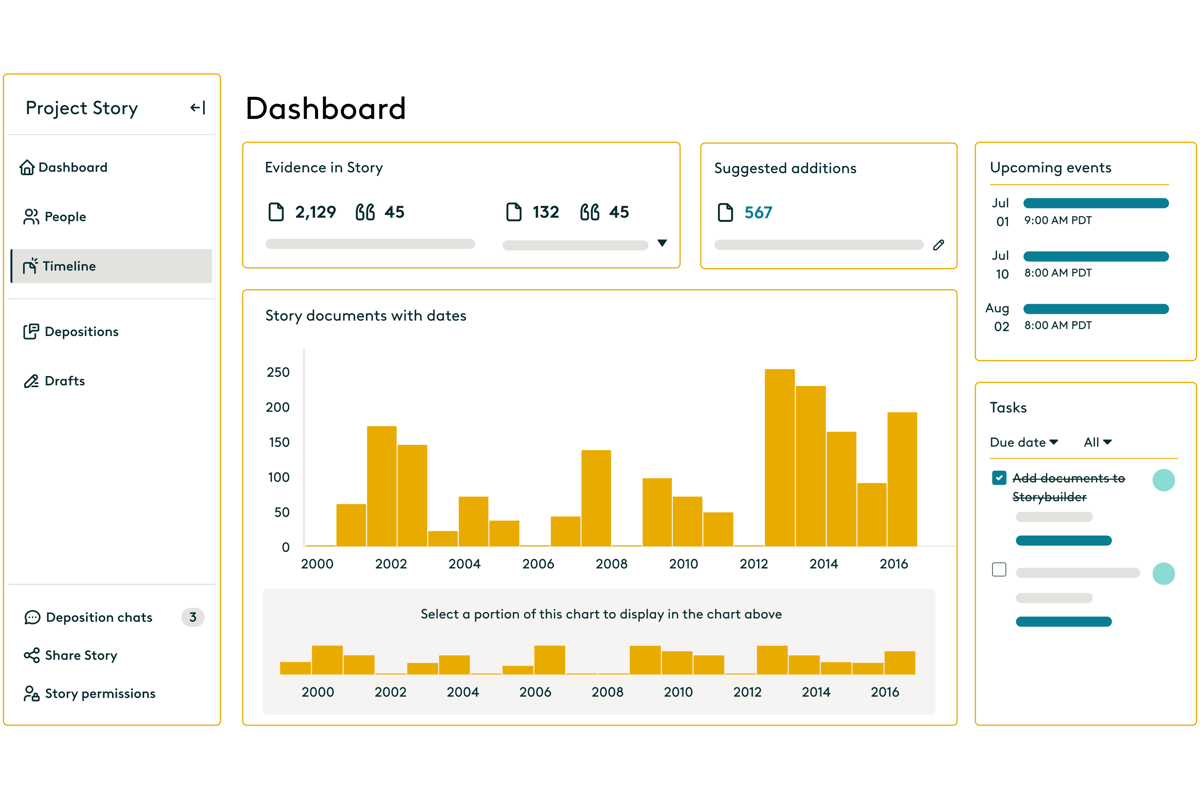
Source: G2
The platform is better suited to teams with substantial discovery needs than small firms handling only occasional matters. You can use it to identify responsive records, review material for privilege, and organize the evidence that may eventually be produced to opposing counsel.
In general, Everlaw supports the discovery process rather than researching statutes or answering general legal questions.
Best Features
- AI-powered review: Summarizes documents and surfaces information relevant to the case.
- Predictive coding: Prioritizes records that are likely to be responsive during large reviews.
- Storybuilder: Turns key evidence into timelines, deposition materials, and case narratives.
- Early case assessment: Helps teams understand the size and content of a dataset before a full review.
- Legal holds: Manages preservation notices and tracks custodian compliance.
- Production tools: Prepares reviewed documents for delivery in the required format.
- Security controls: Protects sensitive data with permissions, encryption, and compliance safeguards.
Pros
- Handles large and complex discovery matters
- Connects document review with case preparation
- Keeps AI findings tied to source documents
- Supports review, production, and legal holds in one platform
- Gives distributed teams a shared cloud workspace
How to Choose the Best Legal AI Software for Your Team
Start with the work your team actually wants to improve. A powerful AI assistant may sound appealing, but paying for broad capabilities makes little sense if you only need help with one part of your practice.
Here are several factors you should consider:
- Match the tool to your workload: Look for software built around the tasks taking up the most time, such as discovery drafting, contract review, or legal research.
- Check your existing systems: See if the platform connects with your case management or practice management software. A tool that fits your current setup is usually easier to adopt.
- Review data protections: Confirm how the provider stores client data, who can access it, and if your information is used to train its models.
- Consider the learning curve: Ask how much training lawyers and staff will need before they can use the platform confidently.
- Compare pricing with usage: Some tools charge per user, while others offer plans designed for enterprise teams. Choose a structure that reflects how often the software will be used.
- Test the output: Run the tool through a realistic legal task and check how much editing the result requires.
Choose Legal AI That Fits the Work
Legal AI software can save your team time, but the strongest choice depends on the work filling your day. A research platform may suit complex legal questions, while contract software can help teams review agreements.
Litigation practices may benefit more from a tool built specifically for discovery.
Briefpoint focuses on written discovery from drafting through document production.
It can prepare and respond to interrogatories, RFAs, and RFPs in jurisdiction-specific formats. Client Bridge collects answers and files through a secure link, then maps the information back to the relevant requests.
Autodoc handles the document-heavy side of RFP responses. It identifies responsive files, removes irrelevant material, adds page-level Bates citations, and creates a Bates-numbered production package. Briefpoint then generates an editable Microsoft Word draft for attorney review.
7 Best AI Legal Document Drafting Tools in 2026
What Is AI Legal Document Drafting?
AI legal document drafting gives you a quicker way to move from raw information to a usable first draft. You provide the relevant facts, instructions, or source material, and the software helps shape them into a document you can review and refine.
In practice, AI legal drafting works like a focused drafting assistant. For example, it can help organize legal content, follow a familiar structure, and reduce the amount of repetitive writing that usually slows you down.
For legal professionals, this can make writing legal documents feel much more manageable. You spend less time rebuilding standard language and more time on more important steps like reviewing the substance, adjusting the strategy, and making sure the final draft fits the case.
Artificial intelligence can support many types of legal work, from discovery documents to contracts. Still, the final call stays with you. The tool may speed up the first draft, but your judgment is what makes the document accurate and ready to use.
How Does AI Legal Document Drafting Work
AI legal drafting usually starts with the information you already have. You upload source documents or enter details from the case file, then the software uses generative AI to turn that material into a structured draft.
Many legal writing tools rely on large language models, though platforms built for legal work often add templates and document-specific rules on top of the underlying AI technology.
A typical workflow looks like this:
- Provide the source material: Add the relevant case files, client details, or drafting instructions so the tool has a clear foundation.
- Generate the first draft: The system organizes the information and produces language suited to the selected document.
- Review and revise: You check the facts, adjust the legal reasoning, and confirm that the final wording fits the situation.
- Save and reuse: Approved language can often be carried into future work to maintain consistency and keep saving time.
This makes AI for legal drafting a valuable tool when the work follows a repeatable process. General AI tools may help with basic writing, but purpose-built platforms usually provide more control over legal structure and source documents.
Top 7 AI Legal Document Drafting Tools Today
AI legal drafting software varies widely in focus and depth. Here are the top options worth looking at today:
1. Briefpoint
If discovery drafting takes up too much of your week, Briefpoint gives you a faster way to handle it. The platform is built specifically for written discovery, so you can prepare discovery requests, draft responses, and collect client information in one focused workflow.
You can upload the relevant files, review suggested responses, and make changes before exporting the finished document to Word. For legal teams, this cuts down the time-consuming work that usually comes with formatting, repeated language, and document review.
Briefpoint can help with client communication too. Client Bridge turns legal questions into plain language and gives clients a secure link for submitting answers or files. Their responses are then mapped back to the correct requests, which makes review much easier.
Best Features
- Discovery drafting: Creates RFAs, RFPs, interrogatories, and responses using your case information.
- Client Bridge: Collects client answers and documents through a secure, mobile-friendly link.
- Autodoc: Reviews source files and prepares Bates-cited RFP responses for attorney review.
- Supplemental responses: Updates earlier responses while preserving the existing record.
- Review controls: Lets you remove irrelevant files, check supporting documents, and revise the final language.
2. MyCase IQ
MyCase IQ works inside the MyCase practice management platform, so you can use AI during the same workflow where you already manage case information.
That can help you work faster because the system can draw on the legal context connected to a matter rather than treating every prompt like a standalone request.
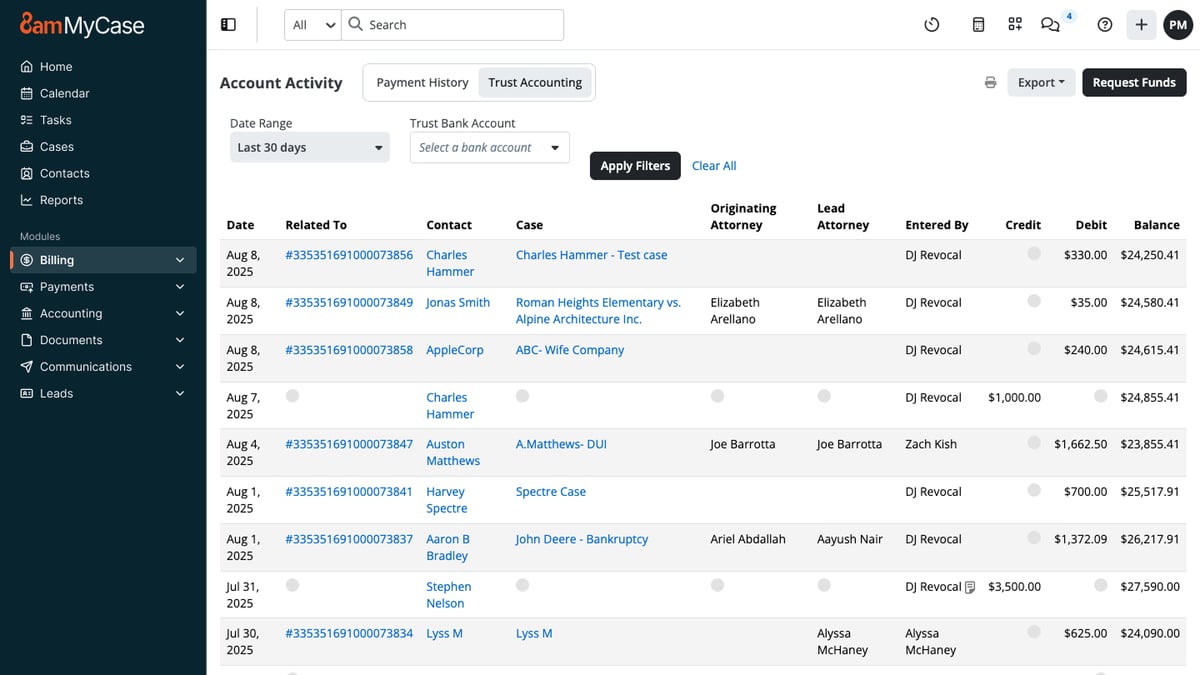
Source: G2
You can use it to create routine documents, refine existing text, and summarize case files before you begin drafting.
It can also support legal research tasks at a basic level by helping you locate and organize relevant details, though your own expertise still guides the final result.
Best Features
- Matter-based drafting: Uses information linked to a case to support a more relevant drafting process.
- Document creation: Helps prepare routine documents and client-facing content.
- Case summaries: Pulls key information from files so you can review the main points faster.
- Writing support: Revises tone, wording, and structure inside the MyCase platform.
- Built-in workflow: Keeps drafting tools close to the rest of your case management work.
3. Clearbrief
Clearbrief is a good fit when you already have a draft but need stronger support behind the claims. It works inside Microsoft Word, so you can connect statements to source material without leaving the document or rebuilding your workflow.
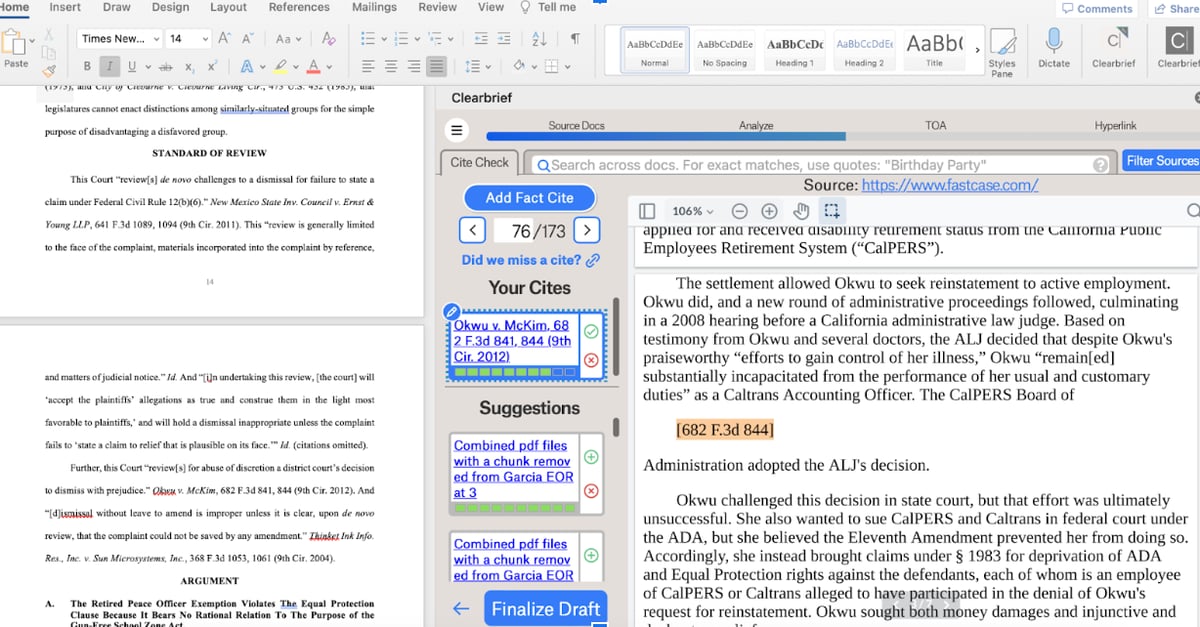
Source: G2
The platform can help with document creation from a blank page, but its strongest use is checking and strengthening legal writing.
Clearbrief can find supporting pages, flag possible inconsistencies, and help you review citations before filing. That added layer can reduce human error when AI use is part of your drafting process.
It can also assist with summarizing documents and turning large records into timelines or other usable work product. Clearbrief is less focused on business contracts and more suited to litigation documents where factual support and citation accuracy carry a lot of weight.
Best Features
- Add Fact Cite: Finds the pages that best support a selected sentence.
- Mistake Detection: Flags possible conflicts between your writing and the source documents.
- Hyperlinked Summaries: Creates summaries and timelines connected to the underlying record.
- Citation tools: Checks legal citations and generates tables of authorities.
- Word integration: Keeps drafting and verification inside Microsoft Word.
4. Legalyze.ai
Legalyze.ai helps lawyers turn their own case files into summaries, chronologies, and legal drafts. You upload the relevant documents, then use the platform to ask questions or create new work based on the information already in the record.
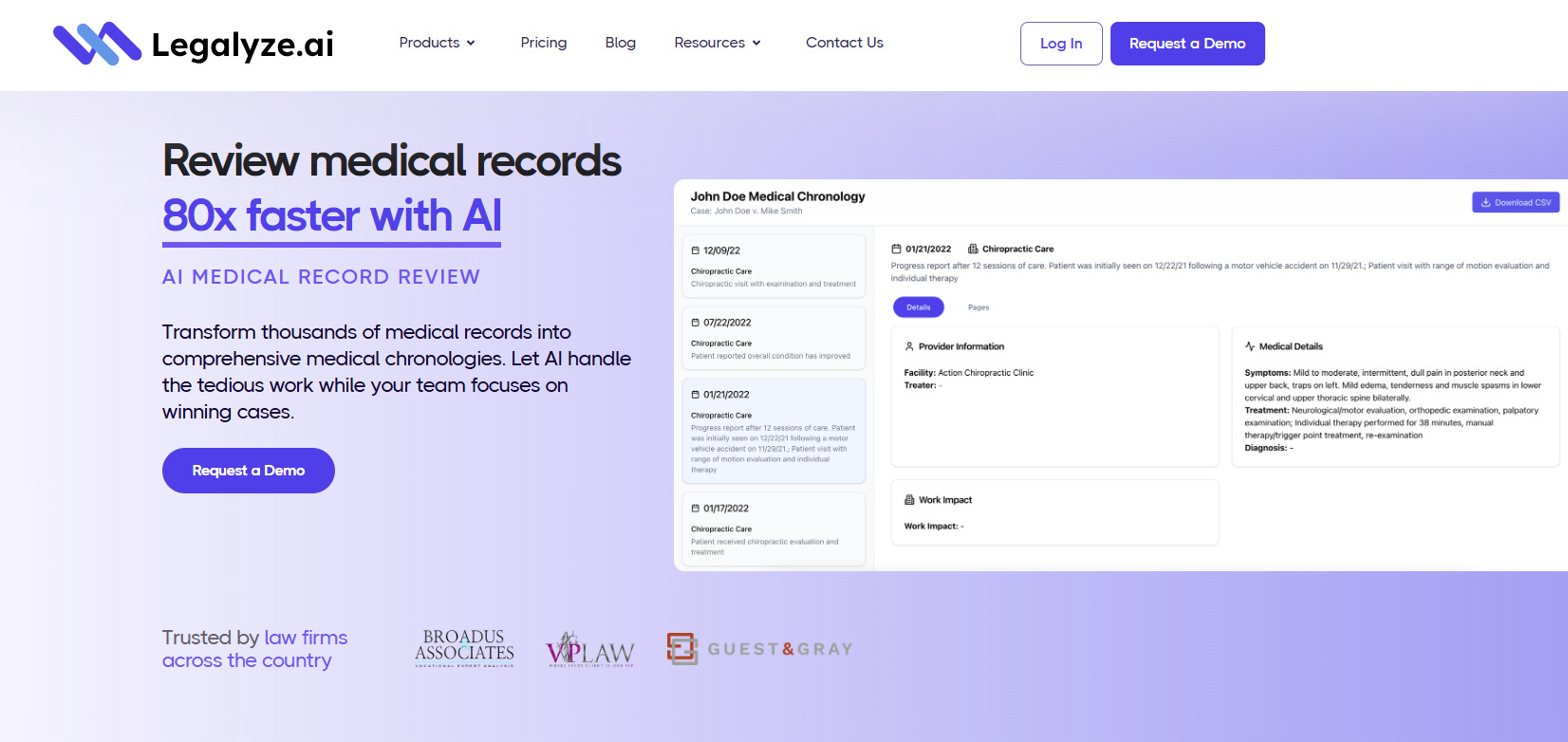
Source: Legalyze.ai
That feature can be useful for law firms handling document-heavy cases, particularly when reviewing medical records or preparing routine correspondence. Each answer can include page-level sources, which gives you a clearer path back to the original material during review.
Solo practitioners may find the focused workflow helpful when they need to move through large files with limited support. Nevertheless, Legalyze.ai does not replace legal research into current case law, and lawyers still need to check citation formats before using a draft.
Best Features
- Case Chat AI: Lets you ask questions about uploaded records and receive source-cited answers.
- Drafting AI: Creates documents such as motions and letters using your case files as context.
- Medical chronologies: Organizes medical events into a timeline linked to the source records.
- Document summaries: Extracts key information from large files and points you to the relevant pages.
- Case management integrations: Connects with platforms such as MyCase and Smokeball.
5. Spellbook
Spellbook is designed for lawyers who spend much of their time drafting and reviewing agreements in Microsoft Word. Since it works inside the document, you can generate new language, revise clauses, and review contract terms while staying close to your usual workflow.

Source: Spellbook.com
You can use Spellbook to prepare a full draft from a blank document or add language to something already in progress. It can also draw from your clause library, which helps reduce repetitive tasks and keeps preferred wording easy to reuse during client work.
For review, Spellbook can compare an agreement against selected standards and suggest fixes for missing or unexpected terms. Those suggestions can help you spot potential issues earlier, though attorney review remains necessary to ensure accuracy before the document is finalized.
Best Features
- New Document: Generates complete agreements from the details you provide.
- New Clause: Drafts fresh contract language or pulls relevant wording from your library.
- Reviews: Produces suggested redlines and flags possible problems in the document.
- Benchmarks: Compares the agreement against selected standards and identifies missing terms.
- Playbooks: Applies your own review rules and preferred language to future work.
6. Gavel
Gavel is a strong option if your work involves repeatable documents or contract review. Its two main products cover both sides of that process: Gavel Workflows automates document creation, while Gavel Exec helps counsel draft and review contracts in Microsoft Word or online.
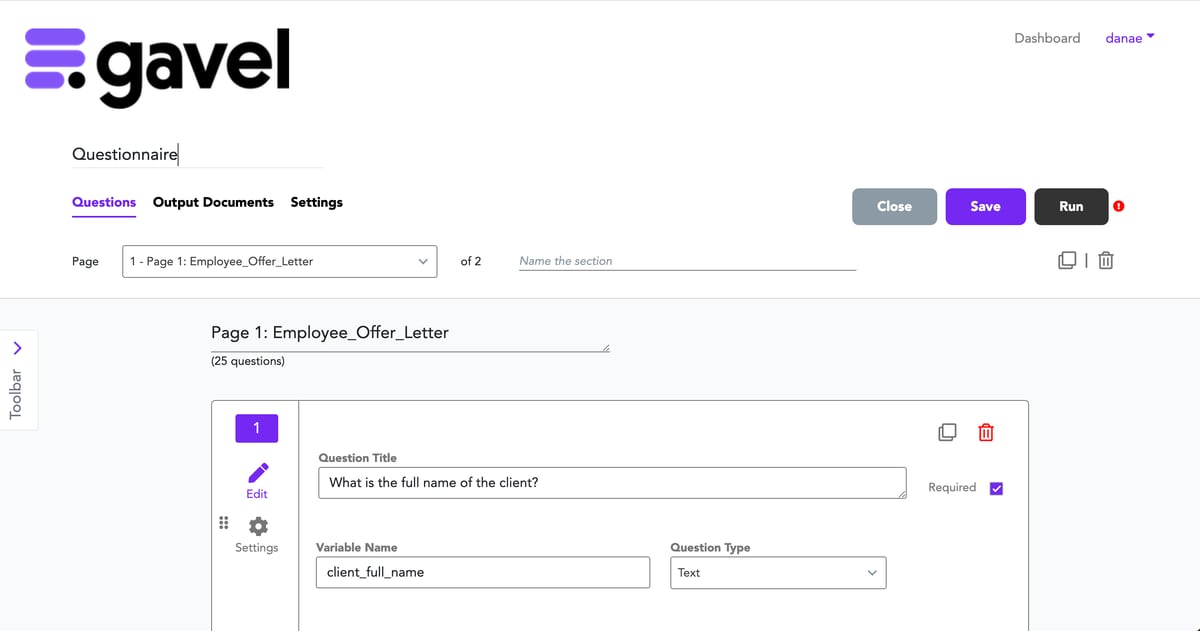
Source: G2
For document automation, you can connect a questionnaire to your existing Word or PDF templates.
Gavel then fills in the right language based on the user’s answers, which can save billable hours on forms and other rules-based documents. It can also handle defined terms and conditional clauses through custom logic.
Gavel Exec is geared more toward the negotiation process. It can redline full agreements, draft new clauses, and apply your playbooks or prior language during review.
Best Features
- Gavel Workflows: Turns questionnaire responses into completed Word or PDF documents.
- Gavel Exec: Supports contract drafting, review, and redlining in Word or online.
- Custom logic: Adjusts document language based on the answers entered.
- Playbooks: Applies your preferred positions and drafting standards during contract review.
- Template automation: Converts existing legal forms into reusable document workflows.
7. Claude AI
Claude AI can help you work through long legal documents, build a first draft, or revise language based on detailed instructions. You can upload case materials, explain the document you need, and ask Claude to organize the information into a clearer structure.
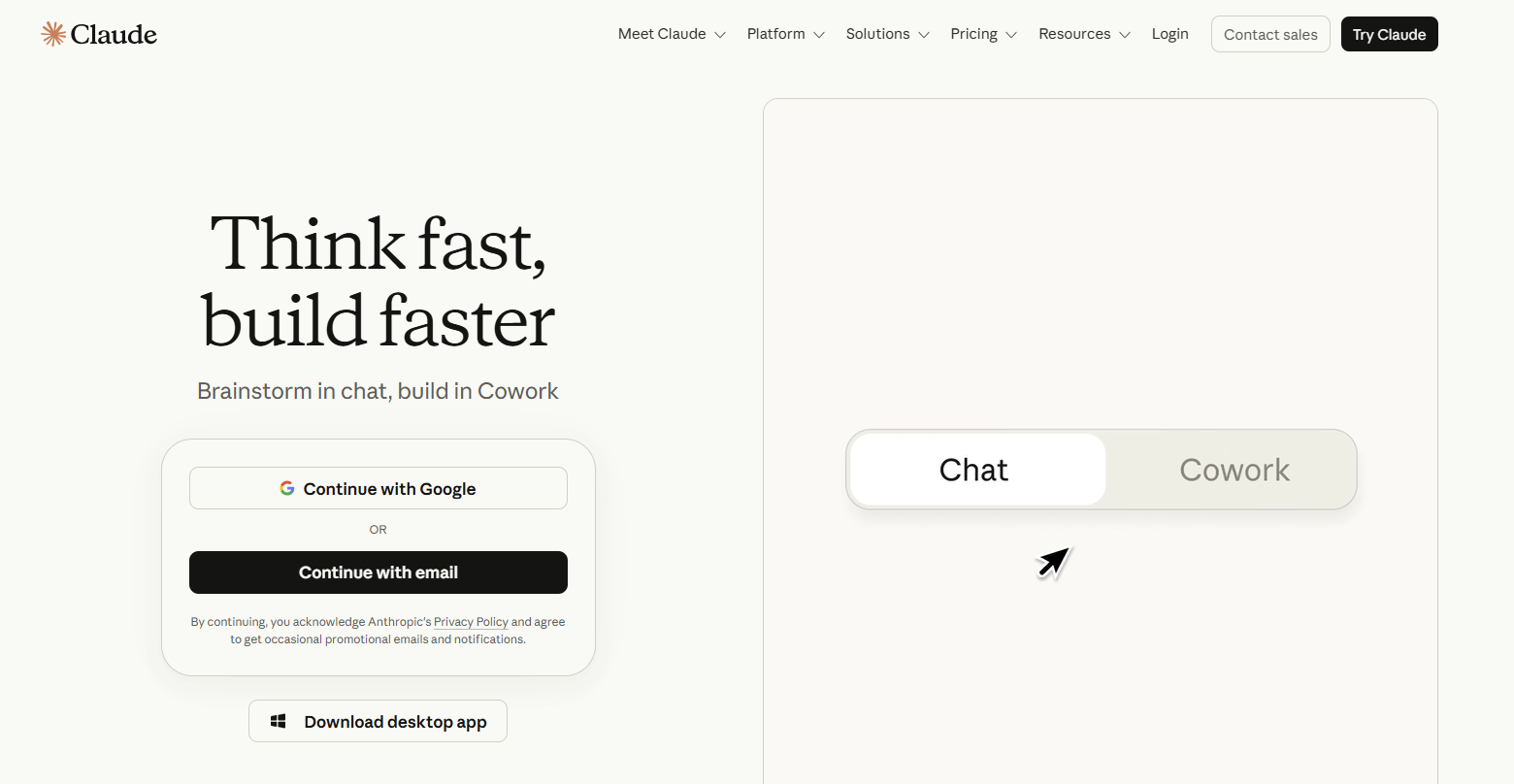
Source: Claude.com
Its broad flexibility works well for early drafting and document review. For example, you might use it to summarize an agreement before preparing a client update or compare proposed language against an internal standard.
Projects can keep related files and custom instructions together, which is helpful when the work continues over several sessions.
Claude is a general AI platform, so it requires human oversight throughout the legal workflow. Its output should be checked against the original documents, current law, and your own human expertise before it reaches a client or becomes part of a filing.
Best Features
- Large document review: Reads uploaded files and helps identify relevant information.
- Draft generation: Produces first drafts based on your instructions and supporting materials.
- Projects: Keeps related documents and custom guidance in one workspace.
- Document comparison: Highlights differences in wording or position between drafts.
- Flexible revision: Reworks tone or structure as your needs change.
Take the Drag Out of Legal Drafting
AI legal document drafting can make repetitive work easier to manage, but the best results still come from choosing a tool that fits the type of document you handle most often.
A general platform may help with early drafts, while a purpose-built tool can give you more structure and control.
For discovery work, Briefpoint offers a much more focused workflow. You can draft requests and responses, collect client input, review supporting files, and prepare Word-ready documents without piecing the process together across separate tools.
Autodoc helps identify responsive materials and create Bates-cited drafts, while Client Bridge gathers answers and files through a secure link. Supplemental Responses makes it easier to update earlier work as the case develops.
Book a demo today and see how much time Briefpoint can take out of your discovery workflow.
Legal Document Formatting Guidelines Every Team Should Know
1. Page Layout
Before document creation, a solid page layout gives your document a clean starting point and helps it line up with the legal standards most courts expect.
Standard Page Size
Most filings use 8.5 x 11 inches, which remains the default paper size across U.S. courts. Some courts allow A4, though most still expect the standard size. So, unless the rules say otherwise, stick with that for legal document templates and everyday filings.
A few older forms still reference legal size (8.5 x 14 inches), but modern templates and electronic filing systems typically expect the standard 8.5 x 11 layout. Sticking with this size keeps your documents consistent with what courts review every day.
Recommended Margins
One-inch margins on all sides are widely accepted. A few courts ask for a slightly larger left margin to allow space for binding, so a quick check of local rules is always worthwhile.
Line Spacing Rules
Courts often expect double line spacing in the main text to improve readability. Single spacing may be used for block quotes, footnotes, and tables, depending on the requirements.
Header and Footer Placement
Page numbers usually sit in the bottom center or bottom right. Some courts also want the case details in the header on every page, so it’s worth double-checking their court standards and formatting rules before you file.
Example
A compliant layout might include:
- 8.5″ x 11″ page
- 1″ margins
- Double line spacing
- Case caption in the header
- Page number in the bottom-right corner
Layouts following these basics usually meet filing expectations, but a quick look at your jurisdiction’s rules helps make sure that everything lines up.
2. Font and Text Standards
Clear text guidelines help your filings look consistent and easy to read, no matter the court or agency. The way you handle font choice, font size, and basic formatting styles plays a big role in keeping the document polished.
Approved Fonts for Legal Documents
- Traditional serif options like the Century Schoolbook and Times New Roman font remain widely accepted
- Many courts now permit sans-serif fonts such as Arial or Calibri for other legal documents
- Pick one font family and use it throughout the document
Font Size Rules for Body Text and Headings
- Body text usually appears in a 12-point font size
- Headings often use 12–14 points, depending on hierarchy
- Keep the same sizing structure across sections for consistency
Bold, Italic, and Underline Usage
- Use bold to emphasize key points sparingly
- Italics work well for case names, citations, and defined terms
- Underlining appears less often but remains acceptable if required by local rules
Rules for Capitalization
- Capitalize defined terms consistently
- Follow standard legal writing conventions for titles, sections, and parties
- Avoid over-capitalizing everyday words that don’t carry legal significance
These standards keep your formatting clean, predictable, and aligned with what courts expect.
3. Headings and Subheadings
Strong headings keep longer documents organized and easier to read. When the structure is clear, readers can follow the flow of information without effort. This is something that matters a lot in professional documents.
Use a clear document title at the top, then break the content into logical sections with consistent formatting. Headings should signal major topics, while subheadings divide those topics into smaller, focused points that improve readability.
A simple structure looks like this:
- Main heading (H1) – Defines the broad topic
- Section heading (H2) – Introduces major sections
- Subheading (H3) – Breaks down details within each section
Keep styles consistent throughout: the same font, size, spacing, and alignment. This gives your document a clean and predictable layout that helps readers move through the content without confusion.
4. Paragraph Formatting
Clear paragraph rules go a long way toward keeping documents clean and easy to review. That’s why many teams build these settings into their Microsoft Word templates to maintain consistency and avoid formatting errors.
Indentation Rules
- Standard practice uses a first-line indent of 0.5 inches
- Some courts require no indentation and rely on spacing instead
- Apply indentation through styles to keep paragraphs consistent and ensure compliance with court preferences
Block vs. Indented Paragraphs
- Block paragraphs use no indentation and include a blank line between paragraphs
- Indented paragraphs use a first-line indent with no extra spacing
- Choose one format and keep it consistent throughout the document
Spacing Between Sections
- Add clear spacing above headings and between major sections
- Avoid manual line breaks and rely on paragraph styles to prevent inconsistent gaps
Alignment Best Practices
- Left alignment is the standard for legal documents
- Fully justified text is allowed in some filings, but can create uneven spacing
- Keep alignment consistent to maintain a clean reading experience
5. Numbering and Lists
Organized lists help readers move through information quickly in legal briefs and other documents that follow a consistent legal style. Most tasks can be handled easily in a word processing program where styles keep lists clean and uniform.
When to Use Numbered vs. Bulleted Lists
- Use numbered lists for steps, arguments, or anything that follows a sequence
- Use bullet points for items that share equal weight and don’t require a specific order
Multi-Level Lists
- Helpful for outlining arguments or breaking complex points into smaller parts
- Apply built-in list styles rather than manual spacing
- Use clear hierarchy levels (1., a., i.) to maintain the structure readers expect in legal writing
Consistent Indentation for List Items
- Keep each level aligned the same way throughout the document
- Avoid manually dragging items; use styles to prevent spacing inconsistencies
- If your document uses select columns or narrow margins, review the layout to confirm that list items remain properly aligned
Example
- Primary argument
a. Supporting detail
i. Sub-point - Secondary argument
6. Citations and References
Accurate citations keep your writing clear and consistent with court requirements. They are particularly important in briefs, motions, letters, and other formal court filings.
Most lawyers follow a standard citation style, often the Bluebook or local court rules, to keep references predictable, easy to verify, and aligned with promoting adherence to filing requirements.
Citation Format
Use the citation style required by the court or governing body. Styles may vary between jurisdictions, so always confirm the expected structure before finalizing a document.
Placement of Citations
Inline citations work well for most filings, but footnotes are acceptable in documents that allow more narrative flow. Your word processor should handle footnote numbering automatically to prevent formatting mistakes.
Short Citation Box
Some courts ask for a short citation box on the first page of a filing. This quick-reference section summarizes the mandatory citation format or abbreviation rules so the reviewer can see them at a glance.
Footnotes vs. Endnotes
Footnotes are more common in legal writing because they keep sources close to the text. Endnotes may be used in longer filings if permitted, but they’re less typical in court submissions.
Cross-Referencing
When pointing readers to exhibits or earlier sections, keep labels consistent. Use automated cross-reference tools to avoid errors during edits.
7. Document Structure Requirements
A clear structure helps every legal file stay easy to read and consistent with the formatting elements courts expect.
Little formatting details can shape how quickly someone grasps the content. This matters even more when there are many sections or extra materials involved.
Most legal documents follow a predictable flow: a title page or caption, a table of contents for longer filings, well-defined sections, and exhibits or appendices at the end.
Keeping the same heading styles, spacing, and numbering throughout gives the document a clean, steady feel that reviewers appreciate.
This becomes even more important for teams handling repeat work. If you’re drafting similar filings over and over, document automation tools help you start with the right structure every time.
Instead of rebuilding the layout from scratch, you begin with margins, headings, signature blocks, and exhibit labels already in place. Apply consistency like this, and you’ll reduce errors and cut down on back-and-forth formatting fixes.
For teams that want a faster, more reliable way to create structured filings, Briefpoint’s Autodoc offers ready-to-use layouts that stay aligned with court expectations.
Book a demo to see how it fits into your workflow.
8. File-Naming Conventions
Naming a file seems simple, but a predictable system saves time and avoids mix-ups, especially when multiple people review drafts, leave comments, or track changes.
A clear convention also keeps files organized across shared drives, email threads, and document management tools. This way, no one has to guess which version is current or what’s inside a file.
Required Naming Format
Most firms rely on a straightforward pattern with the matter name, document type, and date. This keeps folders tidy and makes searches faster.
Example for motion to compel document:
Smith_v_Jones_MotionToCompel_2025-03-12.docx
Version Control Rules
Version tags help everyone follow the document history. Update the tag each time a new draft is created.
Examples:
- …_v1, …_v2, …_v3
- …_PartnerReview, …_ClientReview
Avoid ambiguous titles like “final” or “final_final,” which usually lead to duplicates.
Confidential or Privileged Labels
Sensitive files should display their status clearly in the name. This reduces the risk of accidental sharing and supports firm-level policies.
Examples:
- CONFIDENTIAL
- ATTORNEY-CLIENT_PRIVILEGED
- ATTORNEY_WORK_PRODUCT
9. Page Numbering Requirements
Good page numbering makes a document easier to move through and helps reviewers locate information quickly. This is especially true in filings that include exhibits, charts, or an insert table section.
Courts expect consistent placement, so numbering should stay in the same spot on every page; most commonly, the bottom center or bottom right.
Introductory pages sometimes follow different rules. A court may ask for Roman numerals on the table of contents and switch to Arabic numbers once the main text begins.
Other courts prefer numbering to start on the very first page of the document. A quick check of local guidelines prevents unnecessary changes later.
For documents with exhibits, keep the numbering continuous unless a rule requires each exhibit to restart at page one. This helps anyone reviewing the file follow references easily, particularly when you mark citation references throughout the text.
It’s best to use your word processor’s automatic numbering tools rather than typing numbers manually. Automated numbering adjusts smoothly as sections are added, removed, or edited, and keeps the layout stable through final review.
10. Formatting for Exhibits
Exhibits should follow a clear structure so reviewers can scan, verify, and reference them without slowing down.
Each exhibit needs a label that’s easy to spot, typically placed at the top-right corner of the first page. Labels usually follow a simple pattern such as “Exhibit A,” “Exhibit B,” and so on.
If your matter includes many attachments, adding brief descriptions can help, as long as they remain consistent.
Exhibit pages should maintain the same margins, fonts, and spacing used in the main document unless the source material can’t be altered. When referring to exhibits in the text, use the exact label so the reader can match the reference instantly.
Make sure each exhibit begins on a new page, and include a divider or header to mark the start of each section if the exhibits appear in a single combined PDF.
Example:
- Exhibit A – Email from John Smith dated March 4, 2025
- Exhibit B – Contract Agreement (signed)
- Exhibit C – Financial Summary Spreadsheet
11. Redaction Standards
Strong redaction practices protect sensitive information and reduce the risk of accidental disclosure. Most courts expect digital redactions to fully remove the underlying text, not just hide it visually.
Proper Digital Redaction
Use a true redaction tool and not drawing tools, black boxes, or highlights. A proper tool deletes the underlying text so it can’t be revealed through copying, searching, or adjusting the file.
Marking Redacted Sections
Redacted areas should be clearly identified. Many teams use a black bar paired with a brief label such as “Redacted – Confidential Information” or “Redacted – PII.” This helps reviewers understand why content was removed and keeps the document consistent.
Quality Checks Before Producing Documents
Always review the final file in a PDF reader to determine whether the redacted text can still be selected, searched, copied, or recovered. Check for hidden metadata, comments, or tracked changes that may reveal information unintentionally.
The redactions should adhere to the same labeling and placement standards throughout the file to ensure consistency and keep the document visually appealing. If multiple exhibits or pages were redacted, verify each one before the document is produced or shared.
12. Metadata Requirements
Metadata often contains more information than the visible document, so managing it carefully is essential for compliance and confidentiality.
Courts and opposing parties may review metadata during the discovery process. This means every saved change, author name, or hidden comment matters.
Documents should include only the metadata required for identification, authorship, and basic organization.
Before sharing or filing, remove unnecessary details such as internal comments, tracked edits, previous authors, and embedded file paths. This helps prevent accidental disclosure and keeps the document focused on what’s meant to be shared.
Use your word processor’s inspection tools to scan for hidden content that might otherwise go unnoticed. Many firms add this step to their review checklist to maximize consistency across matters.
Here are a few quick tips:
- Clear tracked changes before exporting to PDF
- Remove comments and internal notes
- Confirm the author and title fields are accurate
- Avoid embedding unrelated files or links
13. PDF Production Guidelines
A polished PDF makes sure the final version of your document is easy to read, search, and share across teams or with the court. Start by exporting directly from your word processor rather than printing to PDF, since exporting preserves formatting, bookmarks, and searchable text.
Make sure the file is fully OCR-enabled. If any pages originate from scans, run an OCR pass so reviewers can search, copy, and reference specific text without manual work. Courts often reject PDFs that aren’t searchable, so this step matters.
Check that headers, footers, and page numbers appear correctly throughout the file. Layout issues occasionally shift during export, especially when the document includes tables, exhibits, or images.
If the PDF includes confidential material, confirm that any redactions are permanent and that the underlying text is removed. You should also verify security settings match your needs; some teams lock editing while allowing printing, while others keep the file open for collaboration.
Your Legal Document Workflow Can Be Lighter With Briefpoint
Formatting rules look simple on paper, but keeping them straight across briefs, motions, discovery responses, and client-ready documents can feel like a lot to juggle.
You’re expected to follow court preferences, maintain consistency, and deliver clean files every time, often under tight deadlines. A steady system helps, but it’s still easy for spacing, numbering, or citation details to slip through when you’re working fast.
Briefpoint helps you handle that workload across motions, discovery requests, discovery responses, correspondence, and other formal documents.
If you’re dealing with the heavy lift of discovery, Autodoc takes the process even further. It turns productions and case files into ready-to-serve, Bates-cited discovery responses in minutes, not weeks.
You upload the RFPs and documents, Autodoc finds what’s responsive, generates Word-formatted responses, and produces a Bates-numbered package you can serve immediately.
Book a demo and get a closer look at how all these features fit into your practice.
A Deeper Look Into the Legal Document Review Process
What Is Legal Document Review?
Legal document review means reading and checking legal documents with a clear purpose in mind. You may need to confirm what a document says, spot risk, protect privileged information, or decide what needs attention before the next step.
In practice, this work gives legal professionals a cleaner view of the details that can affect a case or internal decision.
Document review attorneys often review documents to check for:
- Accuracy
- Relevance
- Privilege
- Confidentiality
- Risk
- Compliance
Of course, the scope can change from one matter to the next. A quick review may only need a focused read-through. On the other hand, a larger review may call for review protocols, several reviewers, and quality checks.
Either way, the main goal is to make sure the document supports the legal work ahead.
What Types of Documents Need Legal Review?
Most documents tied to a legal matter can benefit from review, especially if they affect rights, obligations, or risk. A careful review helps you identify key documents and protect confidential information before the work moves forward.
Common documents that need legal review include:
- Contracts and agreements: Review these for obligations, deadlines, liability, and unclear language.
- Discovery documents: During the litigation process, teams review documents for relevance and privileged information.
- Privileged documents: These need careful handling to protect attorney-client communications and work product.
- Compliance records: Compliance document review checks policies and internal records against legal or regulatory requirements.
- Corporate documents: Board minutes, bylaws, and ownership records often need review during due diligence.
- Physical documents: Paper records may need scanning and review before use in a case, investigation, or transaction.
Step-by-Step of the Typical Legal Document Review Process
A legal document review process works best when each stage has a clear purpose. Here are the main steps most legal teams follow:
1. Gather the Documents
The first step in legal doc review is document collection. Before you can identify relevant information, you need a complete set of potentially relevant documents tied to the legal matter.
This may include digital files, paper records, emails, contracts, financial records, reports, pleadings, and other materials connected to legal proceedings. At this stage, the focus should stay broad enough to avoid missing anything important, but organized enough to keep the review manageable.
You may need to collect documents from:
- Client files
- Email accounts
- Shared drives
- Case folders
- Contract databases
- Financial records
- Physical records
- Third-party sources
After collection, you can start narrowing the set down to the most relevant documents for review.
2. Set the Review Scope
Before the review team starts reading, set clear boundaries for the work. The scope tells reviewers what to look for, which documents take priority, and how decisions should be made during document analysis.
This step usually includes the review criteria, date ranges, custodians, document types, and legal issues tied to the matter. At the same time, it helps the team organize documents in a way that supports a faster and cleaner review.
For example, in a contract dispute, the review scope may focus on emails, agreements, invoices, and amendments from a specific time period. Reviewers may look for relevant evidence tied to payment terms, delivery obligations, or breach allegations.
Remember: A clear scope keeps the review focused and helps everyone apply the same standard from the start.
3. Sort and Organize the Files
After collection, sort the files so the review team can work through them in a clear order. This step can help you streamline legal document review because reviewers spend more time examining documents instead of searching for them.
For instance, in a legal case involving a contract dispute, you may separate the signed agreement from related emails, invoices, and notes. From there, you can place the files in date order so the review shows how the issue developed.
Proper organization also supports a thorough document review. For starters, it keeps related records close together, makes key details easier to compare, and helps the team understand each document in the right context.
4. Review for Relevance and Risk
This is the point where the review becomes more judgment-based. The team needs to analyze documents with the scope in mind, but the work should still leave room for legal reasoning, context, and follow-up questions.
A strong review usually includes:
- First pass review: Conduct first pass reviews to separate documents that are relevant from files that have little or no connection to the issue.
- Risk review: Look for facts, clauses, dates, admissions, missing details, or obligations that may affect the legal position.
- Manual review: Use manual review for documents that need closer attention, especially if the meaning depends on surrounding facts or prior communications.
- Issue tagging: Mark documents tied to claims, defenses, contract terms, privilege concerns, or other review criteria.
- Second pass review: Use a second pass review for key documents before production, filing, negotiation, or final advice.
5. Flag Privileged and Confidential Information
Privilege review calls for extra care. One missed document can affect major elements of your case, like production, waiver issues, or client confidentiality.
As you work through the files, flag anything that may include attorney-client privilege, work product, sensitive data, or confidential business information.
For example, an email from outside counsel discussing litigation strategy may need to be withheld or logged. Or a payroll spreadsheet may need redactions before production if it includes Social Security numbers or bank details.
Watch for items such as:
- Attorney-client communications
- Legal advice from counsel
- Drafts prepared for counsel
- Litigation strategy notes
- Confidential business records
- Personal identifying information
- Financial account details
- Health or employment records
Tools like technology-assisted review can help you find likely privileged or sensitive material in larger document sets. Even then, privilege review still needs legal judgment, so confirm what gets withheld and what can move forward.
6. Add Notes, Edits, or Redlines
After you identify the main issues, record them in a way that the next reviewer can follow without having to guess at your reasoning. In many reviews, notes and redlines are what turn a flagged issue into something the team can actually act on.
For instance, document reviewers may flag unclear language, add a short comment where legal judgment is needed, or suggest a redline that brings the document closer to internal policy.
For in-house legal teams, this step also helps connect the review to legal standards and business risk.
Overall, a thorough review should leave a clear trail of what changed and what still needs input.
7. Run a Quality Check
Before the document moves forward, take time to check the review itself. This quality control step helps confirm that comments, redlines, privilege calls, and risk flags line up with the review scope and legal strategy.
Use a short checklist like this:
- Relevance: Confirm that key documents have been reviewed under the right criteria.
- Privilege: Check that privileged material has been flagged, withheld, logged, or redacted as needed.
- Sensitive information: Look for personal data, confidential business details, or financial information that needs protection.
- Redlines and notes: Make sure comments are clear, useful, and tied to a specific legal issue.
- Consistency: Compare similar documents so reviewers apply the same standard throughout the review.
- Final status: Confirm which documents are ready for production, filing, negotiation, or attorney review.
A quick quality check can save time later, especially when the document will affect a deadline, client decision, or opposing party response.
8. Prepare the Final Output
With the quality check complete, prepare the reviewed documents in the format needed for the next step.
In litigation, this may be a production set or privilege log. For contracts, it may be a clean draft with a redline. For internal review, it may be a short summary for the attorney, client, or business team.
Make sure the final version reflects the decisions made during review. For starters, redactions should be complete, comments should be resolved or assigned, and open issues should be easy to understand.
The final output should feel ready to use. The next person should be able to review, approve, file, produce, or negotiate from the document with relative ease.
Best Practices for a Better Legal Document Review Process
A smoother review starts before the first document gets opened. Give your team enough direction to make consistent calls, but keep the process practical so reviewers can move through the work without constant back-and-forth.
Use these tips as a guide:
Use the Right Legal Document Review Software for Your Process
Legal software can be worth adding when the review volume starts eating up too much attorney time. For law firms handling discovery review or litigation discovery, the right tool can make the process easier to control without taking judgment away from the legal team.
Look for features that match the work in front of you:
- AI-powered review: Helps bring likely relevant documents, repeated language, and priority files to the surface faster.
- Optical character recognition: Turns scanned PDFs and image-based files into searchable text, which helps when older records or physical documents are part of the set.
- Data processing tools: Helps you sort files, remove duplicates, preserve metadata, and keep document families together before review starts.
- Review platform controls: Makes managing review platforms easier with reviewer permissions, tagging rules, batches, and audit trails.
- Privilege and redaction tools: Helps your team flag privileged material, protect sensitive content, and prepare cleaner productions.
Start With Clear Review Criteria
Clear review criteria give your team a shared standard before the first document is opened. Without that direction, reviewers may make different calls on the same type of record, especially in e-discovery or when producing relevant documents for the other side.
Your criteria should explain what counts as responsive and what should be flagged for attorney review. Keep it practical so reviewers can apply it quickly while still using legal judgment.
For example, your criteria might cover:
- Date range
- Custodians
- Relevant issues
- Key terms
- Privilege indicators
- Confidential information
- Redaction rules
- Escalation points
Clear criteria also make quality control easier later. If a document gets challenged or needs a second look, the team can trace the decision back to the standard used during review.
Keep the Document Set Organized
The way you organize the document set will shape the rest of the review. As mentioned earlier, reviewers should not have to waste time looking for the right file or guessing how one record connects to another.
Keep related documents close together, use clear naming conventions, and separate files in a way that matches the review scope. If the matter involves a contract dispute, for example, the signed agreement, related emails, and notes should be easy to compare.
Good organization also helps with consistency. When reviewers can see the surrounding context, they can make cleaner calls on relevance, privilege, risk, and next steps.
Flag Privilege Early
Privilege issues are easier to manage when you catch them early in the review. If a privileged piece of information or attorney work product reaches opposing counsel by mistake, the team may have to deal with clawback requests or extra cleanup that could have been avoided.
Mark anything that may need privilege review as soon as you see it. That gives senior attorneys time to make the final call before documents move into production, negotiation, or regulatory compliance review.
This step is especially important for legal services teams handling large matters. Early privilege calls help protect the client and keep sensitive legal advice out of the wrong hands.
Make the Review Easier Before the Drafting Starts With Briefpoint
A clear legal document review process helps you move from a large set of files to the documents that actually support the next step in your process.
When discovery work is part of that process, Briefpoint can help reduce the manual steps that usually slow teams down.
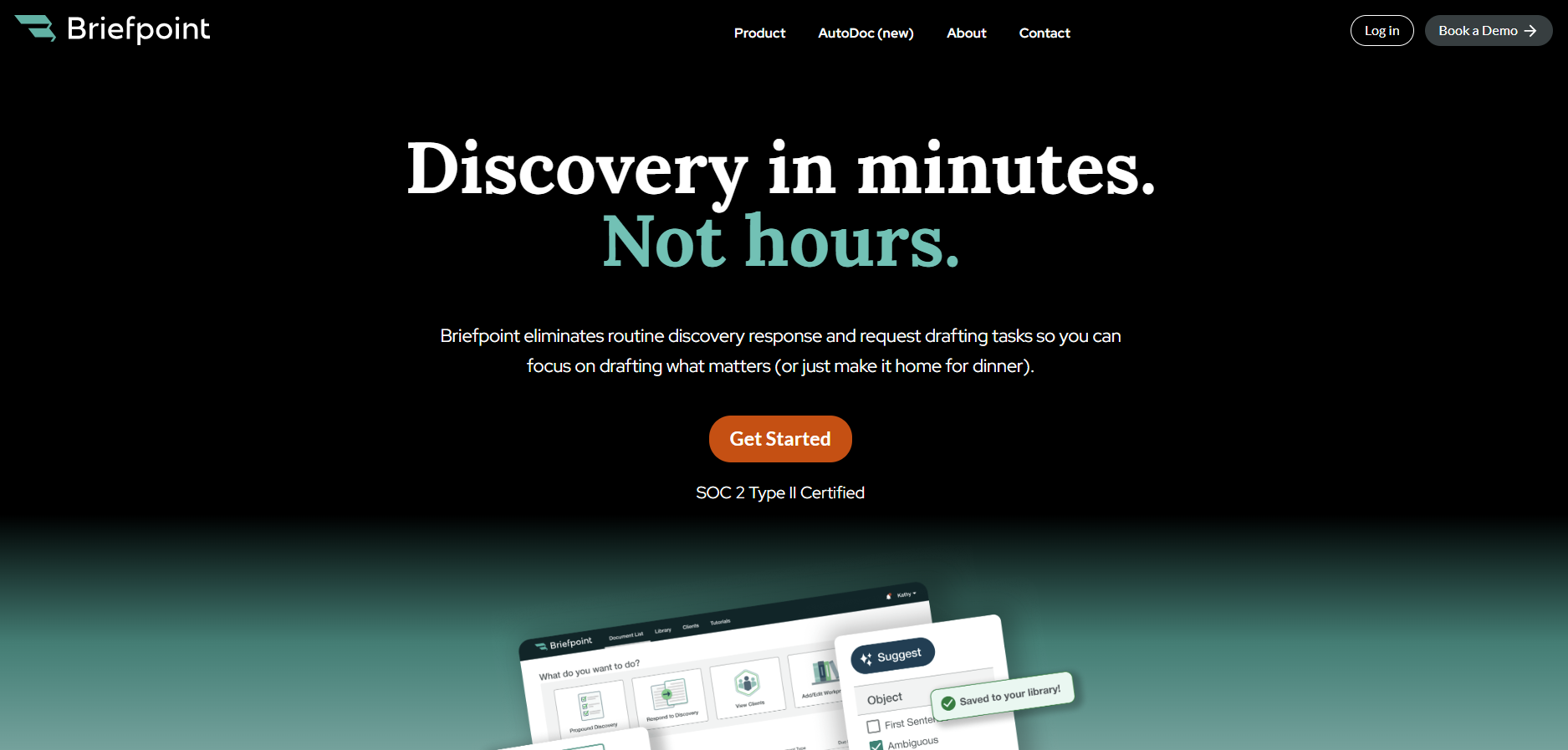
Briefpoint’s Autodoc can search case files and productions, identify responsive documents for RFPs, and generate Word-formatted discovery responses with Bates citations.
Meanwhile, the Client Doc Collection feature lets clients upload documents through Client Bridge, with files tied to the right RFP items from the start. For ongoing discovery, Supplemental Responses help you update responses while keeping earlier answers intact and easy to reference.
For attorneys handling discovery review, client document collection, and response drafting, Briefpoint gives the review process a cleaner handoff from documents to work product.
How to Measure Legal Document Automation ROI
Before You Measure
A strong ROI analysis starts with a tight measurement plan. Before implementing automation, define the workflow, the comparison period, and the critical metrics you’ll use to judge performance.
To start, you want to capture how legal professionals currently spend time on repetitive tasks, where drafting errors occur, and which bottlenecks affect cost or turnaround.
- Select one document workflow: Choose a high-volume process like discovery responses, intake forms, demand letters, or standard agreements. A focused workflow makes the ROI data easier to trust.
- Define the comparison period: Use a set timeframe, such as the last 30, 60, or 90 days. Match the same period after automation so the comparison stays fair.
- Document baseline metrics: Track average drafting time, review time, revision count, cost per document, and turnaround time before automation.
- Review drafting errors: Record formatting issues, missing fields, inconsistent language, and repeated corrections. These details help show quality gains after document automation.
- Identify patterns: Look for repeated clauses, common objections, duplicate questions, and recurring document types. These patterns show where automation efforts can have the strongest effect.
- Set implementation goals: Define what successful implementation means, such as shorter review cycles, lower cost per document, fewer revisions, or more staff capacity.
9 Key Metrics to Measure for Legal Document Automation
A useful ROI analysis needs numbers that reflect how your team drafts and reviews legal documents in real work.
Start with the metrics below:
1. Time Saved per Document
Time saved per document is one of the clearest ways to measure legal document automation ROI.
Start with the average time your team spends on routine tasks like drafting and preparing a document for document review, then compare it with the time needed after automated processes are in place.
This metric works well for high-volume work and complex documents, including discovery responses and legal contracts. If automation removes repeated manual drafting steps, you should see a significant reduction in the time spent on each document.
For example, say a paralegal usually spends 5 hours preparing a discovery response set. After automation, the same document takes 1.5 hours to prepare and send for attorney review. That’s 3.5 hours saved on one document.
To measure it, use this formula:
Manual document time – Automated document time = Time saved per document
Document automation unlocks the most value when the same savings repeat over dozens of documents each month.
2. Cost per Document
Cost per document shows how much your firm spends to produce one legal document before and after using a document automation tool.
When you measure it right, this metric turns time savings into measurable value because it connects drafting work to labor costs, review time, and overall cost reduction.
Use this formula:
Total labor costs + Software costs ÷ Number of documents produced = Cost per document
- Track time spent: Record how long attorneys, paralegals, and support staff spend on each document from first draft to final version.
- Apply hourly costs: Multiply the time spent by each person’s internal hourly cost (not the client billing rate) for a cleaner return on investment calculation.
- Compare pre-automation and post-automation costs: Look at the difference after automating repetitive tasks like formatting, clause insertion, discovery responses, or standard legal contracts.
- Account for quality gains: Higher quality documents can lower rework, reduce review cycles, and create cost savings beyond the first draft.
For example, if a document costs $240 in labor before automation and $90 after automation, your cost per document drops by $150. Across 100 documents, that creates $15,000 in savings.
3. Document Turnaround Time
Document turnaround time measures how long it takes to move a document from the first request to the final version. For legal departments and law firms, this is one of the key ROI metrics because slow documents can easily delay filings and client responses.
Make sure to track the full timeline, not only drafting time. For instance, a document might take one hour to draft, but sit for two days before review. That delay still affects ROI because it slows the work tied to the document.
Legal document automation helps reduce that gap by enabling legal teams to generate cleaner first drafts and route documents sooner.
For example, if a contract request usually takes five business days to reach a final draft and automation brings it down to two business days, the gain shows up in more than saved hours. It can support faster deal cycles and better business outcomes.
Basically, the shorter the turnaround, the easier it becomes to prove that automation is improving the way legal work moves.
4. Attorney Review Time
Attorney review time shows how much lawyer involvement a draft needs before it’s ready to use. This is a useful ROI metric for law firms because AI tools can reduce cleanup work while keeping human review where it belongs: legal judgment, strategy, and final approval.
Track review time before and after implementing AI, then compare the difference per document. If a draft previously needed 90 minutes of attorney review and now needs 35 minutes, you can quantify savings without relying on a rough estimate.
Measure:
- Average review time before automation
- Average review time after automation
- Number of attorney edits per document
- Time spent correcting formatting issues
- Time spent fixing repeated drafting errors
- Time returned to higher-value legal work
When attorney review time drops and document quality holds steady, the automation tool is helping attorneys spend less time cleaning up drafts and more time on work that requires legal expertise.
5. Error and Revision Rate
Error and revision rate measure how often a document needs correction after the first draft. This includes issues that add manual effort and slow the path to a final version, such as:
- Missing information
- Formatting problems
- Inconsistent language
- Wrong party names
- Outdated clauses
- Repeated attorney edits
This metric has real financial value because every correction adds time. A draft that moves through review with fewer errors gives you cleaner, measurable outcomes after automation. It also shows where continuous improvement is still needed, especially if the same issues keep showing up.
For example, say your team reviews 50 discovery responses in a month. Before automation, 30 needed revisions for missing responses or inconsistent discovery objections. After automation, only 12 need similar edits. That drop shows better draft quality and gives you a clearer case for ROI.
Remember: Track the percentage of documents that need revision before and after automation. If the revision rate falls while quality stays strong, your automation process is reducing rework.
6. Staff Capacity
Staff capacity measures how much work your team can handle after automation reduces repetitive drafting and cleanup.
It also captures the indirect benefits of giving attorneys, paralegals, and support staff more room for client communication, case preparation, and higher-value review.
You can track capacity in practical terms:
- Documents completed per person: Compare how many documents each team member can finish before and after automation.
- Hours returned to the team: Measure how much time automation gives back each week, then connect that time to work with higher value.
- Workload balance: Look at whether automation reduces pressure on the same people who usually handle drafting-heavy tasks.
- User adoption: Track how many team members use the tool regularly. Low adoption can hide the real ROI of your automation efforts.
- Training quality: Review attendance, comfort level, and follow-up questions after training sessions. Comprehensive training helps staff use the tool correctly and get stronger results from it.
7. Matter Profitability
Matter profitability shows how automation affects the financial return on a case, project, or transaction. You gain a bigger-picture view than time saved, since it connects document work to the actual margin on the work.
This metric is worth comparing with the other KPIs you track. Time saved can show a faster process, while error rate can show cleaner drafts. Matter profitability tells you if those gains are helping the firm protect its margins.
For example, a litigation matter may require dozens of discovery documents. If automation reduces drafting costs and cuts attorney review time, the matter becomes less expensive to handle.
In transactional work, faster contract prep can also help move deal closures along, which makes the value easier to explain to leadership.
Track a few practical numbers, such as labor cost per matter, write-offs, and fixed-fee margins. These figures can help with justifying continued investment because they show how automation affects the business side of legal work.
Over time, stronger matter profitability can become a competitive advantage. Your team can respond faster and take on more work without adding the same level of manual effort.
8. Client Response Time
Client response time is where automation starts to show up in the client experience. When a client sends answers or requested details, the next step should move quickly. If your team can turn that input into a revised draft sooner, the client feels the difference right away.
For ROI, this metric connects speed with trust. A faster reply can help contract management workflows move forward without long pauses between versions. In litigation, quicker document updates can give your team more time to prepare before a deadline.
It can also improve related metrics. Shorter response windows can reduce total turnaround time, while cleaner client input can cut down review time later. Both can support stronger legal outcomes because the team has more time to focus on the substance of the work.
A simple way to track it is to measure the average time between receiving client input and sending the next document version.
9. Client Satisfaction
Client satisfaction helps you see if faster document work actually feels better to the people receiving it. A client may not care which automation tool you use, but they will notice quicker responses and clearer communication.
Start by tracking this metric through simple feedback points:
- Client surveys: Ask short questions after major document milestones, such as how clear the process felt and how satisfied the client was with response speed.
- Client satisfaction scores: Use a simple rating scale to compare satisfaction before and after automation.
- Net promoter score: Ask how likely clients are to recommend your firm or legal department based on their experience.
- Stakeholder satisfaction: For in-house teams, collect feedback from sales, finance, operations, or other teams that depend on legal documents.
- Client retention rates: Review if faster, cleaner document workflows support stronger long-term relationships.
This metric also helps you compare automation results against client expectations. If satisfaction improves alongside faster turnaround and fewer revisions, your ROI story becomes much easier to defend.
What Is a Good ROI on Legal Document Automation Software?
A good ROI on legal document automation software depends on several factors, including document volume, labor costs, upfront costs, and fit with your existing systems. Those aren’t the only factors, but they give you a practical starting point for measuring return.
A good place to start is a 90-day review. During that period, track metrics like time saved, cost per document, document review time, and revision rates. From there, compare the savings against the cost of the software.
For example, say the software costs $12,000 per year and saves 25 hours per month.
If the average internal labor cost is $80 per hour, the firm saves $2,000 per month, or $24,000 per year.
After subtracting the software cost, the net gain is $12,000. That gives you a 100% ROI.
After that, look past the first-year number. For long-term success, legal document automation should also support revenue growth through better capacity, faster client response, and stronger matter profitability.
Briefpoint Turns Discovery Time Savings Into Measurable ROI
Briefpoint makes ROI easier to prove because its value shows up where discovery usually drains the most time: drafting, objections, client responses, and production prep.
The platform can generate objection-aware RFAs, RFPs, and interrogatories, create automatic objections, collect client responses, and produce Bates-numbered production packages with Word-formatted responses.
The value is easy to connect to the metrics above. Briefpoint boasts 95% faster discovery responses, with a typical 40-RFP set going from 30–40 hours to minutes through Autodoc.
Its processing time can be as quick as 3–10 seconds per request, 30+ hours saved per case, and around 70 targeted requests in under 3 minutes from a complaint.
Those time savings can lower the cost per document and reduce attorney review time. It can also help your team respond to clients faster, especially with client response collection that turns discovery questions into plain English or Spanish and sends answers back into Word-ready drafts.
As a result, ROI becomes easier to measure. You can compare the hours saved, the drop in manual drafting, the faster response cycle, and the effect on matter profitability.
If discovery takes up too much of your team’s week, Briefpoint gives you a practical way to turn automation into visible financial value.
5 Best AI Legal Research Tools in 2026
What Makes a Legal Research Tool “AI-Powered”?
A legal research tool earns the label “AI-powered” when it does more than pull up cases based on matching words.
Traditional databases are built around keyword logic. Legal AI, on the other hand, looks at context, relationships between cases, and the substance of your question. That one distinction changes how legal professionals approach research.
Most modern AI tools rely on natural language processing. That means you can type a full question the way you’d say it out loud, and the system works to understand what you’re actually trying to solve.
From there, generative AI technology may assist with drafting, summarizing, or organizing findings, which helps move research forward faster.
You’ll usually see capabilities like:
- Natural language search: Interprets full questions and delivers relevant case law and legal materials without complicated search strings.
- Case summarization: Condenses lengthy opinions into readable explanations of holdings and reasoning.
- Generative drafting support: Assists with research memos, argument outlines, and analysis tied to cited authority.
- Citation analysis: Reviews how courts have treated a case and identifies stronger precedent.
In practice, legal AI supports everyday legal tasks, helping you analyze information and build arguments in a much faster, more organized way.
How We Chose These AI Legal Research Tools
Plenty of platforms claim to use AI. For this list, we focused on tools that actually support legal research in a significant way and fit into real legal workflows. The priority was practical value for legal teams and law firms, and not just flashy features that look good in a demo.
We examined how each platform functions as an AI assistant, how it handles core research tasks, and how well it supports broader legal operations. Tools that simply repackage traditional search didn’t make the cut.
Here’s what we looked for:
- Real AI functionality: Uses AI for summarization, analysis, drafting support, or predictive insights rather than basic keyword matching.
- Practical use for legal teams: Addresses common research slowdowns inside law firms and day-to-day legal work.
- Workflow compatibility: Fits naturally into existing legal workflows without requiring a complete shift in process.
- Strong legal database: Provides reliable access to case law, statutes, and other primary legal materials.
- Credibility and adoption: Trusted and actively used by legal professionals in real practice settings.
Top AI Legal Research Tools to Choose From
If you’re exploring AI legal research tools, you likely want something that helps you get to the point faster. So, below are several platforms that bring real AI into the research process and can make your day-to-day work feel more manageable:
1. Lexis+ AI
Lexis+ AI builds on the traditional Lexis research platform but adds a conversational layer that feels closer to working with an AI assistant.
Rather than sorting through long result lists, you can ask direct legal questions and receive structured answers grounded in real legal precedents. It’s designed for legal professionals who want faster analysis without stepping outside a trusted research database.
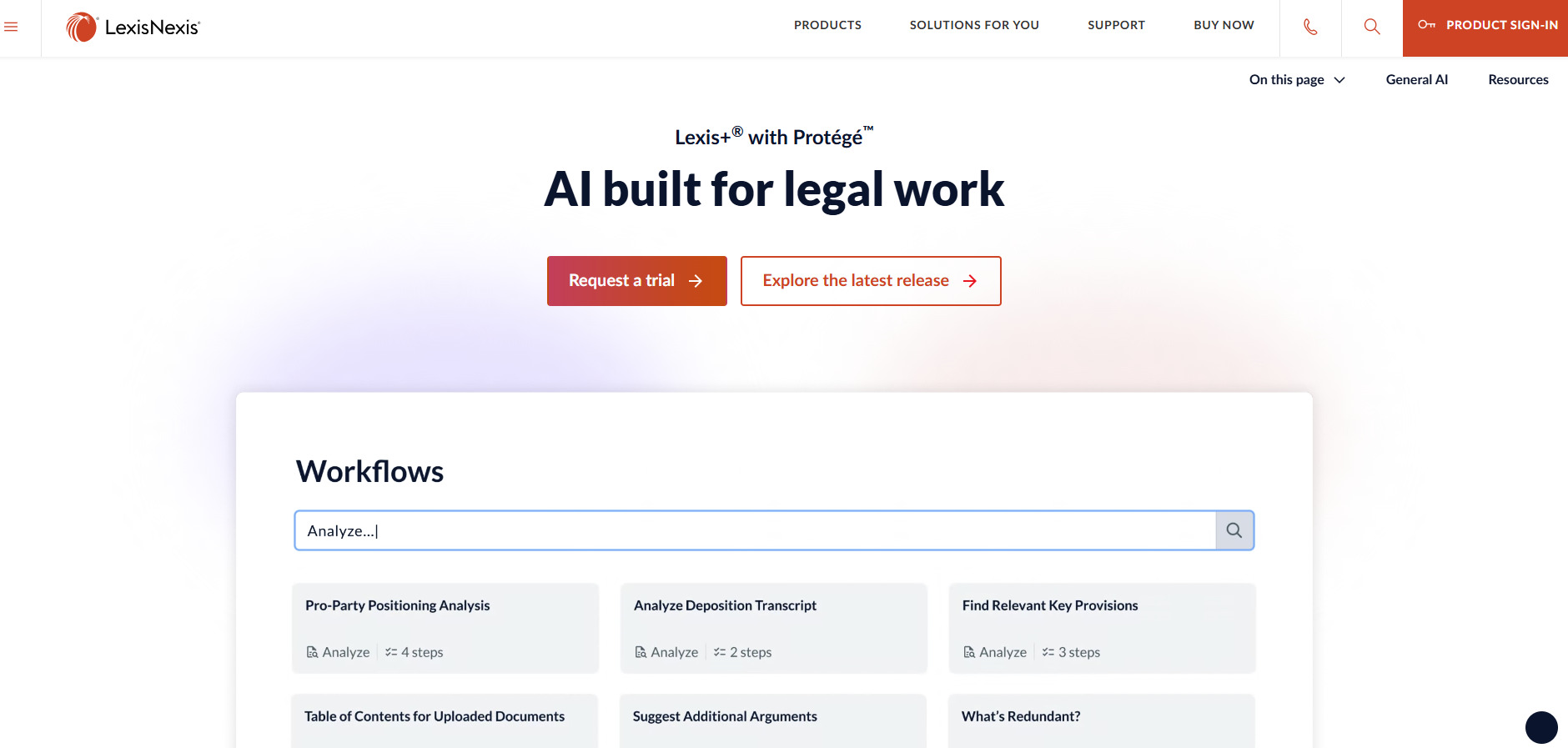
Source: LexisNexis.com
The platform also introduces Protégé Legal AI and Protégé General AI, powered by a proprietary AI model trained with legal context in mind. This distinction matters in the legal industry, where accuracy and source transparency carry real weight.
Best Features
- Conversational research: Ask complex legal questions in plain language and receive answers supported by cited authority.
- Protégé Legal AI: Built specifically for legal analysis and research tasks.
- Protégé General AI: Assists with drafting, summarizing, and refining written work.
- Document drafting support: Generates outlines, memos, and argument summaries grounded in legal precedents.
- Shepard’s integration: Validates citations and shows how courts have treated a case.
Pros
- Strong foundation in the established Lexis research database
- AI responses tied to verifiable legal precedents
- Useful for both large firms and solo practitioners
2. Westlaw Advantage
Westlaw Advantage builds on the long-standing Westlaw research platform while layering in advanced AI capabilities aimed at faster, more focused analysis.
It keeps the familiar research structure many legal professionals already know, but adds tools designed to reduce the time spent sorting through dense opinions and secondary sources.
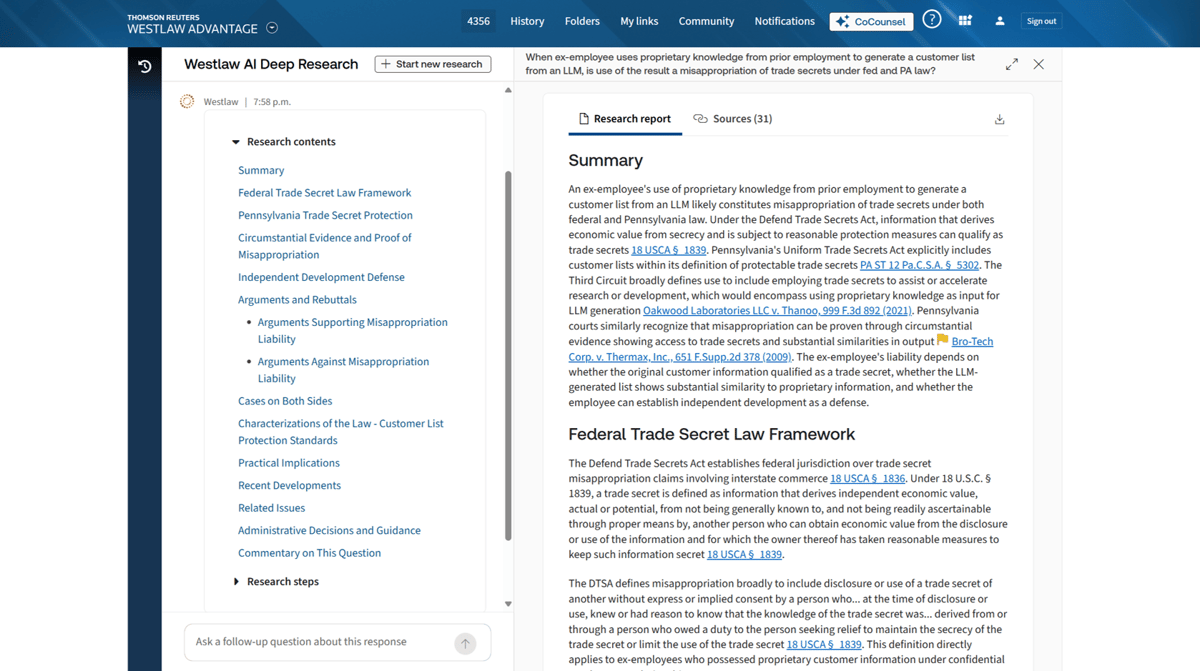
Source: G2
The platform integrates advanced AI to refine search results, highlight key passages, and surface relevant authorities tied to your issue.
It also incorporates a generative AI tool that assists with drafting and deep research tasks, which can help you move from raw case law to structured analysis quickly.
If your team relies heavily on Westlaw’s database, the upgrade centers on making research more direct and aligned with real-world legal standards.
Best Features
- AI-enhanced search: Delivers more precise results based on context and not just keywords.
- Generative drafting assistance: Helps create research summaries and structured outlines from cited authorities.
- Key passage extraction: Highlights relevant sections within lengthy legal documents.
- Citation analysis tools: Tracks how courts have treated a case and measures the authority strength.
- Integrated research environment: Combines traditional Westlaw resources with advanced AI features.
Pros
- Strong, established research database
- Advanced AI layered into a familiar workflow
- Helpful for complex research tied to evolving legal standards
3. Bloomberg Law
Bloomberg Law combines legal research, litigation analytics, and business intelligence into a single platform. It’s widely used in the legal field, particularly by enterprise teams that need more than case lookup.
The focus isn’t only on finding authority, but also on understanding how courts, judges, and opposing counsel tend to operate in real litigation.

Source: Pro.BloombergLaw.com
Its AI-driven features help review multiple documents at once, extract relevant insights, and analyze trends tied to specific judges or practice areas. That can be especially useful in complex matters where context matters as much as precedent.
Bloomberg Law also integrates Practical Law resources to give you access to guidance notes, model documents, and practice insights that support everyday legal practice and even legal education settings.
Best Features
- Litigation analytics: Provides judge, court, and opposing counsel insights based on past rulings.
- AI-powered document analysis: Reviews multiple documents and surfaces key themes or risks.
- Brief analyzer: Evaluates arguments and suggests additional authority.
- Practical Law integration: Offers practice notes and drafting guidance.
- Business intelligence tools: Connect legal research with company and market data.
Pros
- Strong analytics for enterprise teams
- Combines research, drafting support, and business insight
- Useful for writing legal documents and strategic case preparation
4. Casetext (CoCounsel)
Casetext, known for its CoCounsel legal assistant, brings generative AI directly into research and document-heavy work.
The platform was built with legal context in mind, so responses are grounded in cited authority rather than broad, uncited content. Its foundation makes it particularly useful when accuracy and traceability matter.
Source: ThomsonReuters.com
CoCounsel Legal is structured around practical assignments inside modern legal tech workflows. It can review court documents, analyze complex documents, and identify relevant legal issues without requiring hours of manual reading.
When you’re handling large volumes of legal content, features like summarizing documents and issue spotting can reduce the time spent digging through pages of material.
Best Features
- AI research assistant: Answers legal questions with cited authority tied to primary sources.
- Document review support: Analyzes complex documents and flags key risks or arguments.
- Summarizing documents: Condenses lengthy court documents into structured explanations.
- Deposition and contract analysis: Reviews materials and highlights relevant passages.
- Task-based interface: Organizes research and review tools around specific legal assignments.
Pros
- Strong grounding in the legal context
- Helpful for reviewing large sets of court documents
- Designed around practical research and analysis tasks
5. Harvey AI
Harvey AI is positioned as an enterprise-grade research and drafting platform built on large language model technology.
It’s used primarily by major firms and in-house teams that want generative support layered into complex legal workflows. Unlike traditional databases, Harvey focuses heavily on analysis, legal drafting, and synthesis rather than pure case lookup.
Source: Harvey.ai
The platform assists with reviewing legal information, analyzing primary law, and generating structured outputs such as legal briefs and internal memos. It can also draft legal documents based on prompts, which reduces manual effort in early-stage drafting.
Because it often integrates with internal firm knowledge systems, Harvey is typically adopted by larger legal tech companies and enterprise legal departments rather than smaller practices.
That said, it operates differently from research platforms tied directly to a proprietary case database. As with many third-party AI tools, outputs should be carefully reviewed against authoritative sources before finalizing any legal writing.
Best Features
- Generative drafting support: Helps draft legal documents, legal briefs, and research summaries.
- Primary law analysis: Interprets statutes and case law within a structured response.
- Large document review: Synthesizes complex materials into usable insights.
- Knowledge integration: Connects with internal firm documents for contextual responses.
Pros
- Reduces manual effort in early drafting stages
- Strong generative capabilities for legal writing
- Popular among large enterprise teams
What Kind of Legal Research Tool Do You Need?
Choosing the right tool starts with an honest look at how you actually work. Some platforms focus on case law and litigation research, while others lean into contract drafting, document review, or analytics. However, very few do everything equally well.
You might also find that one tool isn’t enough. A research-heavy litigation process may rely on a database with strong citation analysis, while a transactional team may need AI support to analyze contracts and generate clause suggestions.
The right setup often depends on the mix of matters you handle.
Here are a few questions to guide your decision:
- Do you focus on litigation research? Look for strong case law coverage, citation tracking, and judge analytics.
- Do you handle high-volume contracts? Choose tools built for reviewing legal documents, contract drafting, and structured clause analysis.
- Do you need drafting support? Generative features can speed up memos and summaries, though human oversight remains critical.
- Are errors costly in your practice area? Prioritize platforms with clear citations and verification tools to reduce risk and support fewer errors.
The best choice aligns with your daily workload. In many firms, combining tools creates a more balanced research and drafting system.
AI Research Is Step One, Discovery Drafting Is Next
AI legal research tools help you analyze authority and shape your arguments. After that work is done, you still have to draft and serve the discovery. For many litigators, that’s where hours disappear.
Briefpoint focuses specifically on written discovery. It handles interrogatories, requests for production, and requests for admission, generating objection-aware drafts that open directly in Microsoft Word.
You stay in control of strategy and edits, but the repetitive formatting and structure are handled for you.
The workflow covers the full cycle. You can generate targeted discovery from a complaint, collect client responses in plain English, and produce polished drafts in minutes.
And with Autodoc, you can upload productions and case files, then generate Bates-cited Word responses and production packages with page-level citations. What often takes weeks of review can be reduced to a single upload and download.
Firms use it to cut drafting time dramatically while keeping objections consistent and up to date. It’s SOC 2 Type II certified, requires no setup, and works in all 50 states and federal courts.
A Full Guide to Discovery Objections
A Full Guide to Discovery Objections
Discovery is one of the busiest stages of litigation, and it often comes with plenty of back-and-forth between lawyers.
Each side sends out discovery requests, and the other side has to respond; sometimes by handing over documents, sometimes by objecting. These objections matter because they set the boundaries for what’s fair to ask and what crosses the line.
For many attorneys, figuring out which objections apply can be tricky. Is the request too broad? Does it seek privileged information? Or is it simply not tied to the issues in the case?
Getting those calls right is key to protecting a client and keeping the discovery process under control.
To make things easier, we’ve created a discovery cheat sheet that lays out the most common objections and how to use them.
And in this guide, we’ll walk through what discovery objections are, the most frequent ones you’ll encounter, and how document automation tools can help cut down the time spent drafting responses.
What Are Discovery Objections?
In civil procedure, discovery objections are formal responses that challenge discovery requests made by opposing counsel. They’re used when a request seeks information outside the scope of the discovery process or asks for details that aren’t tied to a party’s claim or defense.
For example, under Federal Rule of Civil Procedure 26(b)(1), a request may be objectionable if it seeks privileged information or information that is not relevant to any party’s claim or defense or not proportional to the needs of the case.
Under Federal Rule of Civil Procedure 26(b)(1), discovery is limited to nonprivileged matter relevant to any party’s claim or defense and proportional to the needs of the case. Confidentiality concerns may call for a protective order under Rule 26(c), rather than automatically justify withholding information.
Lawyers also raise objections when the request seeks information already available or when it asks for documents that are irrelevant to the dispute.
While some attorneys use boilerplate objections, courts often prefer objections that are specific and tied directly to the request. The goal isn’t to dodge disclosure entirely but to make sure objections apply properly under the rules.
In practice, objections serve as a safeguard, so that the discovery process remains fair, efficient, and focused on what truly matters to the case.
Want to draft objections faster? Briefpoint helps lawyers generate discovery responses in minutes.
What Are Common Discovery Objections?
During the discovery process, not every request is fair game. Courts expect parties to exchange information, but there are limits. Objections help draw those lines and keep the process on track.
Below are some of the most common discovery objections lawyers raise:
Relevance
One of the most common objections during the litigation process. When answering interrogatories or document requests, a responding party can argue that the information sought has no real connection to a party’s claim or defense.
In federal court, a request may be objectionable if it seeks information outside the scope of relevance and proportionality defined by Rule 26(b)(1). Information within that scope need not be admissible in evidence to be discoverable.
Under federal law and most state rules, the party seeking discovery must stay within defined limits. Discovery is broad, but it still has boundaries.
For example, in a breach of contract case centered on a single vendor agreement, a request demanding “all business dealings with any vendor over the past ten years” likely stretches too far. Most of that information sought would have nothing to do with the dispute at hand.
In that situation, a relevance objection helps refocus the exchange on material that actually relates to the claims and defenses in the case.
Overly Broad
This objection applies when a request is framed so widely that it sweeps in far more material than necessary to address a party’s claim or defense. Even if some responsive information exists, the overall scope may be excessive.
For instance, if the opposing party serves interrogatories or document requests demanding every document a company has created since its formation, the burden becomes substantial and untethered to the issues in dispute.
While discovery allows access to relevant information, courts expect reasonable limits. So, when a request casts too wide a net and captures large volumes of unrelated material, a responding party can object on the ground that it is overly broad and needs to be narrowed.
Unduly Burdensome
Sometimes discovery requests ask for material that would drain resources without adding much value. If the effort or cost of producing documents is excessive compared to what the lawsuit needs, the responding party can object.
Courts also accept this when requests push beyond reasonable limits or touch on protected work product.
Privilege
A discovery request cannot require a party to disclose protected communications. Attorney-client privilege shields confidential exchanges between a lawyer and client made for the purpose of legal advice.
Even if the subject relates to the dispute, it does not become relevant evidence simply because it concerns the case.
Courts may review privilege claims carefully, and in limited situations, an opposing party must show a substantial need to obtain certain protected materials, such as work product.
For example, if the opposing party requests “all communications between the company and its counsel regarding the contract at issue,” those emails are most likely privileged. The responding party can object and withhold them.
Common examples of privileged information include:
- Emails discussing legal advice or strategy
- Internal legal memoranda analyzing risk
- Notes prepared to help determine litigation strategy
- Draft pleadings shared privately with counsel
Vague or Ambiguous
If a discovery request isn’t clear, the plaintiff or defendant can push back. Lawyers often raise this when the wording leaves too much room for interpretation or doesn’t specify time frames, parties, or subjects.
In some practice areas, an unclear request might also overlap with a work product objection if it seems to demand attorney notes or strategy rather than straightforward facts.
Confidentiality
In federal court, confidentiality alone does not automatically place relevant, proportional, nonprivileged information outside discovery. Rule 26(c)(1)(G) allows the court, for good cause, to protect trade secrets or other confidential research, development, or commercial information by ordering that it not be revealed or be revealed only in a specified way.
A party or person from whom discovery is sought may move for a protective order under Rule 26(c)(1); the motion must include a certification of a good-faith effort to resolve the dispute with the other affected parties. Privilege and work-product protection are separate issues addressed by Rule 26(b)(1), (3), and (5).
Compound Questions
This objection comes up when one discovery request tries to pack in several questions at once, which makes it unclear how to respond.
For example, an interrogatory that asks, “Identify all employees present at the meeting and explain what each of them said” combines two separate inquiries.
Courts prefer each request to be broken down so the responding party can give a clear and accurate answer.
Already Available
In federal court, public availability or the requesting party’s possession of information does not by itself establish a categorical discovery exemption; Rule 26(b)(2)(C)(i) requires the court to limit discovery that is unreasonably cumulative or duplicative, or obtainable from a more convenient, less burdensome, or less expensive source. For instance, a request for court filings may raise a duplication or burden issue if the same documents are obtainable from a more convenient, less burdensome, or less expensive source.
In many cases, courts don’t want discovery used to duplicate what’s easily obtainable, especially when trial preparation should focus on new or disputed material.
How Can Document Automation Help?
Responding to discovery requests takes time, especially when drafting objections one by one. Lawyers often juggle relevance, privilege, and confidentiality concerns while keeping track of deadlines.
This is where document automation can save hours and cut down on repetitive work.
When you automate legal discovery, you can build responses that stay consistent and accurate across cases. Rather than retyping boilerplate objections or searching through old files, attorneys can generate ready-to-use responses in minutes.
Here’s how automation supports the discovery process:
- Faster drafting: Standard objections can be pulled from templates and customized quickly.
- Consistency: Responses stay aligned with firm standards, reducing mistakes.
- Built-in safeguards: Privileged information can be flagged before it’s shared.
- Time savings: Less manual typing frees up lawyers to prepare for trial or negotiate.
Briefpoint takes this a step even further with tools built specifically for litigation teams. The platform helps generate discovery responses, objections, and related filings with speed and accuracy.
Check out the full discovery objection guide that highlights the most common objections and how to apply them in practice.
Unlock Faster Discovery Responses With Briefpoint
Discovery objections shape the scope of production and protect your client’s position. Drafting them carefully takes time, especially when you’re responding to dozens of requests for production under deadline pressure.
Briefpoint helps litigation teams prepare discovery responses faster while keeping control over objections and formatting. The platform generates structured, captioned Word responses so you’re not retyping standard language for every matter.

With Autodoc, the process moves even faster. Upload the complaint, RFPs, and production files. Autodoc identifies responsive documents for each request, generates Word responses with page-level Bates citations, and packages a Bates-numbered production set ready to serve.
Briefpoint drafts discovery responses and objections as editable Microsoft Word documents, with attorneys keeping final review. You can review where the AI searched, confirm or deselect files, edit responses in Word, and tag privileged materials before production.
Discovery work doesn’t have to consume your week. Briefpoint and Autodoc help you draft, verify, and serve with confidence.
FAQs About Discovery Objections
What is an objection to a discovery request?
An objection is a formal response that challenges a discovery request. It argues that the request is improper because it seeks privileged information, is too broad, or doesn’t meet the proportionality standard. Objections are designed to limit what the responding party must provide while keeping the discovery process fair.
What happens if someone doesn’t respond to discovery?
If a person ignores discovery altogether, the opposing side can file a motion to compel. If the party still fails to comply, the judge may impose penalties, including fines or even limiting what evidence can be presented to the jury. Courts expect good faith participation, so completely avoiding discovery usually backfires.
What are the four types of objections in court?
In general practice, four common categories of objections are: relevance, hearsay, privilege, and form. In discovery, objections also touch on confidentiality, attorney work product, and requests that would cause unnecessary expense or burden.
What is a discovery violation?
A discovery violation occurs when a party ignores deadlines, hides documents in their custody, or provides incomplete responses. If a judge finds that someone failed to follow the rules, the court may order sanctions. The exact penalty depends on the nature of the violation and how it affects the case.
How does attorney-client privilege affect discovery?
Attorney-client privilege protects private conversations between a lawyer and their client. If a discovery request seeks those communications, the lawyer can object. Our discovery cheat sheet even highlights this protection alongside other common objections, which can make it easier to apply the right analysis in practice.
What are common objections during discovery?
Common objections include relevance, overbreadth, undue burden, privilege, and vagueness. A party may object if a request is confusing or uncertain, seeks information that does little to prove a claim or defense, or asks someone to admit facts not yet established. Objections also arise under the work product doctrine, particularly for materials prepared in anticipation of litigation. If a request rests on speculation or a remote possibility rather than concrete issues in the case, it may be challenged, and attorneys often consult the applicable rules to confirm that the objection is properly supported.
The information provided on this website does not, and is not intended to, constitute legal advice; instead, all information, content, and materials available on this site are for general informational purposes only. Information on this website may not constitute the most up-to-date legal or other information.
This website contains links to other third-party websites. Such links are only for the convenience of the reader, user or browser. Readers of this website should contact their attorney to obtain advice with respect to any particular legal matter. No reader, user, or browser of this site should act or refrain from acting on the basis of information on this site without first seeking legal advice from counsel in the relevant jurisdiction. Only your individual attorney can provide assurances that the information contained herein – and your interpretation of it – is applicable or appropriate to your particular situation. Use of, and access to, this website or any of the links or resources contained within the site do not create an attorney-client relationship between the reader, user, or browser and website authors, contributors, contributing law firms, or committee members and their respective employers.
READ MOREWhere to Start to Streamline Legal Process Flows
1. Client Intake and Matter Opening
The way a matter opens often determines how steady the rest of the work feels. When client information comes in clearly and lands exactly where it needs to go, legal teams can move forward without second-guessing the basics.
A streamlined legal intake process keeps things simple. For example, information gets collected once, stored in one place, and routed to the right people automatically.
At the same time, conflict checks run in the background, and sensitive information stays protected inside secure systems rather than floating around in inboxes.
In other words, you spend less time repeating administrative steps and more time preparing for the next phase of the case.
Self-service intake options can also make a noticeable difference. Structured forms guide clients to provide the right details upfront, which reduces clarification emails and follow-up calls. That way, your team starts with a complete picture rather than piecing it together later.
To tighten up this stage, focus on:
- Standardized digital intake forms
- Automated conflict checks
- Centralized client data capture
- Secure document upload tools
- Matter opening templates
- Clear internal handoff steps
Look closely at how a new file moves from first contact to active matter. Once you identify bottlenecks and remove repetitive tasks, intake begins to feel more deliberate and controlled.
2. Discovery Document Drafting
Discovery drafting tends to take up more space on your calendar than you expect.
Deadlines arrive quickly, and a large portion of the effort goes into structuring responses rather than analyzing the legal requests themselves. Turnaround times start to feel tight, even though much of the work follows a familiar pattern.
In contrast, a smoother process begins with structure. Legal technology can organize incoming requests, generate a formatted draft, and apply your preferred response style from the start.
Legal AI tools handle repetitive tasks such as inserting case details and aligning responses with document productions. That approach ensures consistency in tone and objections without taking control away from you.
Your role stays focused on strategy, judgment, and refinement, while the system manages the framework around it.
A streamlined drafting workflow often includes:
- Standardized discovery response templates that ensure consistency
- Automated case data integration to reduce repetitive tasks
- Production mapping tools that connect documents to answers
- Built-in citation formatting for organized references
- Centralized review systems that limit internal bottlenecks
Briefpoint applies AI tools directly to discovery drafting. It turns productions and case files into Bates-cited responses in minutes, which helps protect valuable time and tighten turnaround times.
Learn more about how Briefpoint works.
3. Document Review and Internal Approvals
Most documents pass through several layers before they’re finalized. For instance, a motion to compel might need associate edits, partner review, and client sign-off. Or a contract review may involve legal, finance, and operations.
Without a clear structure, that flow slows down and creates bottlenecks that have little to do with the substance of the legal work.
As request volume increases and different matter types move at once, informal review habits start to strain operational efficiency. Manual tasks such as emailing drafts back and forth or confirming who approved what can quietly drain hours from the week.
Plus, strong version control removes guesswork. Defined reviewer roles clarify who comments, who revises, and who gives final approval.
The right tools help streamline collaboration while keeping accountability intact. A centralized platform lets you see where a document sits in the approval chain.
High-priority filings move forward without chasing updates. Contract review cycles become easier to track, which helps increase productivity and save time.
Focus on tightening:
- Centralized document storage
- Clear approval sequences
- Built-in version control
- Assigned reviewer roles
- Real-time status tracking
4. Court Filing and Deadline Management
Court filings run on fixed timelines, and those timelines rarely bend. Motions, responses, discovery cutoffs, and hearing dates all sit on the calendar with real consequences attached.
Legal professionals know the substance of what needs to be filed. The pressure usually comes from tracking dates, confirming requirements, and making sure nothing gets overlooked.
Manual work often creeps in here. Someone calculates a response deadline, enters it into a separate calendar, and then sends reminder emails. Status updates travel through inbox threads.
If one date changes, the ripple effect requires more adjustments. That process adds risk and drains time from higher-value legal operations.
A structured matter management system keeps deadlines tied directly to the case file. Filing dates can be calculated based on court rules and automatically reflected in shared calendars.
When a motion is filed, the system updates the matter timeline and triggers follow-up reminders. You see the full picture without hunting for information.
For example, if a court reschedules a hearing, updated deadlines can flow through the matter automatically. Compliance becomes easier to track because each filing and related date lives in one place.
5. Billing and Time Tracking
Legal billing and time tracking sit at the center of your firm’s revenue. The work can feel repetitive and time-consuming, yet accuracy here directly affects cash flow and client trust. A missed entry or vague description reduces clarity and can create friction with business users reviewing invoices.
Much of the strain comes from manual data entry, reconstructing your week from memory, or translating legal work into billing language at the end of the month. Those habits open the door to human error and lost revenue.
Legal workflow automation helps shift this dynamic. For example, time can be captured as work happens rather than after the fact. Task codes link directly to matters. Pre-set billing descriptions keep language consistent across teams and other departments involved in review.
Automating repetitive tasks in this stage supports greater value for both your firm and your clients.
To tighten billing operations, focus on:
- Real-time time capture tools
- Standardized billing narratives
- Automated invoice generation
- Integrated approval workflows
- Clear visibility into outstanding time entries
Streamlining Tips for General Legal Workflows
We’ve only covered a few processes so far, yet most legal departments handle far more.
In-house legal teams manage contract approvals, regulatory requirements, internal investigations, policy updates, vendor agreements, and complex matters that stretch over months. The good news is that the same streamlining principles apply across different legal workflows.
Start by stepping back and looking at the full path of a task. Where does it begin, who touches it, and where does it pause? Patterns usually appear quickly.
Here are practical ways to tighten general legal workflows:
- Map the workflow visually: Outline each step from intake to completion so you can spot delays and unclear ownership.
- Automate tasks that repeat: Use legal workflow automation to handle approvals, reminders, and status changes without constant follow-up.
- Strengthen document management: Centralized storage with version control reduces human error and keeps teams aligned on the current draft.
- Use AI-powered tools for oversight: Predictive insights can flag risk trends in contracts and highlight pressure points in workload distribution.
- Create clear reporting dashboards: Shared visibility into progress helps leadership monitor timelines and resource allocation.
Pro tip: Small adjustments in high-volume areas often bring meaningful gains in clarity, speed, and control.
Why Legal Leaders Rely on Briefpoint for Discovery
You can tighten intake. You can clean up approvals. You can organize billing. All of that helps.
Still, ask most legal teams what drains the most energy, and discovery usually rises to the top. The volume of request types alone demands focus. Then comes legal drafting.
For many firms, discovery quietly eats 30+ hours per case. That time rarely goes toward legal strategy. It goes toward formatting, mapping documents, and building responses from the ground up.
Legal professionals notice this pattern quickly because it affects workload, staffing, and turnaround expectations.
Briefpoint was built specifically for this stage of litigation. It uses AI to generate structured, Bates-cited discovery responses directly from your productions.
The drafting process feels lighter because the foundation is already in place. Your team still reviews and refines, yet they are no longer rebuilding every response from scratch.
If discovery has become the most tedious part of your litigation workflow, it’s worth seeing what a different process looks like.